

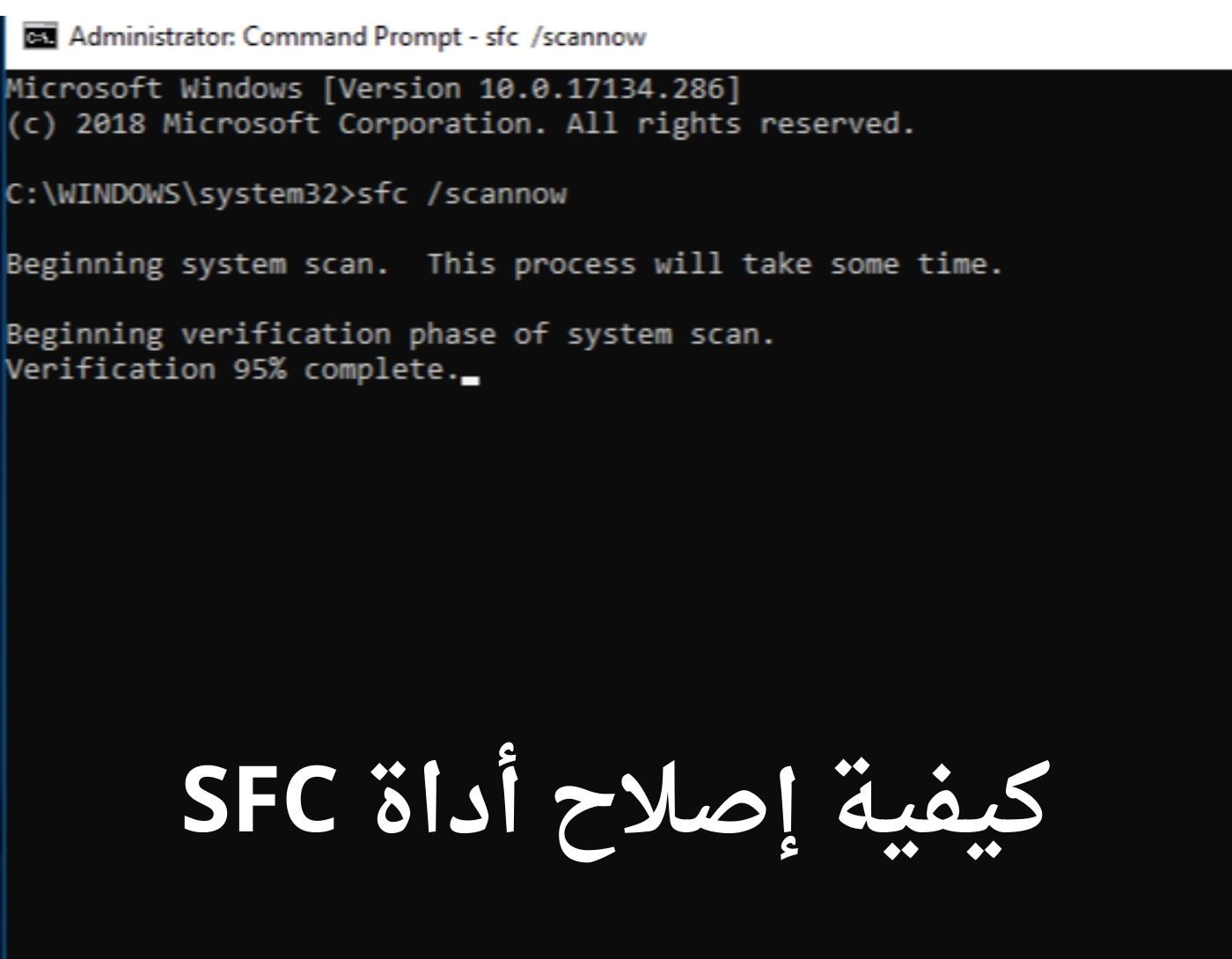
(How to Repair SFC Tool) How to Fix the SFC Tool: The utility known as System File Checker is sfc.exe. This tool is widely used to check and repair the integrity of system files. You should run this tool when you suspect that some Windows files may be corrupted and that your Windows operating system is not functioning properly.
Although this tool is a great remedy for Windows, it still has some limitations. For instance, it cannot repair corrupted Windows files, which leads to the following error.
Windows Resource Protection could not perform the requested operation.
In this article, I will explain how to fix the SFC tool itself when it is not working correctly. If sfc.exe fails to repair files, you can resolve issues related to sfc.exe by applying the methods outlined in this article. If you are unsure how to use sfc.exe, you can refer to the following article.
How to Repair the SFC Tool
Method 1: Use the Advanced System Repair Tool if SFC.EXE Fails
The Advanced System Repair Tool is the best alternative to sfc.exe. While sfc.exe only checks and repairs the integrity of core system files, the Advanced System Repair Tool performs many more tasks than SFC.
This tool works exceptionally well and is a great alternative if SFC fails. Additionally, the Advanced System Repair Tool fixes registry files, resolves missing file issues in Windows, updates all your drivers and software, removes malware/viruses, and optimizes your computer for the best performance.
Windows consists of a large number of dll files, exe files, sys files, various types of services, databases, and so on, so it is not feasible to constantly monitor all files. This excellent computer optimization tool repairs damage, fixes errors, updates Windows and drivers, and silently removes various types of errors.
The Outbyte PC Repair Tool performs all the above tasks effortlessly and provides you with a smooth and error-free Windows environment so you can focus solely on your work.
3 Steps to Fix This Error
Step 1. Download the Outbyte PC Repair Tool [File Size: 16.4 MB].
Step 2. Scan your Windows computer.
Step 3. Click the "Repair" button to fix the error.
Method 2: Run the Error Checking Tool from Drive Properties
If the command line utility is not working for you, you still have a chance to use this utility through the drive properties.
Step 1: Open This PC ➜ Right-click on the Windows drive (usually the C drive) ➜ Select Properties.
Step 2: In Properties, go to the Tools tab. Click the "Check" button located under the "Error checking" box.
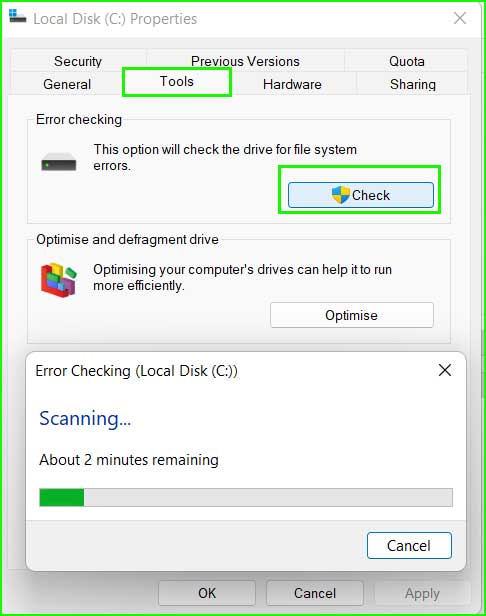
Error checking tools in Windows 10 and 11
Method 3: Boot Your Computer in Safe Mode and Then Try Using sfc.exe
When you start your computer in normal boot mode, all drivers, utilities, third-party games, and everything installed on your computer load at startup. All these combinations of drivers and tools can sometimes create issues that cannot be resolved by the SFC command.
When you boot your computer in Safe Mode, all unnecessary programs and drivers are skipped, and Windows starts with only the minimum and essential drivers and programs.
In Safe Mode, you have the opportunity to bypass the error "Windows Resource Protection could not perform the requested operation" and successfully use sfc.exe.
Method 4: Run SFC.EXE in Advanced Boot Options.
If Safe Mode does not work, try running this utility from the Advanced Startup Options menu. The Advanced Startup Options menu provides you with many tools to troubleshoot and fix issues with your computer; you just need to open the command prompt in the Advanced Startup Options menu and run the sfc.exe command line utility.
Step 1: Open the Advanced Startup Options menu in Windows 11, 10, and 8.
Step 2: Go to Troubleshoot ➜ Advanced Options ➜ Command Prompt.
Step 3: Now run sfc /scannow in the command prompt.
Method 5: Use the sfc Command with the Windows Installation USB
This method will definitely work for you. You need to have a bootable USB stick to perform this process, and this way, you can not only successfully run the sfc.exe command but also repair Windows operating systems.
Step 1: Create a bootable USB drive.
Step 2: Boot your computer using the bootable USB drive.
Step 3: When the Windows installation box appears, click the Next button.
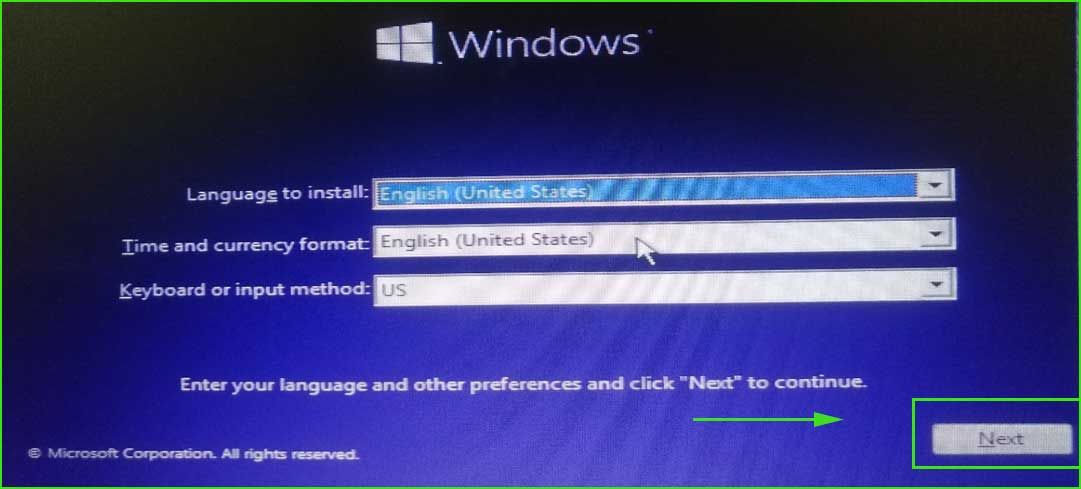
Repair Windows Startup
Step 4: On the next screen, click the Repair your computer button.
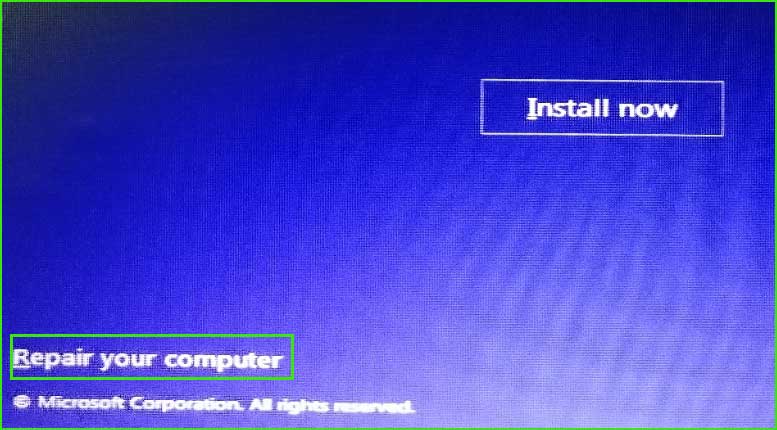
Repair Windows Startup
Step 5: After clicking the "Repair your computer" option, your computer will restart and open the Advanced Startup Options menu for you.
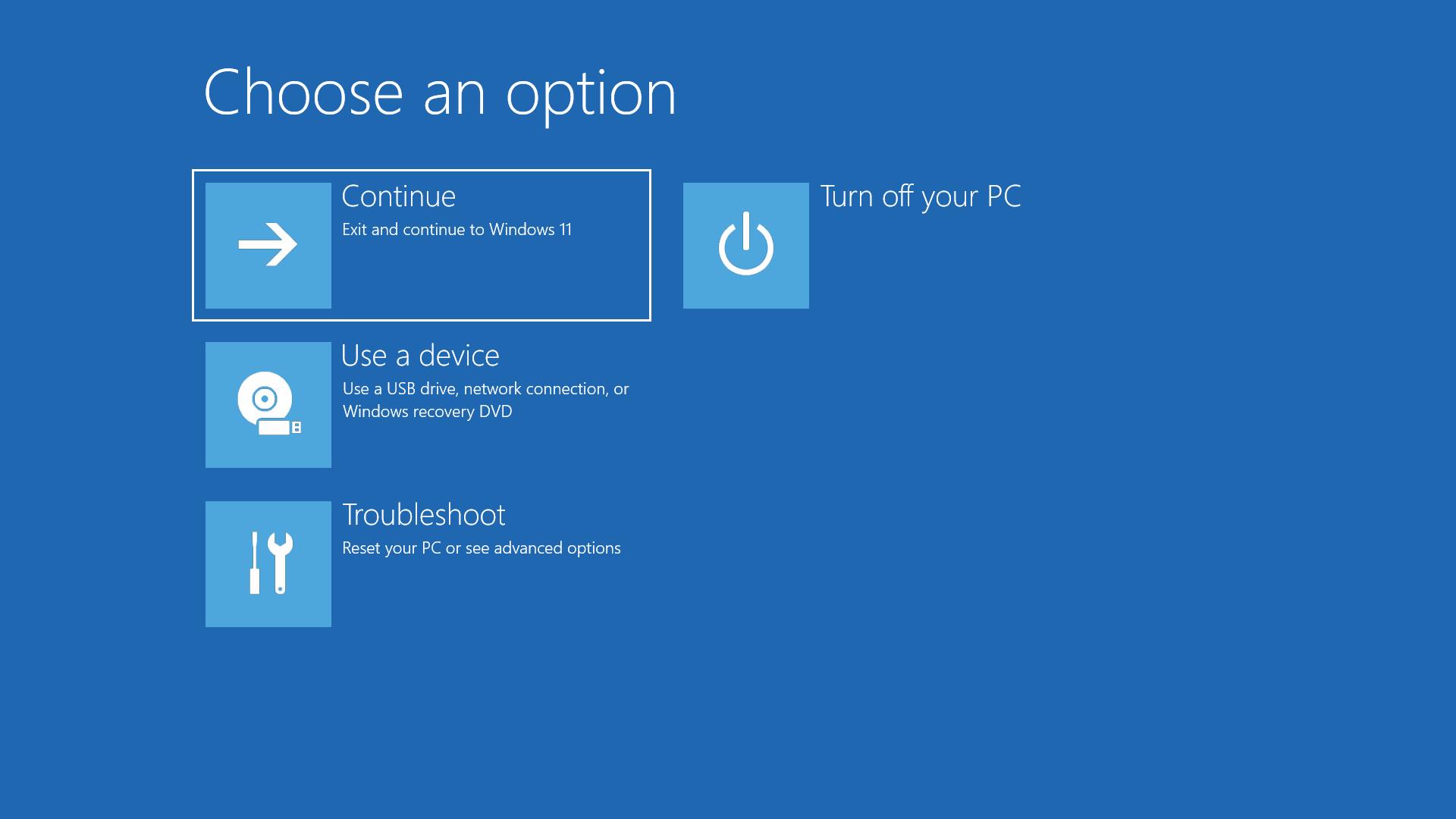
Advanced Startup Options Menu for Windows
Step 6: Now go to Troubleshoot ➜ Advanced Options ➜ Command Prompt.
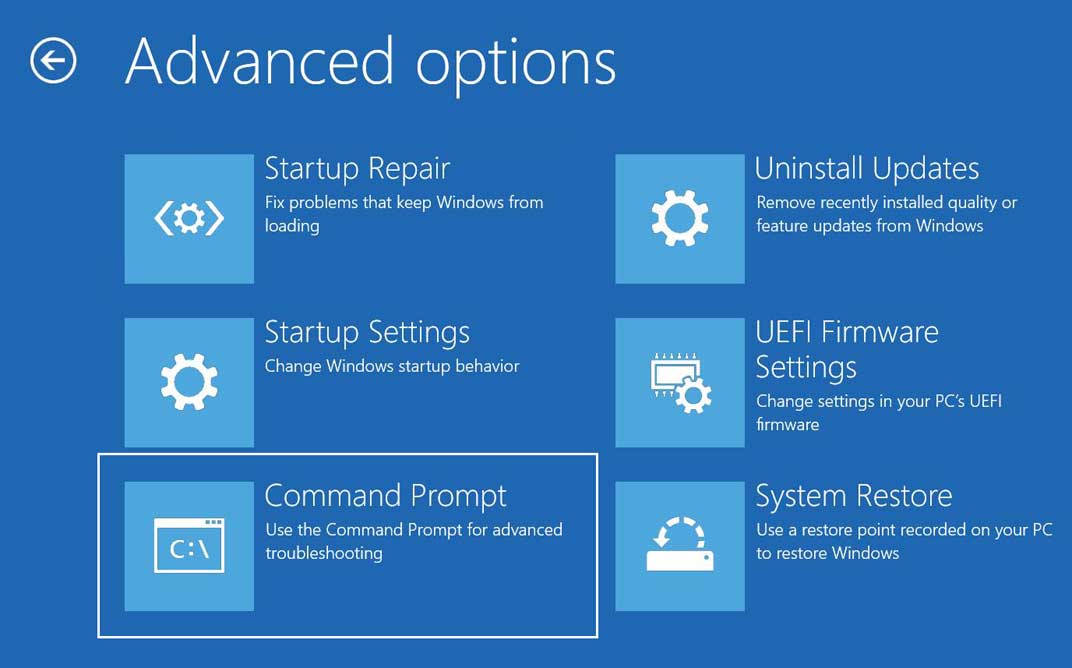
Advanced_menu_command_prompt
Step 7: Type the command sfc /scannow and press the Enter key to execute.
Conclusion
In this article, we discussed how to repair the SFC tool and the top 5 methods. This article provides information about the sfc.exe failure error "Windows Resource Protection could not perform the requested operation." There are several methods mentioned that will allow you to run sfc.exe on devices running Windows 10, 11, and 8.


