

How to Fix DRIVER VERIFIER DMA VIOLATION in Windows 10, 11: What should you do if you encounter the DRIVER VERIFIER DMA VIOLATION error in Windows 10/11? With limited information displayed on the screen regarding this error, fixing it can be somewhat challenging. However, there's no need to worry; you can easily resolve this issue by following along with this article.
Blue screen errors are among the most frightening scenarios a user can face on Windows. These errors occur when Windows encounters a serious problem it cannot handle, and the DRIVER VERIFIER DMA VIOLATION is an example of one of those annoying blue screen errors.
This article guides you on how to fix the DRIVER VERIFIER DMA VIOLATION in Windows 10, 11 through a series of tried-and-true solutions. But first, let's explore the causes of this issue before attempting to fix it.
Causes of DRIVER VERIFIER DMA Error
The following factors may be responsible for the blue screen error you are experiencing:
- Corrupted or outdated drivers.
- Outdated operating system.
- Issues with the driver verifier tool.
- Corrupted system files.
- Outdated BIOS or SSD firmware.
Now it's time to learn how to fix the DRIVER VERIFIER DMA VIOLATION in Windows 10, 11 in the next section of this article.
How to Fix DRIVER VERIFIER DMA VIOLATION in Windows 10, 11
You can apply the following solutions to eliminate the blue screen error:
Fix 1: Try Disabling the Driver Verifier
The DRIVER VERIFIER DMA VIOLATION stop code may appear due to unexpected issues with your computer's Driver Verifier, so disabling the verifier can resolve the problem. Here's how to disable it.
- First, type "verifier" in the search bar on the taskbar.
- Next, click on the best match to launch the verifier tool.
- Click "Yes" if a UAC prompt appears on your screen.
- Now, select the option to delete existing settings and click the Finish button.
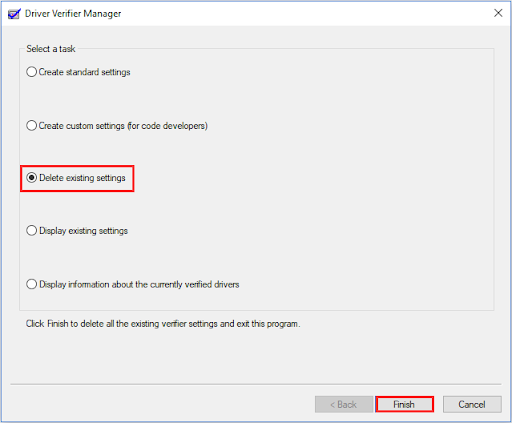
Delete existing settings.
- Finally, restart your computer and check if the error has disappeared. If the error persists, you can try the following fixes.
Fix 2: Reset Your Driver Verifier
If disabling the driver verifier did not resolve the issue, you can try resetting it.
Here’s how to reset the driver verifier:
- First, use the Windows+R keyboard shortcut to open the Run tool.
- Second, type "Cmd" in the box that appears on the screen and use the Shift+Ctrl+Enter shortcut to run the command prompt as an administrator.
- Now, type "Verifier /reset" in the command line and press Enter.
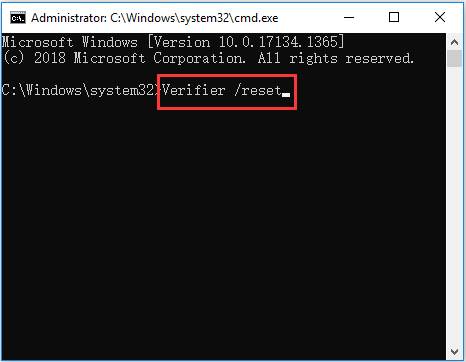
Reset the verifier tool
- Finally, restart your computer to complete the driver verifier reset.
Fix 3: Perform a Windows Update
Your operating system may be faulty or outdated, leading to the issue you are facing. Therefore, you can update Windows to fix the problem. Here are the steps to do that.
- First, use the Windows+I shortcut to access the Settings panel.
- Second, select "Update & Security" from the options displayed on the screen.
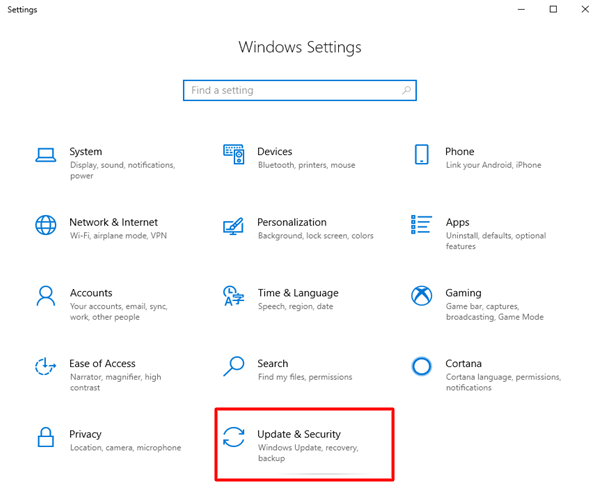
Click on Updates & Security
- Now, select the "Check for updates" option from the right panel.
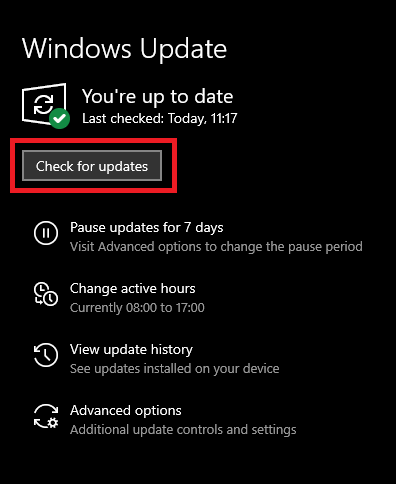
Check for Windows updates to get the latest driver updates.
- Finally, restart your computer.
Fix 4: Update Old Drivers (Recommended)
Old drivers can disrupt the connection between connected peripherals and the system, leading to the BSOD DRIVER_VERIFIER_DMA_VIOLATION stop code and many other issues. Therefore, updating drivers is one of the recommended solutions for your problem.
You can easily update drivers using Win Riser, a popular program for driver updates and improving computer performance.
Win Riser is known for its backup and restore capabilities for drivers, removing unwanted files, detecting malware, and many other great features. You can try this fantastic program by downloading and installing it.
After installing the program, you can follow the quick steps below to automatically update all outdated drivers.
- Wait a few seconds for Win Riser to scan your computer for outdated drivers and other issues.
- Next, review the scan results to understand what is hindering your computer's performance.
- Click the "Fix Issues Now" button to resolve all issues automatically.

Update Win Riser for all outdated drivers, and click Fixes Now
Fix 5: Run an SFC Scan
Corrupted system files are another reason you might encounter issues like the DRIVER DMA VIOLATION error in Windows 11/10. Therefore, you can follow the steps below to scan and fix system issues.
- First, run the command prompt as an administrator.
- Second, type "sfc /scannow" in the window that appears on the screen and press Enter.
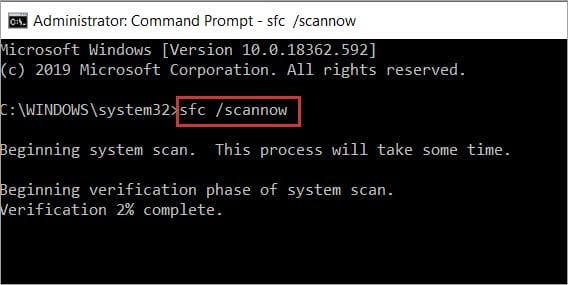
Open the command prompt, then enter the SFC-Scannow command and press Enter again
- Now, wait for the process to complete.
- Finally, restart your computer after the process is complete.
Note: If the SFC command fails to resolve the issue, you can try the DISM.exe /Online /Cleanup-image /Restorehealth Command Prompt to repair corrupted system files.
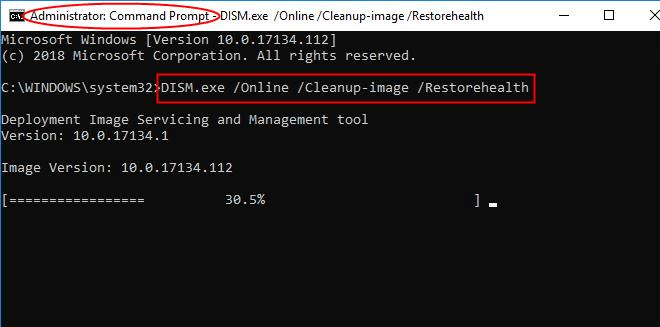
Fix 6: Update BIOS
An outdated BIOS can lead to many issues like the one you are facing. Therefore, you can update the BIOS to resolve the problem. You can use one of the BIOS update programs to perform this task without any hassle.
Fix 7: Try Updating Your SSD Firmware
Old SSD firmware can cause blue screen errors. Therefore, you can follow the instructions below to update the firmware of your boot drive.
- First, right-click the "Start" button and select "Device Manager" from the options displayed on the screen.
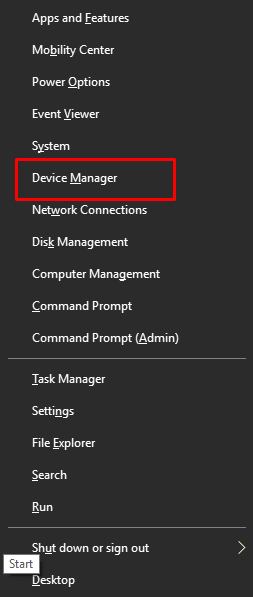
Select Device Manager
- After opening "Device Manager," double-click the "Disk drives" category to expand it.
- Now, right-click your SSD and select "Properties."
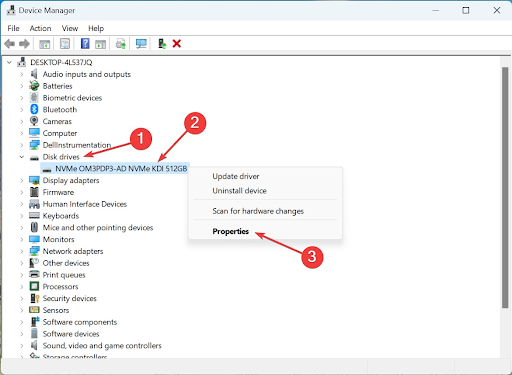
- Go to the "Details" tab and select "Device IDs" from the "Property" dropdown menu.
- You can now note down your SSD device ID.
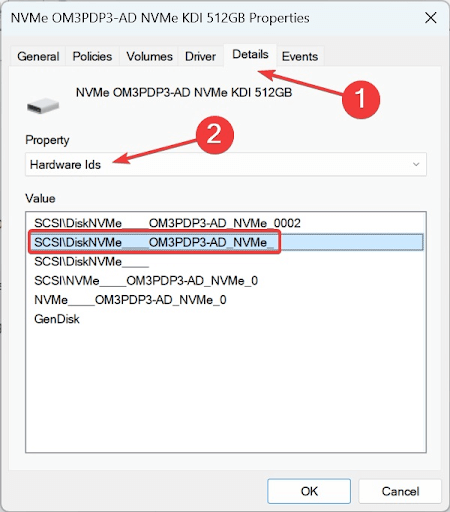
Select Device IDs.
- Search for the device ID you noted in the previous step using your search engine.
- Go to the firmware update section on the manufacturer's website.
- You can now download the firmware, run the setup, and complete the firmware update installation.
Conclusion
In this article, we discussed how to fix the DRIVER VERIFIER DMA VIOLATION in Windows 10, 11. You can follow the solutions mentioned above to resolve the driver blue screen error. If you have any questions or suggestions for us, feel free to leave a comment; we always appreciate hearing from you.
You might also like
How to Fix the Orange Light on the Motherboard
Fix System Resources Insufficient to Complete the Requested Service Error


