

How to Fix the VPN Server Access Error: While using a virtual private network, errors like being unable to access the VPN server or failing to connect to the VPN server are common among many users.
Is this a common issue with VPNs, or is it something that can be resolved? If so, how? These are some questions we aim to answer in this article.
Reasons Behind the VPN Server Access Error
A VPN is a tool that helps with various factors while using the internet. It helps keep your identity hidden online, ensures security, allows access to blocked sites, and bypasses regional content restrictions.
Technically speaking, VPN stands for Virtual Private Network, which means that the network you use to connect to the internet is exclusive to you.
Simply put, a VPN client hides your original IP address and replaces it with a random one. The new address can be from anywhere in the world, making it impossible for anyone to track your location. Regarding data monitoring, even your internet service provider cannot check what you've browsed after connecting to the VPN.
VPN technology uses multiple standard servers located in different cities and countries around the world. These servers require a massive infrastructure, regular support, and occasional maintenance to function properly. When the service provider fails to maintain this, errors like being unable to access VPN servers or failing to establish a VPN connection occur.
There are usually a few errors that cause the problem:
*The server is down and requires assistance from the VPN service provider to restore it.
*The IP address used by the VPN has changed, and your computer has not been updated with the latest IP address.
*There is an issue with your VPN client configuration.
*The firewall continues to block the connection.
How to Fix the VPN Server Access Error
In the next section, let’s look at some common methods you can use to fix the error.
Fix #1 - Disconnect and Reconnect Your VPN
The best way to fix the VPN server access error is to disconnect the VPN and reconnect it on your computer. This refreshes the VPN server and allows you to access it freely.
To disconnect the currently connected server -
Open the app you are connected to.
Click on disconnect. There are various ways apps display the disconnect toggle. Look for one in your app and click on it.
Completely close the app.
Restart the app on your computer and select the server you want to access.
Click on connect, and the issue should be resolved.
As everyone knows, resetting the connection always works when such errors occur!
Fix #2 - Disable TLS 1.0 and TLS 1.1
TLS 1.0 and TLS 1.1 are outdated security protocols embedded in Windows operating systems since XP/Vista. These protocols are responsible for network encryption; thus, when they interfere with VPN operation, errors like being unable to access the server on VPN can occur.
One effective way to eliminate the error is to disable TLS 1.0 and 1.1. This can be done using the registry editor on Windows. Here’s how -
Press Windows + R to open the Run dialog.
In the Run dialog, type the command regedit.
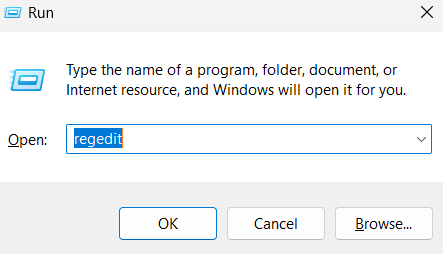
Type the command regedit to open the registry editor
This will open the registry editor on your computer.
In the registry editor, navigate to the following path -
ComputerHKEY_LOCAL_MACHINESYSTEMCurrentControlSetControlSecurityProvidersSCHANNELProtocols
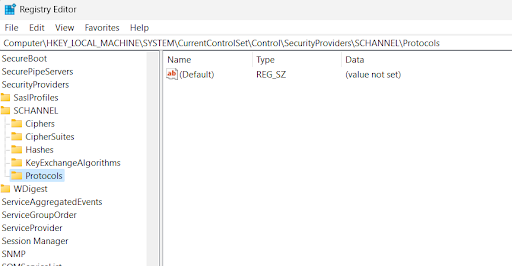
Open the Protocols tab
In the protocols folder, create a new key and name it TLS 1.0.
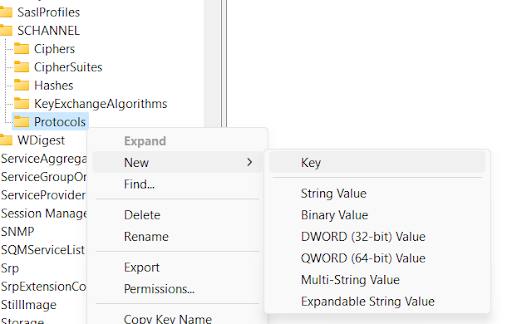
Create a new Protocols key
Using a similar process, create another key named Client.
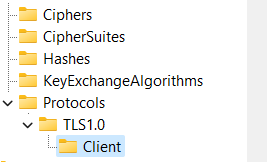
Create another key named Client
Now under Client, create a DWORD 32-bit value and rename it to Enabled.
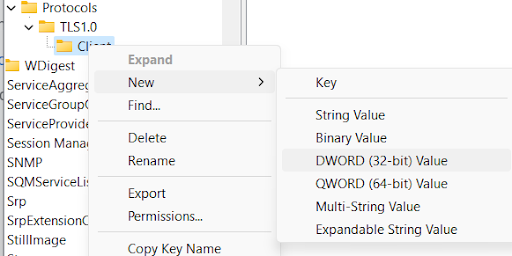
Create a DWORD 32-bit value under Client
Next, create another DWORD 32-bit value named 'DisabledByDefault'.
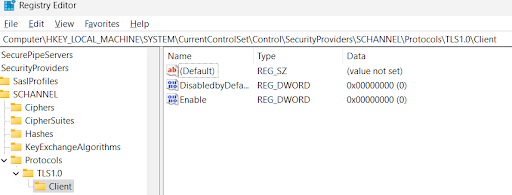
Create another DWORD 32-bit value
The above was created for the Client. Now, add another key under TLS 1.0 and name it Server.
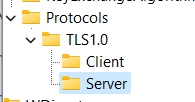
Add another key under TLS 1.0
Add the same DWORD 32-Bit values (Enabled and DisabledByDefault) to the folder.
This will disable TLS 1.0. Follow the same process again. This time, the parent folder will be created as TLS 1.1.
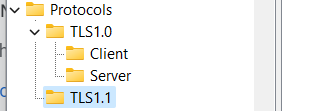
The parent folder created as TLS 1.1
Fix #3 - Connect to a Different Server Option
If you cannot access the VPN server, and the error persists after disabling TLS 1.0 and 1.1; the issue may lie with the server itself. You can change the server location and try again. However, this solution only works with a VPN that offers multiple servers.
Connecting to a different server can reduce the chances of encountering this error. You don’t need to worry about the technical aspects of changing servers, as the option is available in the app.
If you are still searching, it’s likely that your VPN client does not offer flexibility. Most free VPN service providers typically have only one server. Thus, you have only one option besides suffering from the error.
Frequently Asked Questions
1. Why do I see the "Cannot Access Server" message on my VPN?
This error occurs when your device cannot establish a connection to the VPN server. This could be due to internet issues, incorrect VPN settings, server overload, or firewall restrictions.
2. How can I check if my VPN server is down?
You can visit your VPN provider's website or check its official status page for server outages. Alternatively, you can try connecting to a different server location within the VPN app.
3. Can a firewall or antivirus program block my VPN connection?
Yes, firewalls and antivirus programs can block VPN connections by treating them as suspicious traffic. Temporarily disabling them or adding exceptions for your VPN program may help.
4. How do I fix VPN server access errors on Windows?
Try restarting your device, checking your internet connection, disabling firewalls, changing VPN protocols (UDP/TCP), or reinstalling the VPN app.
5. Does changing VPN protocols help resolve


