


How to Fix the Issue of Your Computer Not Waking Up from Sleep: It can be frustrating when your computer won't wake up from sleep, but you can apply the quick and easy solutions outlined in this article to ensure you won't be bothered by it anymore.
We understand how annoying it can be when your computer fails to wake up from sleep, causing disruptions and loss of unsaved data.
However, there's no need to worry about this issue any longer, as this article presents tried-and-true solutions. Before diving into the fixes, it's important to understand the underlying causes to troubleshoot effectively. Therefore, the next section of this article highlights the potential reasons why your computer isn't waking up from sleep before discussing the repairs.
Reasons Your Computer Won't Wake Up from Sleep
The following factors may be responsible for your computer refusing to wake up from sleep, even when using the mouse or keyboard.
Your keyboard or mouse may not have the necessary permission to wake the computer from sleep.
The computer's Basic Input/Output System (BIOS) may be causing issues and needs an update.
The drivers for your mouse, keyboard, or USB port may need updating.
Windows may need an update.
After reviewing the reasons your computer may be stuck in sleep mode, let's guide you through the fixes for this issue.
How to Fix the Issue of Your Computer Not Waking Up from Sleep
Here are some practical solutions you can try if your computer won't wake up from sleep:
Note: You may need to reset the hard drive before you can perform the following tasks. You can do a hard reset by pressing the power button for ten seconds, which will turn off the system. Once the system is off and the CPU fan has stopped, please wait a minute or two before pressing the power button to restart the computer.
Fix 1: Run the Windows Troubleshooter
Windows has a built-in troubleshooter for power issues that may be causing the problem. This tool identifies and resolves power-related issues, so you can follow these steps to use it.
The first step is to access your computer settings. You can open the settings using the shortcut key Win+I.
Once the settings window is open, select System from the available options. If you're using Windows 10, select Update & Security from the settings displayed on the screen.
Next, you can choose Troubleshoot from the available options in the settings window.
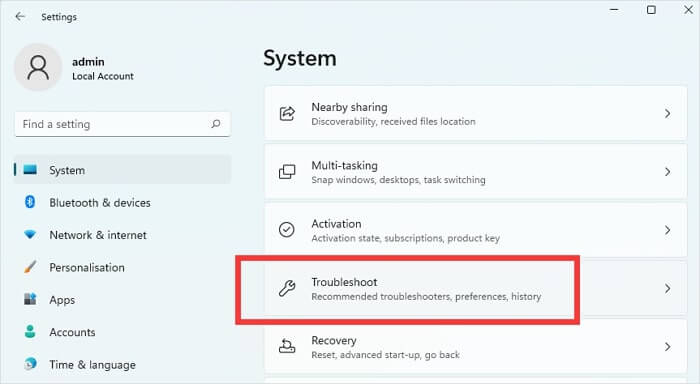
Troubleshoot System
In this step, scroll down to the Power troubleshooter and click on Run to start searching for power-related issues on your computer. If you don't see Power in the list of troubleshooters, you can view other troubleshooters to locate it.
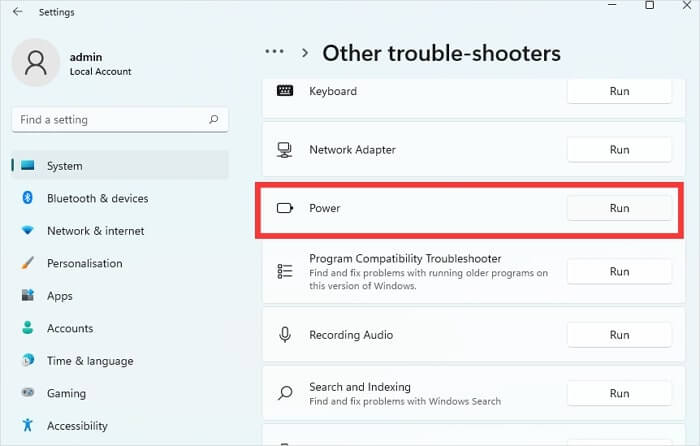
Finally, you can view the scan analysis and follow any on-screen instructions (if available) to resolve the identified issues.
Fix 2: Ensure Your Keyboard and Mouse Have Permission to Wake Your Computer
If your Windows 11/Windows 10 system isn't waking up from sleep using the keyboard or mouse, your keyboard/mouse may lack permission to wake the computer. Therefore, you can allow the mouse or keyboard to wake the computer from sleep by following these steps.
The first step requires you to open Device Manager. You can right-click the Windows icon on the taskbar and select Device Manager from the context menu to access it.
Once Device Manager is open, double-click the Keyboards category to expand it.
You can now right-click on your keyboard and select the option to view its properties from the available menu.
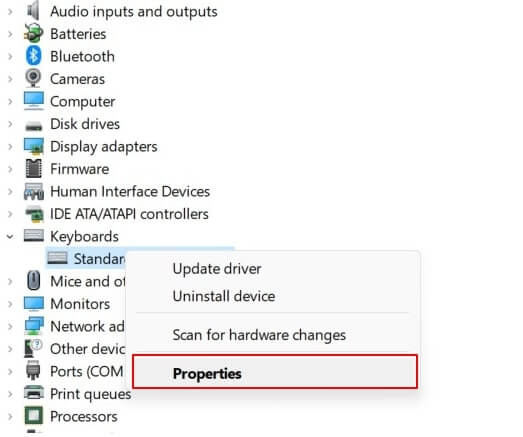
Keyboard Properties
The keyboard properties will appear on your screen. You can now navigate to the Power Management tab and select the option to allow this device to wake the computer.
Click OK to save the changes.
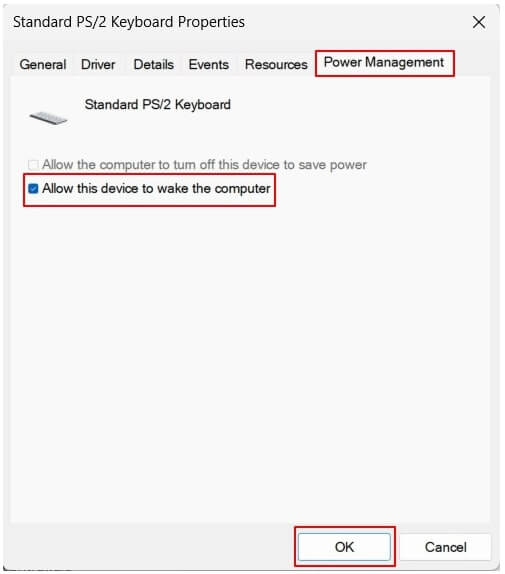
Keyboard Power Management
Finally, you can repeat the above process with your mouse and Bluetooth devices (if you have any) to allow them to wake the computer from sleep.
Fix 3: Change Power Settings to Wake Your Computer
The hybrid sleep mode may be active, and the wake timer may be disabled on your computer, preventing it from waking up. These settings place any open programs and documents into memory on the hard drive and then put the computer into a low power state, preventing it from leaving sleep mode. Here’s a detailed process to change the power settings to disable these options.
First, you need to open the Control Panel on your computer. You can do this by typing Control Panel in the Windows search and selecting it from the search results.
Second, enter Power in the Control Panel search bar and select the option to Edit Plan Settings from the power options list.
Next, select the option to Change Advanced Power Settings from the window that appears on the screen.
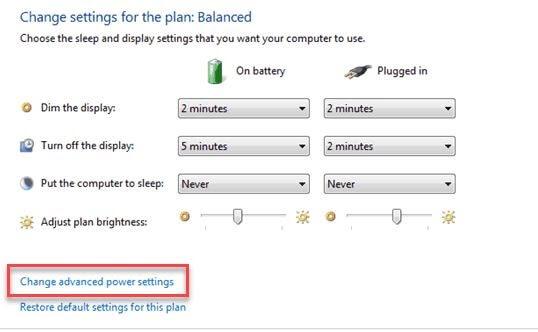
Click on the Change Advanced Power Settings tab.
You can now click on the Sleep option to expand it.
From the sleep options, select the option to allow hybrid sleep.
In this step, you can turn off the hybrid sleep option.
Next, click on the option to allow wake timers and enable it.
Now, select Apply and OK to save the changes.
Finally, restart your computer to complete the process of adjusting the power settings.
Fix 4: Update Old Drivers
Outdated drivers, especially for the keyboard, mouse, or USB driver, may be the reason your Windows 11/Windows 10/Windows 7 computer isn't waking up from sleep. Outdated drivers disrupt the connection between the operating system and the peripheral, leading to poor performance and issues like the ones we are addressing in this article.
Therefore, keeping your drivers updated is crucial. You can automatically update all outdated drivers with just a few clicks using Win Riser, a popular driver update tool that enhances PC performance.
This program performs automatic driver updates, cleans invalid registry entries, removes unwanted files, backs up and restores current drivers, removes malware, and offers many other benefits. You can try this program by downloading and installing it from the link below.
After installing the program, simply follow the quick and easy steps below to update your drivers and fix all issues.
First, allow Win Riser a few seconds to conduct a thorough system scan.
Second, go to the scan analysis and click on Fix Issues Now to update the drivers and resolve all issues automatically.

Win Riser Driver Updater for Epson LQ310 Driver for Windows 10, 11
Finally, complete the process by restarting your computer.
Fix 5: Disable Fast Startup
The Fast Startup option in Windows (Windows 10 and above) helps the computer restart quickly; however, it can also interfere with the shutdown or boot process, preventing the computer from waking up from sleep. Therefore, you can follow these steps to disable Fast Startup to fix the issue.
The first step is to access the Run tool using the shortcut key Win+R.
Second, type powercfg.cpl in the text box that appears on the screen and press Enter.
Next, you can choose what the power buttons do from the left panel of the window that appears on the screen.
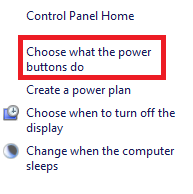
Choose What the Power Buttons Do
Select the option to Change Settings That Are Currently Unavailable from the top section of the window on your screen.
In this step, uncheck the option to Turn on Fast Startup (recommended) and click Save Changes.
Finally, restart your computer to apply the changed settings.
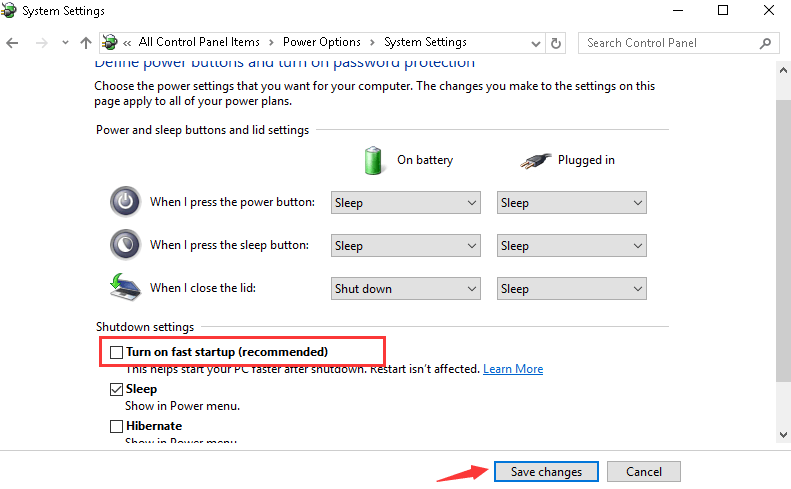
Uncheck the box labeled Turn on Fast Startup.
Fix 6: Update Your Computer's BIOS
An outdated BIOS can cause power delivery issues, leading to problems waking the computer from sleep. Therefore, you can update the BIOS to resolve the issue. The BIOS update process can take a bit of time, so we recommend updating your BIOS using one of the BIOS update programs for Windows.
Fix 7: Update Windows
Windows updates improve computer performance by fixing bugs and common issues, and updating the operating system can also resolve the problem you're facing.
Here’s how to update Windows.
First, open the settings using the shortcut key Win+I.
Next, select Windows Update from the settings panel. If you're using Windows 10, select Update & Security and then click on Windows Update.
Check for updates for your system.
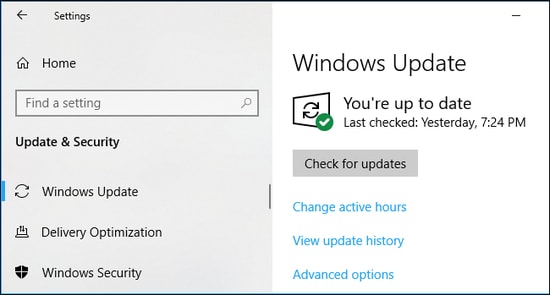
Checking for Updates in Windows Settings
Download and install the available updates on your computer.
Finally, allow the computer to restart to save the changes.
Conclusion
In this article, we discussed how to fix the issue of your computer not waking up from sleep. We covered


