

How to use BlueStacks to run Android applications on Windows: BlueStacks is a convenient and user-friendly tool for experiencing Android applications on Windows. Whether you're a developer or just want to use your favorite Android apps on a larger screen, BlueStacks is an excellent option to try. Follow this article, and you'll be enjoying Android applications on your Windows PC in no time.
You can now get the Google Play Store on your computer. To install Android applications on Windows, download the BlueStacks software, then open the program and select the Google Play Store. Search for the app and follow the prompts on the screen to install it. The apps are stored in the "My Games" section.
This article explains how to install BlueStacks and use it on Windows to run Android applications on your computer.
What is BlueStacks?
BlueStacks is a widely used Android emulator for Windows. It allows users to run Android applications on Windows computers. It's an essential tool for developers, gamers, and anyone who wants to experience Android applications on a larger screen.
BlueStacks works on Windows computers with at least 2 GB of RAM.
What is required to use BlueStacks to run Android applications on Windows
According to their website, BlueStacks "has no technical requirements at all," but that's not entirely accurate. However, most computers will have no trouble running BlueStacks since the basic requirements are minimal.
The minimum requirements to run BlueStacks 5 are as follows, but first, you must be an administrator on your computer:
Operating System: Microsoft Windows 7 and above.
Processor: Intel or AMD processor.
RAM: At least 4 GB of RAM.
Storage: 5 GB of free disk space.
Updated video card from Microsoft.
BlueStacks 5 will work on systems that meet these requirements. However, for an optimal experience, especially for those looking to use BlueStacks for gaming, the developers recommend the following requirements:
Operating System: Microsoft Windows 10
Processor: Multi-core Intel or AMD processor with a single-thread benchmark score > 1000.
Video Card: Intel/Nvidia/ATI, integrated or dedicated graphics card with a performance benchmark score >= 750.
RAM: 8 GB or higher
Storage: SSD
How to use BlueStacks to run Android applications on Windows
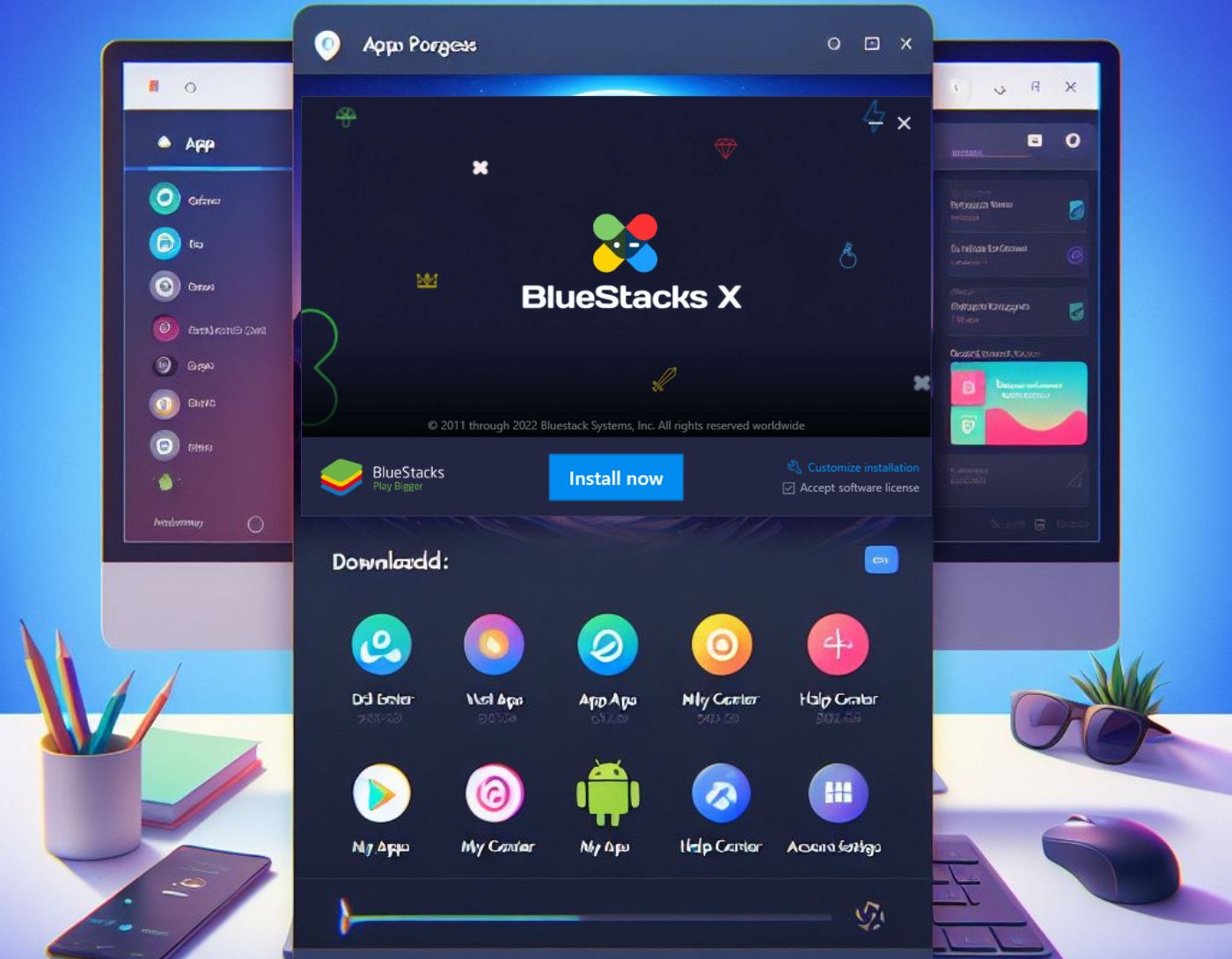
The latest version of BlueStacks is available for Windows, and to install this Android emulator, you just need to download the setup file on your computer and click a few buttons, most of which are automatic.
You will first need to install the BlueStacks application and then follow these steps:
1- Open your preferred browser and go to the official website.
2- Select Download BlueStacks and save the installer.
3- Run the downloaded file.
4- You can choose to customize the installation to specify where you want to install the program.
5- Once you select the installation location, install BlueStacks, this may take some time depending on your internet connection and computer.
6- If an error occurs, disable your antivirus program and re-enable it once the installation of BlueStacks is complete.
7- Once the installation is finished, BlueStacks will start automatically.
8- To access the Google Play Store, you will need to log in to your Google account.
How to use the Google Play Store in BlueStacks
After installing BlueStacks on your computer, you can use it to access the Google Play Store to install Android applications.
Here’s how:
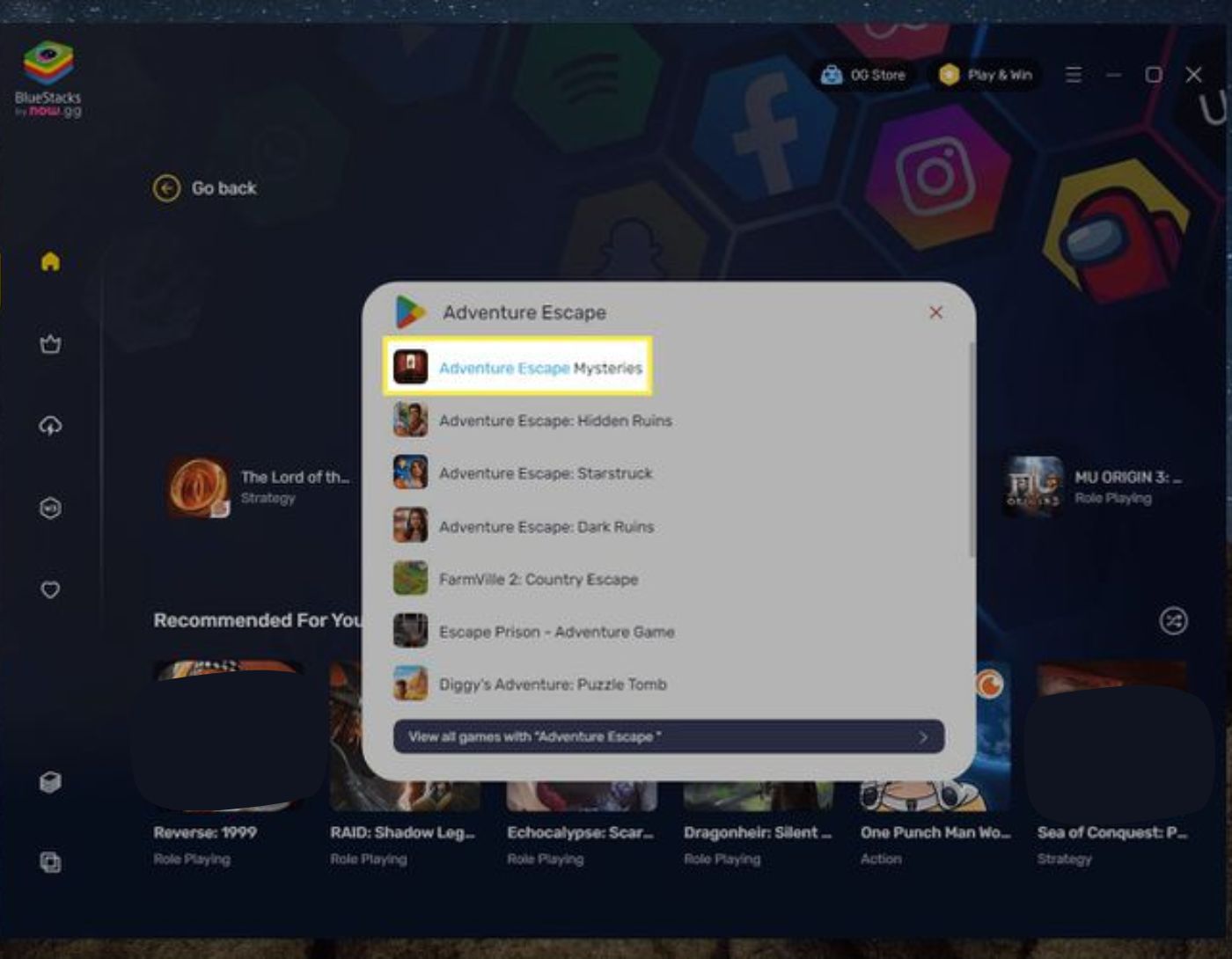
1- Select the Google Play Store from the home tab.
2- Browse or search for the Android app you want to install, select the app to see its details.
3- Select install on App Player.
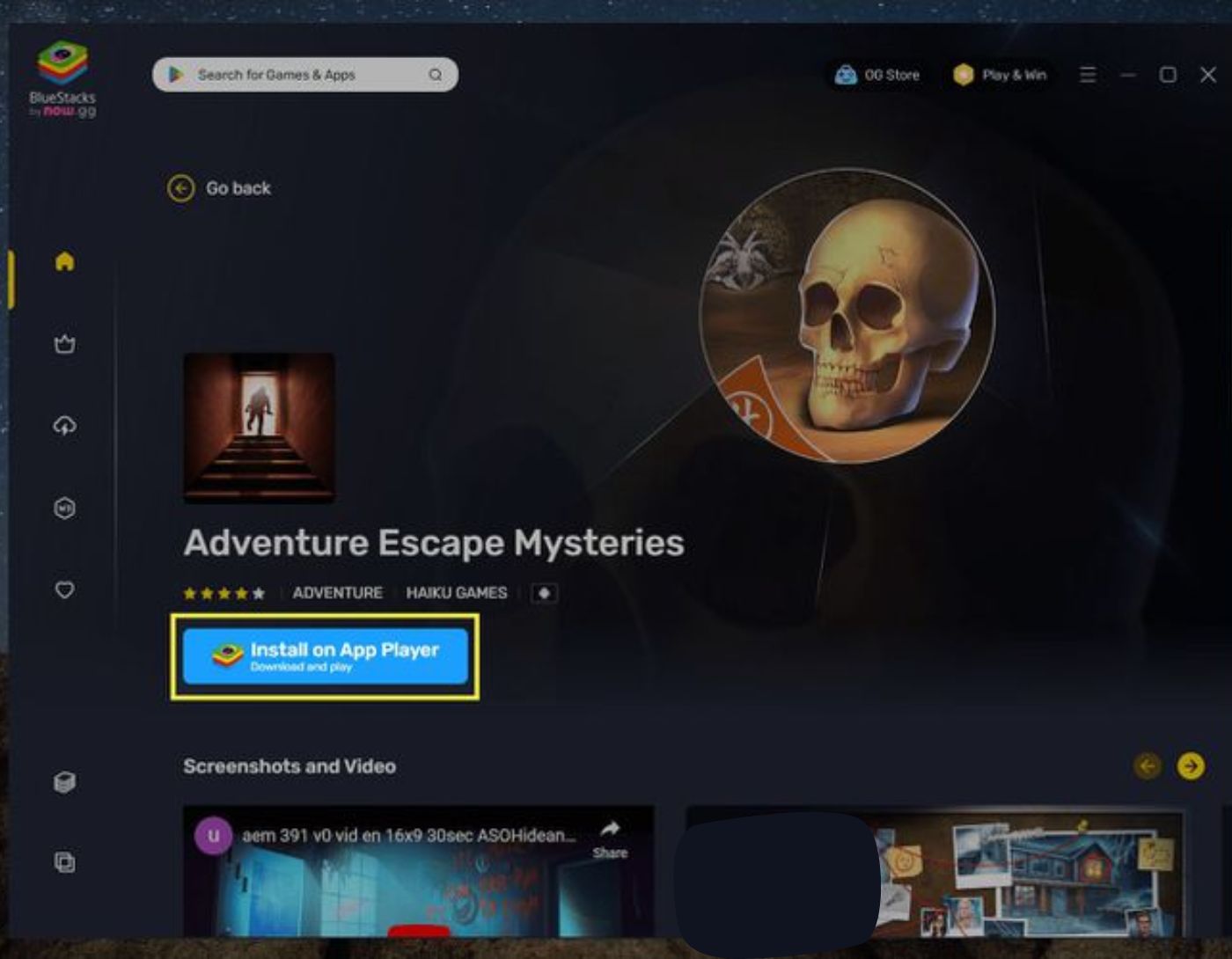 Select install on App Player
4- Select install from Google Play.
5- Click on sign in on the Google Play screen and enter your Google account details. You may need to follow the prompts related to permissions and backups.
6- Select install on the Google Play screen to place the Android app on your computer.
7- Your installed apps can be accessed from the "My Games" tab in BlueStacks and the main screen in App Player.
8- The app will appear on the main screen of the BlueStacks App Player.
How to record Android screen on PC using BlueStacks
In addition to running multiple applications on one platform, people sometimes want to record Android screens. BlueStacks also offers this feature, but it can be a bit complex to use, so it’s wise to use lightweight software like EaseUS RecExperts.
Frequently Asked Questions about how to use BlueStacks to run Android applications on Windows
How can I use Instagram on my computer without BlueStacks?
There’s no need for anything special to use Instagram from a computer anymore; you can browse and post content to your Instagram account on your computer simply by logging into the website on your browser.
How do I use Snapchat with BlueStacks?
Using Snapchat with BlueStacks is no longer possible; however, there is a dedicated Snapchat app you can use on your computer instead.
Can I use Android applications on my computer without BlueStacks?
You can either run Android applications on your computer using an emulator, or you can run the app on your phone while using your computer as a screen.
Conclusion
In this article, we discussed how to use BlueStacks to run Android applications on Windows. BlueStacks is an easy way to install all kinds of Android applications on your computer. BlueStacks can run multiple Android applications simultaneously, just like you would on a phone or tablet; browse the open tabs in App Player to see everything currently open. It also offers a multi-instance mode that runs multiple instances of the same app, which may appeal to developers and gamers. This emulator also supports full-screen mode and can record your gameplay, as well as having the ability to spoof your GPS location.


