


(How to backup and restore the registry file on Windows 10 and 11) Backing up and restoring the registry file on Windows 10 and 11: The Windows registry file acts like a database for Windows settings, storing system configurations, low-level program settings, driver settings, and other hardware information.
This file is so crucial that if it gets corrupted, the entire operating system could fail in an instant. Given its importance, you should create a backup of the registry file and store it in different locations so that it can be used to rescue your system later.
If you're an advanced user, there may be times when you need to make changes to the Windows registry to adjust system settings or install third-party applications. Therefore, before "editing the registry," it's wise to first create a backup because if you make a mistake, your operating system could become unusable.
How to backup and restore the registry file on Windows 10 and 11
There are two popular methods for creating a backup and restoring the registry file. You can either use the Registry Editor or create a system restore point. We will discuss both methods in detail.
If you haven't created a backup of the registry file and a system restore point and are facing issues with your Windows operating system, you can use an advanced system repair tool to easily fix registry errors. It not only repairs registry errors but also addresses various system errors, missing dll file errors, missing system file errors, updates drivers and other software, and secures your online activity.
Windows consists of a large number of dll files, exe files, sys files, various types of services, databases, and so on, making it impossible to constantly monitor all files. A great PC optimization tool quietly repairs damages, fixes errors, updates Windows and drivers, and removes various types of errors.
The Outbyte PC Repair Tool performs all the above tasks effortlessly, providing you with a smooth and error-free Windows environment so you can focus solely on your work.
3 Steps to Fix This Error
Step 1. Download the Outbyte PC Repair Tool [File Size: 16.4 MB]
Step 2. Scan your Windows computer
Step 3. Click the "Repair" button to fix the error
Method 1: Using the Windows Registry Editor
Backing up the registry file
Step 1: Open the Registry Editor. Press Windows key + R to open the Run dialog, type regedit, and then click Ok to open it.
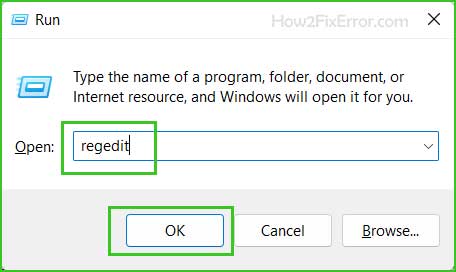
Open the Registry Editor in Windows 10 and 11
Step 2: Click File > Export.
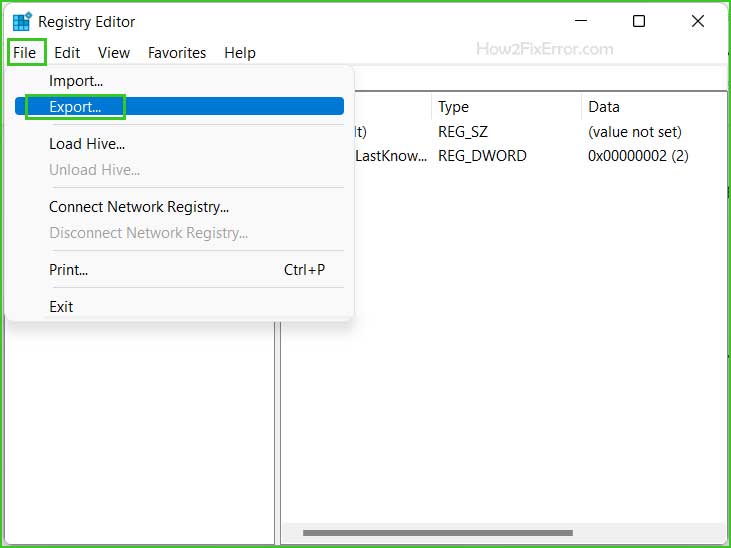
Export the registry file
Step 3: Choose a location, enter a file name, select All under Export range, and then click Save.
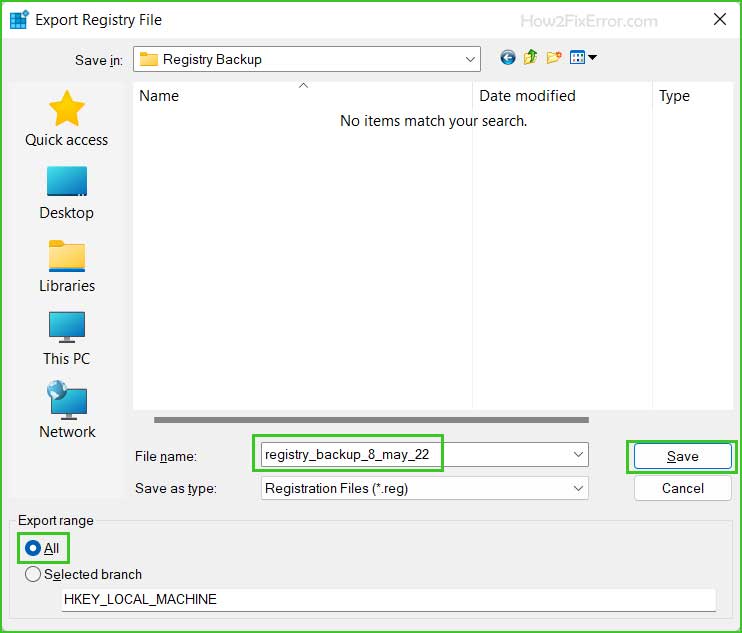
Export the registry file
Restoring the registry file
Step 1: Open the Registry Editor, press Windows key + R to open the Run dialog, type regedit, and click Ok to open it.
Open the Registry Editor in Windows 10 and 11
Step 2: Click File > Import.
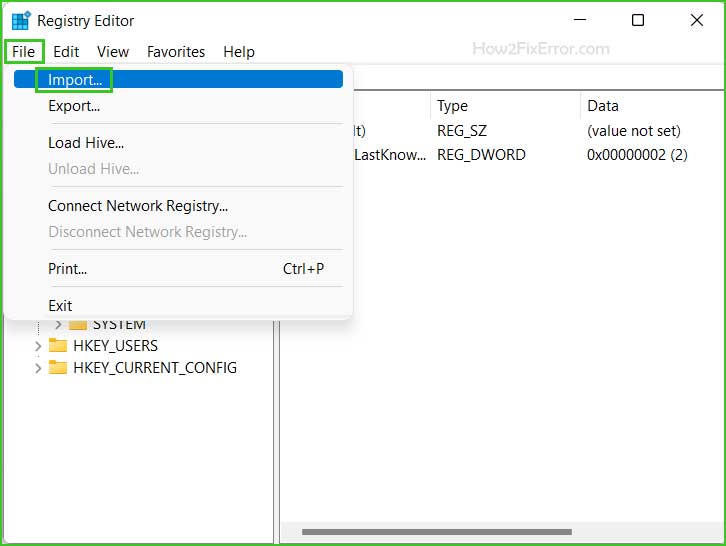
Import the registry file
Step 3: Browse to the backup registry file and click Open to import it.
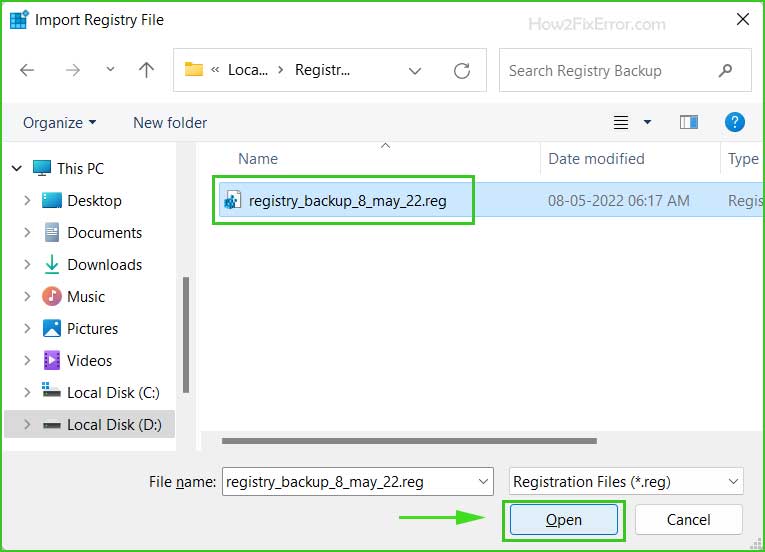
Import the registry file
Method 2: Using a System Restore Point
A system restore point is a snapshot of the system registry, configuration, settings, and other necessary information needed to restore your computer when the system crashes. A system restore point helps you revert your computer to the most recent time when your system was functioning perfectly.
Creating a system restore point
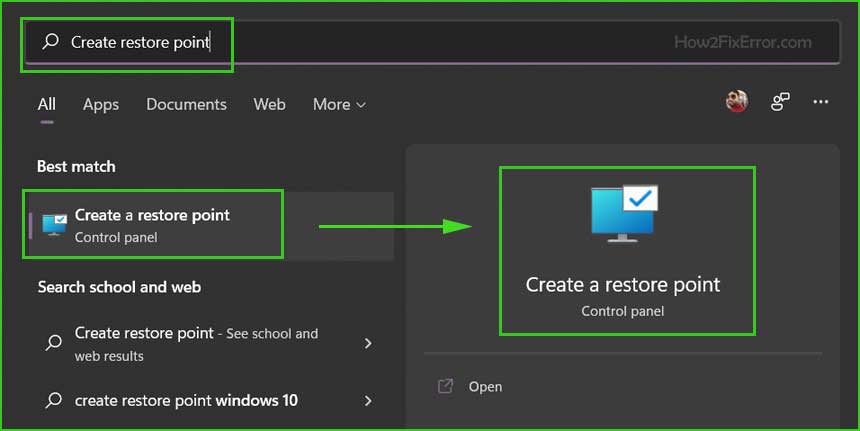
Step 1: Click Start and search for Create a restore point and open it.
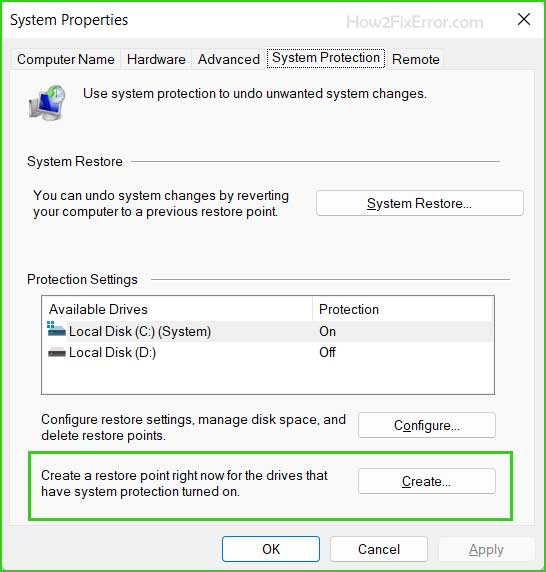
Create a system restore point
Step 2: Click the "Create" button under the "Create a restore point" section at the bottom.
Create a system restore point
Step 3: Give it a descriptive name and click "Create." Do not enter the date and time in the description as it is added automatically.
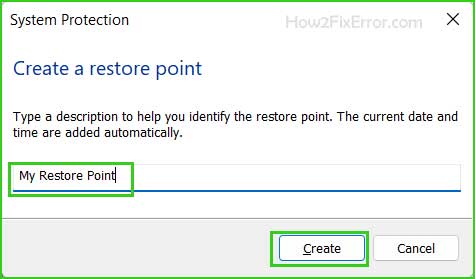
Create a system restore point
Step 4: You will see the message "A restore point was created successfully."
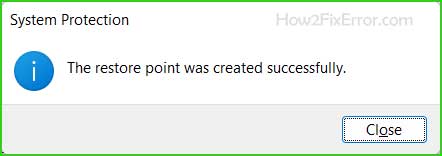
Create a system restore point
Restoring your computer using system reset
This step is crucial, and you need to study the steps very carefully because in case of a system crash or boot issue, you can easily restore your computer.
Step 1: Go to Settings > System > Recovery and click the Reset this PC button.
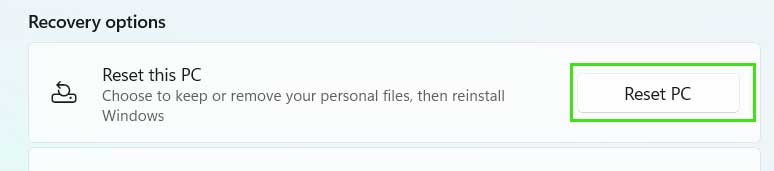
Reset Windows PC
Step 2: Select the Keep my files option and proceed through the wizard. It will take some time and will reset your computer.
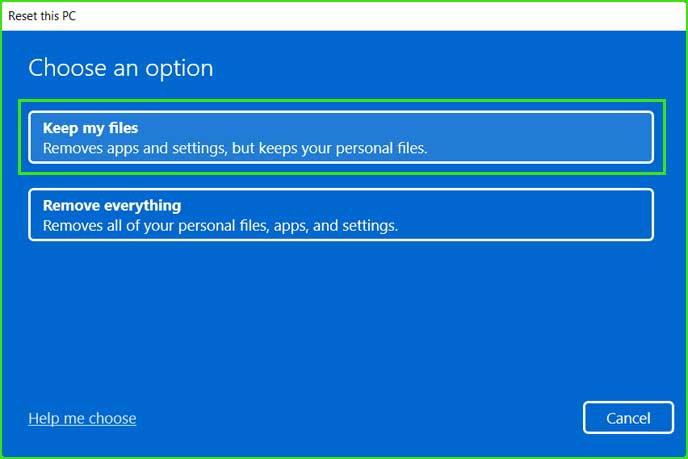
Reset Windows PC
When and why does Windows automatically save the registry?
The Windows operating system automatically saves the registry every time a system restore point is created—whether automatically or manually by you.
This is useful because when restoring the system from a previous point, the operating system needs a backup of the old registry as well for your computer to function. It's not just important to restore the files, but equally, if not more so, to restore the backed-up registry as well, which is why Windows saves the registry automatically.
The system restore process will affect system files, programs, and registry settings. It can also make changes to scripts, batch files, and other types of executable files on your Windows computer. Therefore, any changes made to these files will be reversed.
System restore will not affect the Documents folder or personal files such as pictures and emails, etc., but you may find missing files on the desktop, so you might want to move your personal documents from the desktop to a safe place before performing a system restore.
Conclusion
The Windows registry is one of the important components of the Windows operating system that stores configuration settings and options. However, if you make incorrect changes to the registry, it can cause Windows to stop functioning, crash unexpectedly, or applications to not work properly. Therefore, it is always essential to back up the Windows registry before making any changes.
This article explains how to backup and restore the registry file on Windows 10 and 11. If the registry file gets corrupted in any way and you cannot boot your Windows computer, you will need to perform a startup repair. You can refer to the instructions on how to perform a startup repair if Windows is unable to boot.


