


How to change the appearance of the incognito browser in Chrome: Are you tired of the dark theme in incognito tabs on Chrome? If you're looking for a quick fix to change the appearance of the incognito browser in Chrome, keep reading this article to find the solution that will resolve this issue once and for all.
Nowadays, web browsers are adding many features to enhance user experience, and Google Chrome stands out as the best when it comes to cross-platform syncing and additional features. Not only that, but for those who are concerned about their privacy, incognito mode is the perfect solution.
However, there is one downside to incognito mode in Google Chrome. Its very dark appearance is something that most people dislike; it’s not just dark, but it can sometimes be hard to work in because it becomes difficult to distinguish between different tabs.
Now, Google Chrome has the right solution for you. You can now choose from a variety of distinctive themes offered by Google Chrome to enhance your browsing experience.
This article will help you learn how to change the appearance of the incognito browser in Chrome and choose from many colorful themes.
How to change the appearance of the incognito browser in Chrome
If you’re bothered by the strain that the dark color of incognito mode in Google Chrome puts on your eyes, here’s a simple process that will help you change the color theme for incognito mode in Google Chrome.
Launch the Chrome browser on your device.
Next, enable the Chrome flag option on your browser. To do this, type "Chrome://flags/#Custom-drawn Windows 10 Title bar" in the address bar and hit Enter.
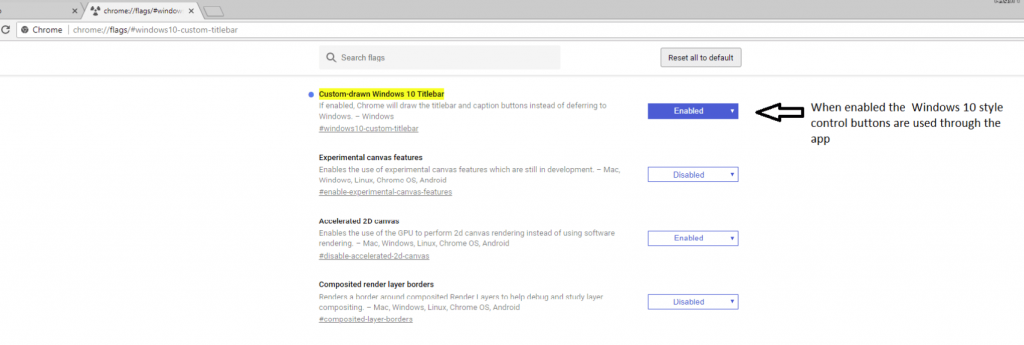
Enable the custom-drawn Windows 10 title bar
In the new window, click the enable button from the dropdown menu.
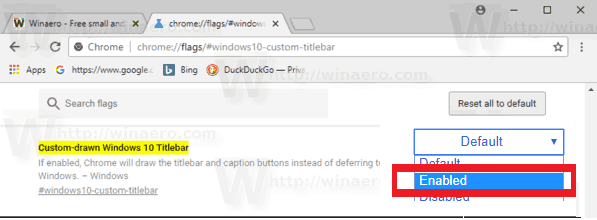
In the new window, click the enable button
Now that you’re familiar with the process of changing the color theme, let’s explore some popular themes available in the market.
1. Material Classic Blue Theme
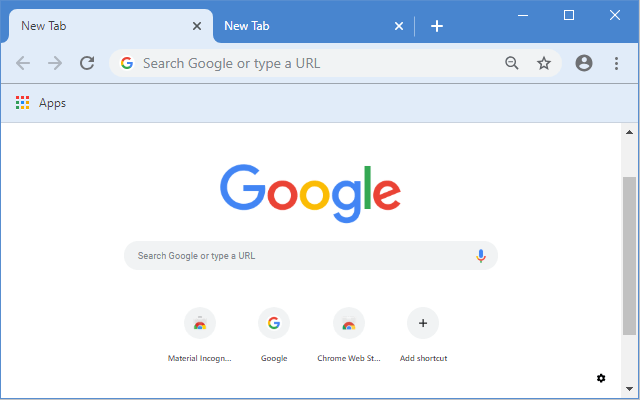
If you’re bored with the old look of your incognito mode, you can change your browser window using the Material Classic Blue Theme. It’s a decent choice for new Chrome users and doesn’t interfere much with the regular browser.
The Material Classic Blue Theme offers the classic old look of Google Chrome, with blue being the default color for this theme. If you’re tired of seeing the dark-colored incognito mode, this blue theme will soothe you.
The standout feature of the Material Classic Blue Theme is that it doesn’t mix up incognito windows with regular browser windows, ensuring you can easily distinguish between the two.
2. Ghibli Totoro Theme
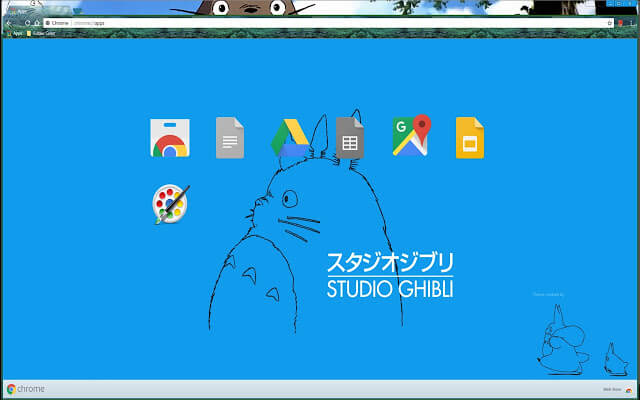
If you’re a fan of animated images and cartoons, the Ghibli Totoro Theme is sure to catch your eye.
It’s a great way to keep your senses engaged during long browsing sessions; the different colors it uses might cause some confusion in your browser, but the vibrant sky blue of the different tabs completely avoids that.
Enjoy using incognito mode in Google Chrome to brighten things up and have a powerful and comfortable browsing experience.
3. Slinky Glamour
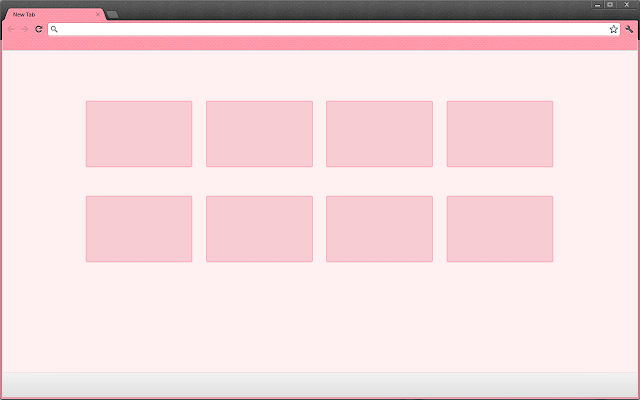
Slinky Glamour is the best theme for you if you don’t like loud backgrounds and prefer to keep it minimal. Upon application, the tab color changes to a soft pink that is very soothing. Slinky Glamour strikes a great balance between themes and will mostly suit you perfectly.
The soft pink color of the browser, adorned with a subtle shade from the tabs, gives it a fairytale-like appearance. Although both normal and incognito modes are supported by a similar color scheme, the dark title bar can help you distinguish between the two.
Overall, it’s a good color scheme for comfortable viewing.
4. Material Incognito Light Theme
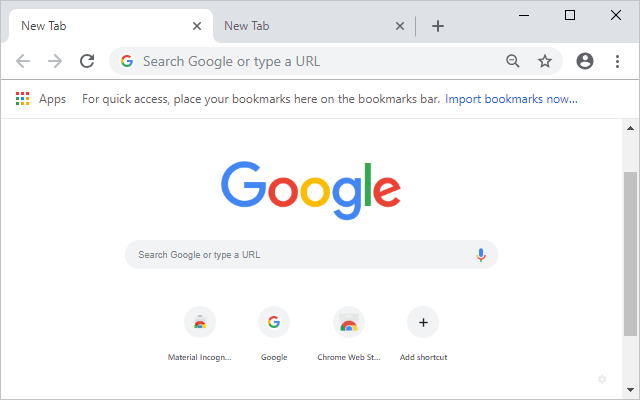
If you’re used to the default dark color scheme of incognito windows, the Material Incognito Light Theme will give you a lighter experience without changing its basic look and feel.
This theme focuses heavily on the color scheme of the default incognito browsing in Google Chrome. It’s an open-source theme that uses a light color palette to distinguish itself from the default dark-colored incognito theme.
Just apply the theme, and you’ll be amazed by the light-colored incognito mode.
Enjoy the light-colored appearance of the normal mode with the Material Incognito Light Theme, and the only difference you’ll notice between the two is the appearance of the incognito browsing icon on your browser. The title bar also looks the same, so be cautious about your online security.
5. Feisar
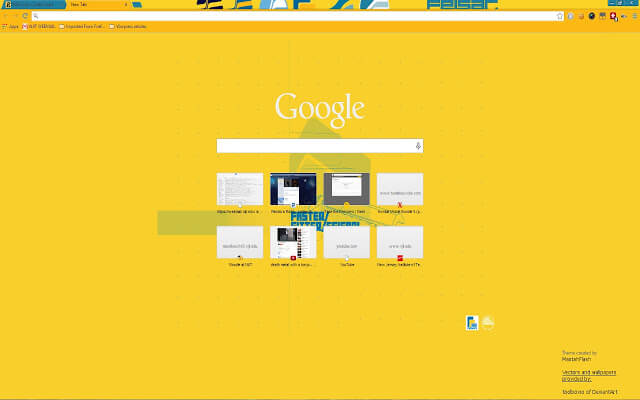
Feisar is a great option for incognito mode in Google Chrome. Are you fond of beautiful sunshine? Try Feisar to brighten up your browser with yellow. Use this cheerful theme to lighten up the dull and dark default color scheme of incognito browsing in Google Chrome.
The title bar is displayed in a brighter shade of yellow, preventing you from accidentally using the regular browser for anonymous browsing.
6. Green Turf
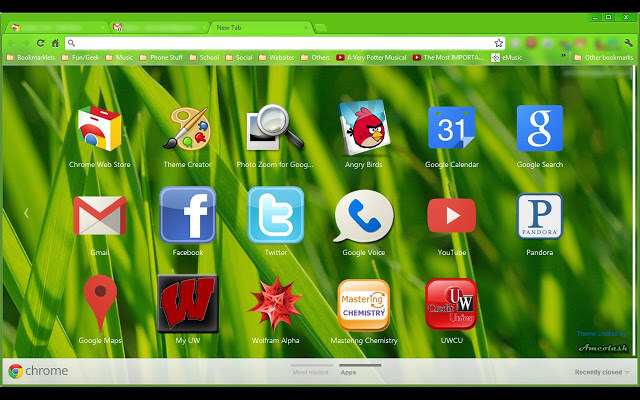
If you’re a nature lover, Green Turf is the best theme you can apply. Green Turf gives users a sense of lush green surroundings.
Transform your incognito browsing window into a lush green garden with Green Turf. For better distinction, the title bar of the normal mode is displayed in a darker green color.
When applied, inactive tabs appear in the same color as the bar, but the black outlines with white text help in easily identifying them and support smooth switching between different tabs.
7. Summer Holiday
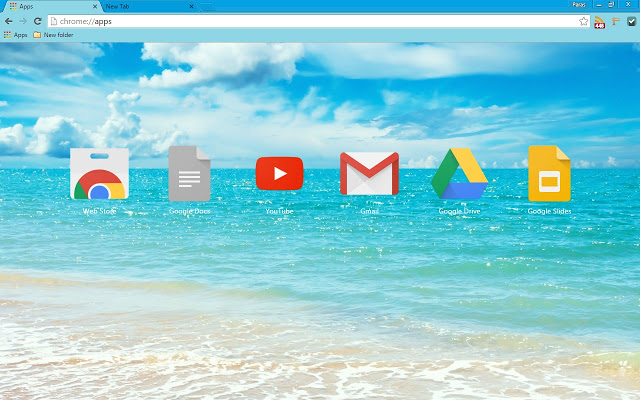
If none of the above color schemes caught your attention and you’re still hesitant about the default color theme of incognito mode in Google Chrome, Summer Holiday could be a good choice for you.
If you want a look that makes you feel relaxed, "Summer Holiday" is the best option for you. It’s the perfect choice when you want to keep yourself away from any stress and simply enjoy the clear sky.
Just relax and enjoy private browsing with a touch of blue on the title bar. The sky-blue tabs have enough material to provide you with a smooth and comfortable browsing experience.
The only difference between normal mode and incognito mode is the incognito browsing icon, so be cautious while browsing.
Add a little life to your incognito browser
Conclusion
In this article, we discussed how to change the appearance of the incognito browser in Chrome. If you’re bored with the dark color scheme of incognito windows and want to add some life to it, this article will surely help you brighten up your incognito browser and add some interesting color schemes to it.
You might like this
How to use Chrome extensions in incognito mode
How to stop ads in Google Chrome
How to fix RESULT_CODE_HUNG error in Chrome


