


How to Combine Scanned Documents into a Single PDF File: Do you want to merge your scanned documents into one PDF file? If you're looking for a solution to consolidate all your scanned documents into a single file, PDFs are often the best way to do this. The PDF format is one of the most widely used file formats. PDF files can contain text documents or images and are the most commonly shared formats across devices.
This article will describe several methods for merging scanned documents into a single PDF file. Keep reading to learn more about them.
Is Merging Scanned Documents Important in Real Life?
Understanding how to combine multiple PDF files into one is straightforward and can enhance your productivity. You don’t want to overwhelm the recipient with multiple files when you can provide a single cohesive PDF file.
If you're using a Mac, the only tool you'll need is already included in macOS. However, if you're on Windows, you'll need third-party software; fortunately, there are some free open-source solutions available. So let’s explore the easiest ways to merge scanned documents into one PDF file.
How to Merge Scanned Documents into a Single PDF File
Method 1: Using Google Docs
If you've taken photographs or scanned your papers and saved them as image files, either in .jpg or .png format, you can combine them into one file using Google Docs. Log in to docs.google.com with your Google account. To create a new document, click the blue + icon. Copy one image for each page and paste it into the Google document. Select File > Download as > PDF Document.
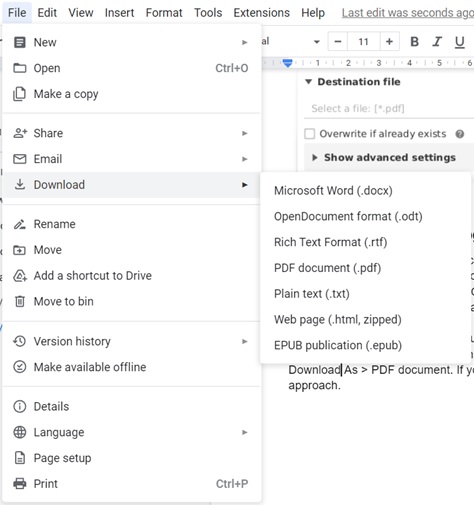
Download PDF file
Method 2: Using Online PDF Merger Online2PDF
Many free online PDF converters will merge files for you. One of the best online PDF converters we've found is Online2PDF. It supports various file types (PDF, ppt, docx, etc.) and can convert and merge them into a single PDF document. It can also compress a PDF file for emailing.
To use Online2PDF, drag and drop your files and merge the scanned documents into one PDF by clicking the "Select Files" option. Then choose "Convert" from the dropdown menu. The merged PDF file will be downloaded to your computer. Open it and save it with your desired name.
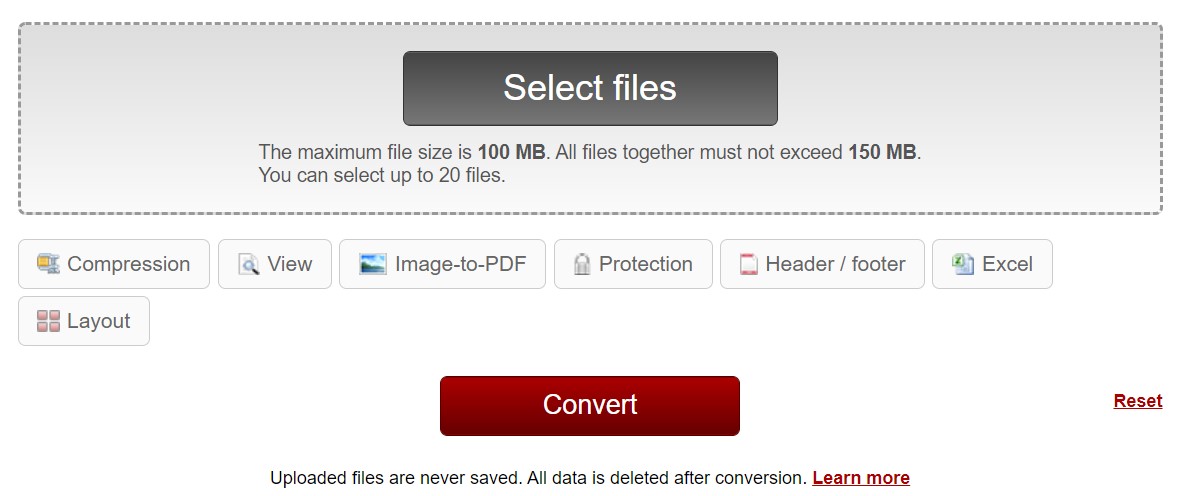
Select file and convert
The main drawback of this tool is that it is one of the less secure methods. When you upload data online, there is almost no security to ensure that the data won't be tampered with or exploited at any time. As a result, it is recommended to use this as a last resort. Use this method if nothing else works.
Method 3: Using Microsoft Print to PDF (Windows)
Windows users can merge scanned documents using the built-in Print to PDF feature in Microsoft.
Steps to merge using Microsoft Print to PDF:
Open the first scanned document in Microsoft Edge or Word or any other PDF viewer.
Press Ctrl + P to open the print menu.
Select "Microsoft Print to PDF" as your printer.
Click "Print" and then save the file.
Repeat this process for the other scanned documents, selecting the previously saved PDF file and choosing "Add" if prompted.
This method does not require external software. However, it offers limited functionality for rearranging pages.
Method 4: Using Adobe Acrobat
Adobe Acrobat is one of the most powerful tools for merging scanned documents into a single PDF file.
Steps to merge files in Adobe Acrobat:
Open Adobe Acrobat and click on "Tools" > "Combine Files".
Click "Add Files" and select the scanned documents you want to merge.
Arrange the files in the desired order.
Click "Combine" to merge the files into one PDF.
Save the new PDF file in your preferred location.
This tool is professional with advanced editing features but requires a paid subscription.
Method 5: Using Advanced PDF Manager
Advanced PDF Manager is a PDF management tool that works only on Windows. It’s very easy to merge, split, rearrange, rotate, and manage PDF files using this tool. Additionally, you can easily add passwords to PDF files. We recommend using this user-friendly program to merge scanned documents into one PDF file. Furthermore, if you don’t want to pay, you can use the trial version to see if it’s worth your money.
Note - The trial version expires after 14 days, and you cannot save any changes made to the PDF file afterward.
Benefits:
- PDF files can be split into two PDF files.
- Change the alignment of the PDF file.
- Copy PDF files is available.
- Remove specific pages from the PDF file.
- Rearrange PDF pages.
- PDF files can be password protected.
Before we start the process, make sure to save the scanned documents on your Windows PC as PDF files. Follow the instructions below to install this program and use it to merge PDF files:
Download Advanced PDF Manager
Now, run the program on your computer.
Go to open files and select the PDF file to manage your PDF files.

After importing the PDF file, you can edit it using tools like merging, splitting, protecting, duplicating, and rotating.
Now, from the options, click the Merge PDF button. Open the file you want to merge.

Select PDF file
This will merge the required scanned documents that have been converted to PDF files. Now click the Save As button and give the file a name before saving it.
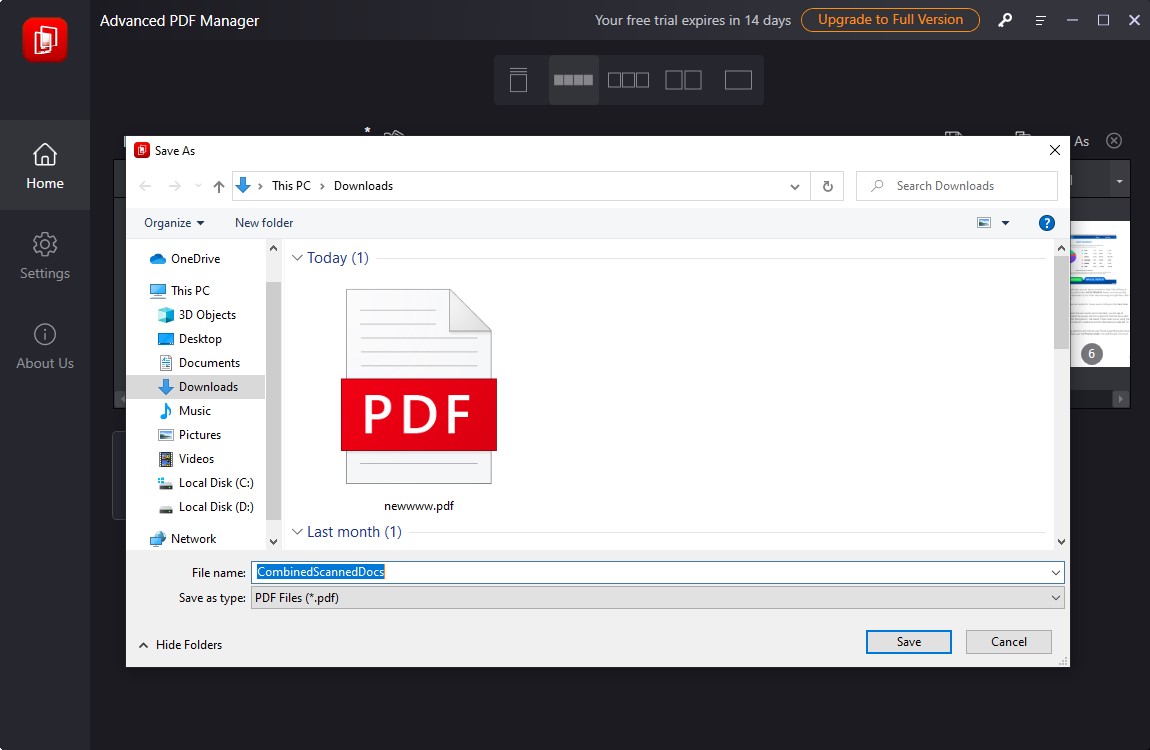
Save PDF file
Once the file is saved on your computer, you can also rearrange the pages using the rearrange pages feature in Advanced PDF Manager. You can also add a password to the file if necessary. There are many benefits associated with this PDF management tool that will assist you with PDF files in multiple ways.
Frequently Asked Questions
1- Can I merge scanned PDF files without using Adobe Acrobat?
Yes, you can use free online tools, built-in operating system features (Preview for Mac, or Microsoft Print to PDF for Windows), or mobile applications.
2- Is it safe to merge PDF files using online tools?
Most reputable online tools claim to delete uploaded files after processing, but you should always check their privacy policies before uploading sensitive documents.
3- How can I rearrange pages in the merged PDF file?
In Adobe Acrobat, Preview (Mac), and some online tools, you can drag and drop pages to rearrange them before merging.
4- Can I merge scanned PDF files that are password protected?
You must remove the password first using a PDF password removal tool before merging.
5- Do mobile applications provide the same quality as desktop software?
Most mobile applications work well for basic merges, but desktop software like Adobe Acrobat offers better editing and quality control.
6- Can I merge scanned PDF files offline?
Yes, using Adobe Acrobat, Preview (Mac), or the Microsoft Print to PDF feature on Windows allows you to merge files without an internet connection.
7- What is the best free tool for merging scanned PDF files?
Online2PDF is a popular and free online option. For offline use, both Preview (Mac) and Microsoft Print to PDF (Windows) work well.
8- Will merging PDF files affect the quality of the document?
Most tools maintain the original quality, but some online services may compress the files. Use high-quality settings if available.
9- Can I merge scanned PDF files with images?
Yes, many tools allow you to merge scanned PDF files with images by first converting the images to PDF format.
10- How can I edit the merged PDF file after merging?
Use Adobe Acrobat or PDF editors like Foxit Reader or online tools to edit, annotate, or rearrange pages after merging.
Conclusion
In this article, we discussed how to merge scanned documents into a single PDF file. You now know the best methods for merging scanned documents into PDF files. Each of them works well. Stay safe and take care.


