


What is msedge.exe and how to remove it from your computer: Recently, many Windows users have reported an unusual and mysterious process called msedge.exe running in the background on their computers. Have you noticed such a process as well? If so, there's no need to worry, as it's just a process related to the Microsoft Edge browser.
However, this process can consume a significant amount of your system resources, leading to performance issues. Moreover, such a process could potentially be a hidden virus, making it essential to remove it if your computer is behaving strangely.
In this article, we will discuss what msedge.exe is and how to remove it from your computer. But first, before attempting to end the process or troubleshoot issues, let's understand msedge.exe in more detail.
Msedge.exe: What is it?
In simple terms, msedge.exe is an executable file required for the smooth operation of the Microsoft Edge browser; this file helps you run the browser.
On the flip side, the msedge.exe file you see in the Task Manager could be a virus that disrupts your browser and affects your device's overall performance. Therefore, to verify whether this is a legitimate process running on your computer, you should check the location of this executable file.
The original file is located nowhere else but in C:\Program Files (x86)\Microsoft\Edge\Application\.
Additionally, your computer should not have multiple msedge.exe files.
To ensure you have only one file, go to your computer's main drive (usually C:) and search for the msedge file. Also, note that the actual size of msedge.exe is equal to or close to 2,964,368 bytes. If you have a file that is significantly larger or smaller than this size, it may be malware.
If you encounter errors such as msedge.exe not found, msedge.exe application error, or high CPU usage by msedge.exe, the reasons could be a missing or corrupted msedge.exe file, an outdated browser, or malware infections. Additionally, a cluttered PC could be another reason for the issues you're facing (you might want to try using a PC cleaning program to resolve the issues).
Now that we know what msedge.exe is, let's learn how to remove it if it's malware or fix the issues it causes if it's hindering your device's performance.
This article provides you with the best possible solutions for common and frustrating msedge.exe errors related to the Microsoft Edge process.
How to Fix Msedge.exe Error Message (100% Working)
You can apply the following solutions to resolve msedge.exe issues.
Fix 1: Scan Your Computer for Corrupted or Missing Files
Corrupted or missing system files can lead to more than one issue, including msedge.exe problems. Here’s how to scan your device and fix file issues.
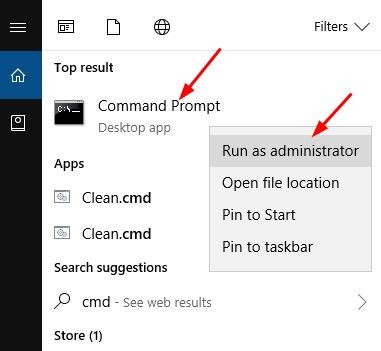
First, type cmd in the search box.
Right-click on Command Prompt and select the Run as administrator option. In the Windows search box, type CMD.
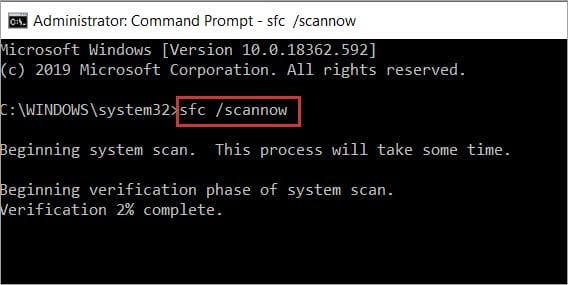
Now, enter SFC /scannow in the Command Prompt window and press Enter. Open the Command Prompt and then enter the SFC-Scannow command, and press Enter again.
Finally, restart your computer after the scan is complete.
Fix 2: Run a Security Scan
Malware infection could be another reason for your computer's unusual behavior, exposing you to msedge.exe errors. Therefore, scanning your device for viruses and malware can help resolve the issue. You can use one of the best antivirus programs or the built-in Windows Defender to do this. Here’s how to scan your computer using Windows Defender.
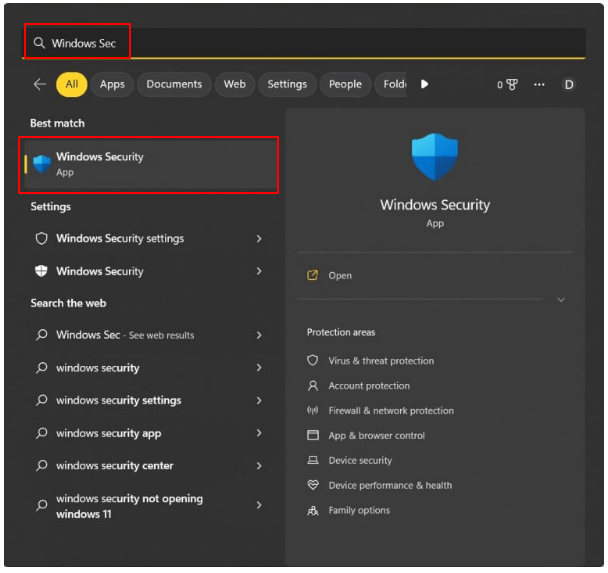
First, search for Windows Security and open it on your computer.
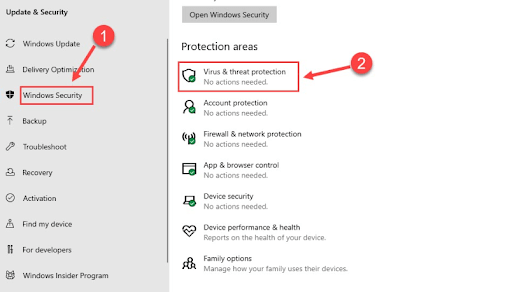
Select Virus & threat protection from the left panel of the Windows Security screen, then click on Virus & threat protection.
Select Scan options.
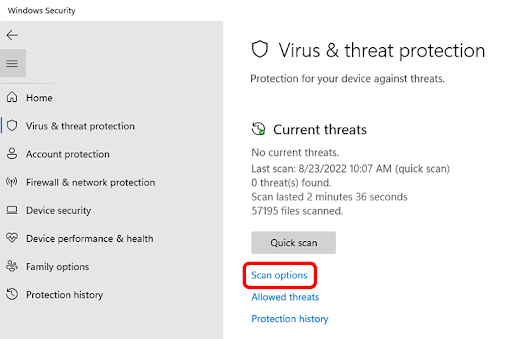
Select scan options for virus and threat protection.
Choose Full Scan from the available options and click on Scan now to perform a complete scan of your computer for malware.
After the scan is complete, check if the issues related to the msedge.exe file have been resolved. If the problem persists, here are more fixes you can try.
Fix 3: Update Windows
Updating your operating system can fix many common issues, and it can also resolve msedge.exe problems. Here’s how to update Windows.
First, use the Windows+I keyboard shortcut to access the Settings panel.
Now, select Update & Security from the available panel on your screen, and click on Updates & Security.
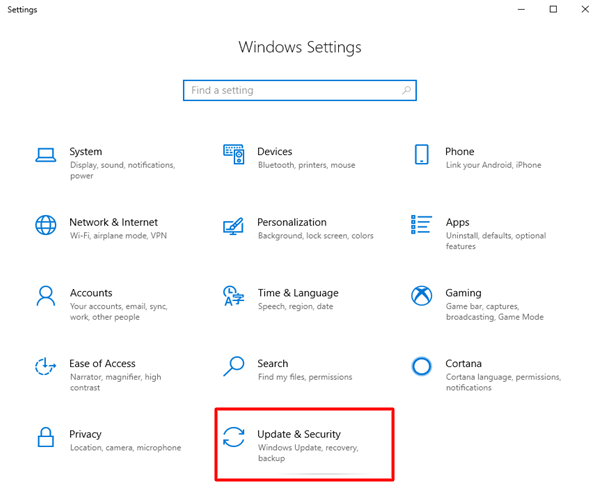
Make sure to select Windows Update in the left panel; if not, select it.
Choose the Check for updates option.
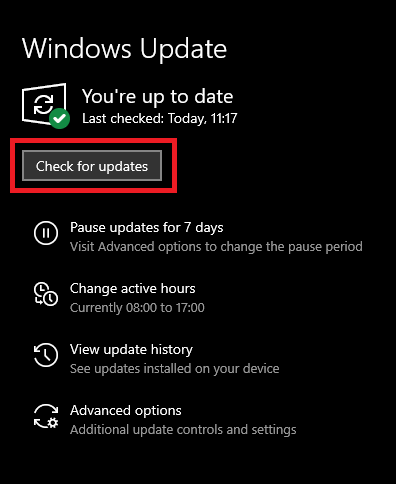
Check for Windows updates to get a driver update.
Download and install all available operating system updates.
Finally, restart your computer after completing the above steps.
Fix 4: Update Microsoft Edge Browser
If you have an older version of the browser installed on your computer, you may miss out on security patches, bug fixes, and important updates.
This could lead to unstable browser performance and compatibility issues with various extensions, websites, and your operating system, resulting in msedge.exe error messages.
Here’s how to update the browser to fix the issues.
First, launch your Microsoft Edge browser.
Now, select the three-dot menu from the upper right corner of the browser window.

Select Help and feedback from the options that appear on the screen.
Choose About Microsoft Edge.
Finally, wait for your browser to check for available updates and install them.
Fix 5: Run DISM Command
The DISM command finds and fixes issues with your operating system that may have caused msedge.exe errors. Therefore, you can follow these steps to run it on your computer.
First, search for Command Prompt and run it as an administrator.
In the Windows search box, type CMD.
Enter the command DISM /Online /Cleanup-Image /RestoreHealth in the window that appears on the screen and press the Enter key.
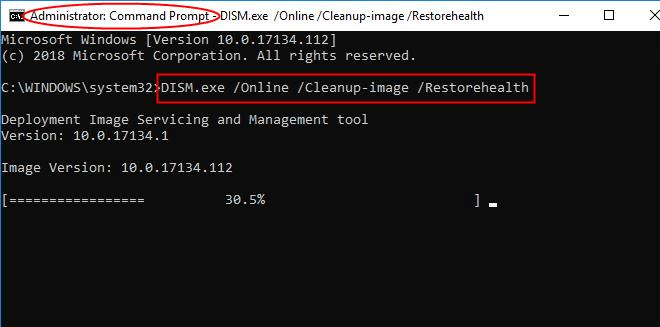
Type DISM.exe /Online /Cleanup-image /Restorehealth i.
Finally, restart your computer after the scan is complete.
Fix 6: Use Task Manager to Remove Malware msedge.exe
If you are certain that the msedge.exe file on your device is malware (the file location is not where the original file should be, or you have multiple such files, or the file size does not approach 2,964,368 bytes), you can remove it through Task Manager.
Here are the steps to do so.
First, right-click on the empty space on the taskbar and select "Task Manager."
Now, go to the "Details" tab and look for the msedge.exe process that may not be related to Microsoft Edge.
Right-click on the msedge.exe process and select the option to Open file location.
Now, right-click on the available file and choose Delete from the options that appear on the screen.
Finally, select Yes to complete the removal process.
Msedge.exe errors have been fixed.
Conclusion
Here, we discussed what msedge.exe is and how to remove it from your computer. This article outlined various fixes you can apply to resolve msedge.exe issues. You can try them to eliminate the problems you are facing. If you have any questions, please leave us a comment, and for more helpful tech solutions, you can follow this blog.
You might like this
The Complete Guide to Fixing DLL Errors on Windows 10 and Windows 11
“Device Setup Failed” – Printer Installation Errors
Troubleshooting LogonUI.exe Errors and How to Fix Them
<a


