

(10 ways to solve Taskbar/StartMenu/Explorer issue) 10 ways to fix the Taskbar/Start Menu/Explorer problem: Often, you may experience issues with a frozen taskbar or Start Menu. In this case, the Windows Taskbar, Start Menu, and Windows Explorer may become unresponsive or freeze during startup. This frozen Taskbar/Start Menu issue is most commonly seen with Windows 8/10/11.
In this article, I will discuss in detail the causes and solutions to this problem. I will also explain 10 easy methods to fix frozen Taskbar/Start Menu issues on Windows 10/11.
Method 1: Use the Advanced System Repair Tool to unfreeze Windows Explorer, Start Menu, and Taskbar.
There are many reasons that can lead to a frozen taskbar issue in Windows 10/11, such as corrupted system files, incorrect registry settings, or viruses or malware on your computer, improper graphics functioning, outdated system software and drivers, etc. The best solution to permanently fix this issue is to use the Advanced System Repair Tool. This tool scans for errors and fixes almost all problems in the Windows operating system.
Windows consists of a large number of dll files, exe files, sys files, various types of services, databases, and more, so it’s not feasible to constantly monitor all files. This excellent PC optimization tool repairs damages, fixes errors, updates Windows and drivers, and silently removes various types of errors.
The Outbyte PC Repair Tool performs all of the above tasks easily and provides you with a smooth and error-free Windows environment to work in, allowing you to focus solely on your tasks.
3 steps to fix this error
Step 1. Download the Outbyte Repair Tool [File size: 16.4 MB]
Step 2. Scan your Windows computer
Step 3. Click the "Repair" button to fix the error
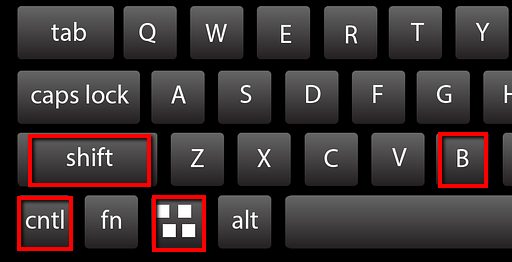
Method 2: Press Windows Key + CTRL + SHIFT + B
This is one of the useful shortcuts that will simply restart your graphics card and fix the issue instantly. If the problem is due to a minor graphical issue, it will be resolved by pressing the following shortcut:
Step 1: Save and close all open applications.
Step 2: Go to the desktop by pressing Windows Key + D.
Step 3: Now use the following shortcut keys to restart or refresh the graphics driver.
Windows Key + CTRL + SHIFT + B
win_ctrl_shift_b
Method 3: Restart Windows Explorer
Restarting Windows Explorer means restarting all startup components, including the graphics driver. Therefore, if the taskbar is stuck at startup for an unknown reason, it can be easily fixed.
There are two easy solutions to restart Windows Explorer.
Solution 1: Use Task Manager
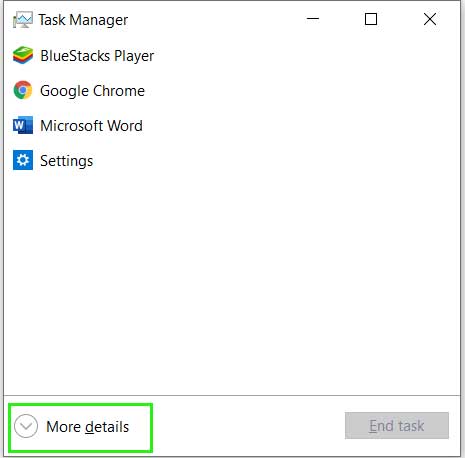
Step 1: Press CTRL + Shift + Esc to open Task Manager.
Step 2: Click on the "More details" button.
expand_task_manager
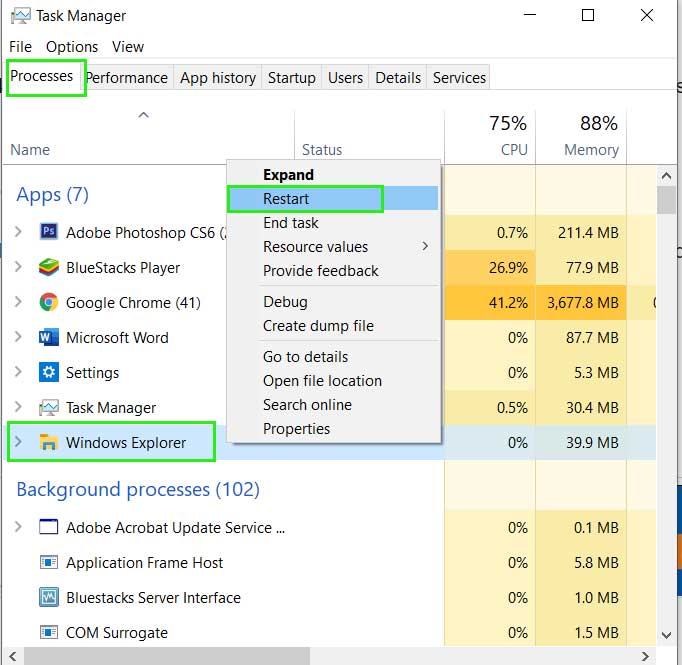
Step 3: Under the "Processes" tab, find Windows Explorer > right-click on it > select "Restart".
Restart_win_explorer
Solution 2: Use Command Prompt
If Task Manager does not open for some reason, you can use Command Prompt to restart Windows Explorer.
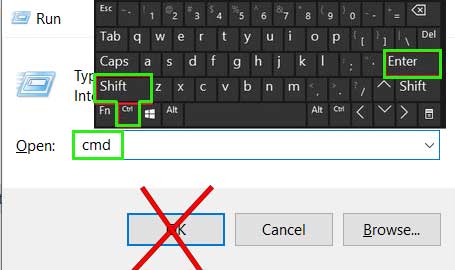
Step 1: Open CMD as an administrator. Press Windows Key + R to open the Run command. Type CMD and press CTRL + SHIFT + ENTER. You will be prompted for administrative confirmation, click Yes.
cmd_admin
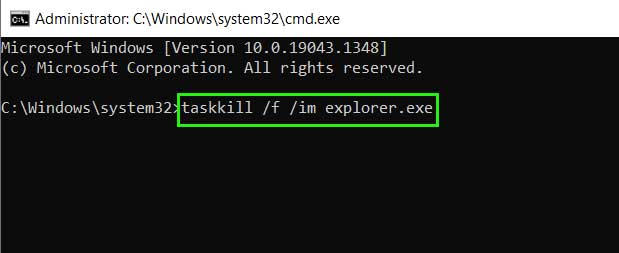
Step 2: Paste the following command into the Command Prompt and press Enter. This will terminate explorer.exe on your device, and the desktop and taskbar will disappear, showing a black desktop without a taskbar. Don’t worry, in the next step, you will be able to run a new Explorer.exe.
taskkill /f /im explorer.exe
Explorer_kill
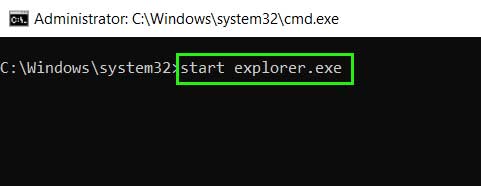
Step 3: Now paste the following command into the Command Prompt to run Explorer.exe, this command will restore the desktop to its normal state.
start explorer.exe
Explorer_start
Method 4: Use Windows Powershell
You can use Windows Powershell to unfreeze the Windows Taskbar.
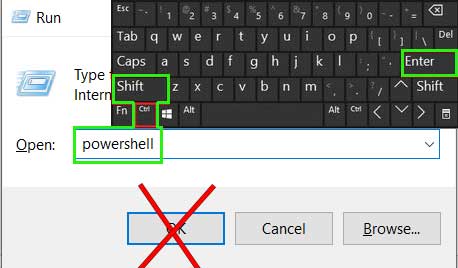
Step 1: Open Windows Powershell as an administrator, press Windows Key + R to open the Run dialog, type powershell in the Run dialog, then press CTRL + SHIFT + ENTER.
powershell_admin
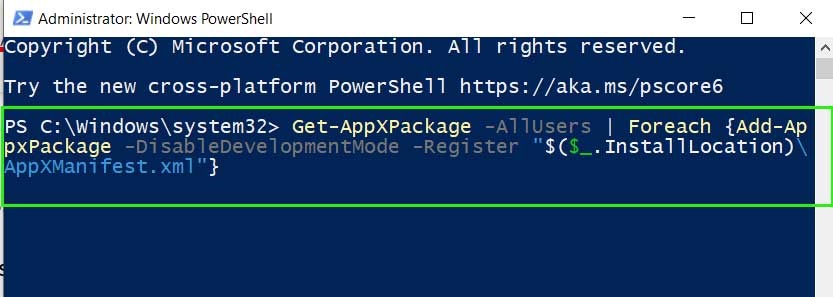
Step 2: Paste the following command and then press Enter.
Get-AppXPackage -AllUsers | Foreach {Add-AppxPackage -DisableDevelopmentMode -Register “$($_.InstallLocation)\AppXManifest.xml”}
powershell_command
Method 5: Check if User Manager is enabled.
If User Manager has been disabled by the administrator or due to a program installation, you may encounter issues with the taskbar. You should check whether User Manager is enabled or not.
Step 1: Open the Run dialog by pressing Windows Key + R.
Step 2: Type services.msc and click OK to open the "Services" window.
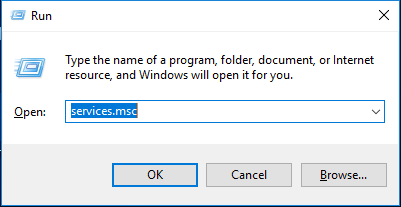
com.servicesmsc
Step 3: Look for User Manager > right-click > Properties.
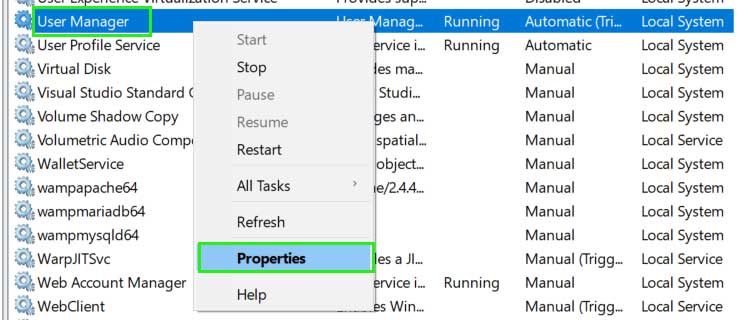
user_manager_properties
Step 4: Go to the General tab and select Automatic in the Startup type, click OK to save the settings.
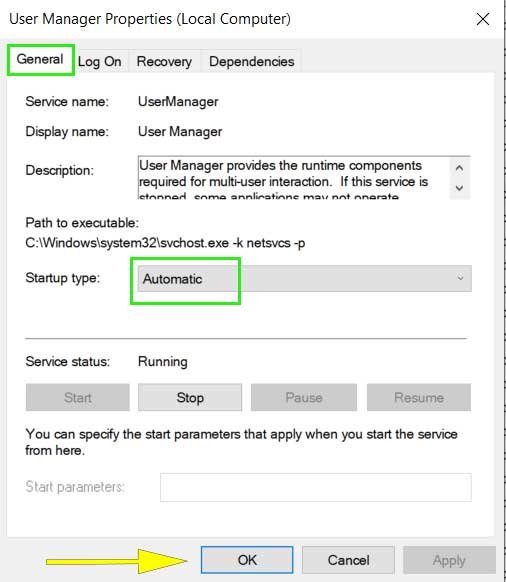
user_manager_automatic
Method 6: Repair Windows File System
If there is any corruption in the Windows file system, it will not be able to load the necessary startup files and will start creating issues like a frozen taskbar, etc. You should check and repair the Windows file system using the command sfc /scannow, this command works in Command Prompt and does not take long to complete.
Step 1: Open CMD as an administrator, press Windows Key + R to open the Run command, type cmd then press CTRL + SHIFT + ENTER. You will be prompted for administrative confirmation, click Yes.
cmd_admin
Step 2: Type the following command and press Enter, wait until it reaches 100% and completes the process, it will take 2 to 5 minutes depending on your system speed.
sfc /scannow
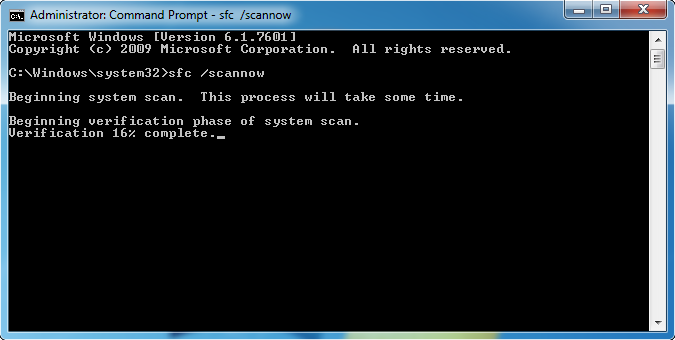
sfc scannow
Step 3: Once the scan is complete, you will see the result regarding the integrity of your Windows file system. If there is any damage, this command will automatically fix it.
Method 7: Force Stop Windows Explorer.
If the taskbar and Windows Explorer are completely frozen, the best idea is to completely stop Windows Explorer and then restart it using Task Manager.
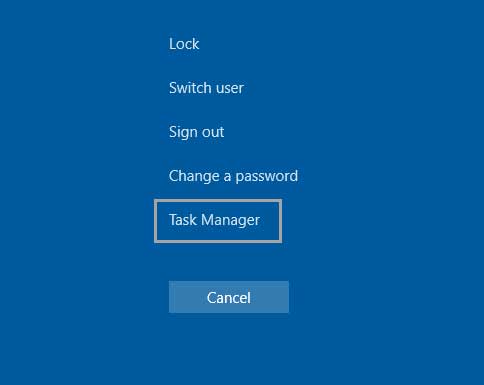
Step 1: Go to the desktop and then press CTRL + ALT + DELETE to open the menu, click on Task Manager to open it.
ctrl_alt_del
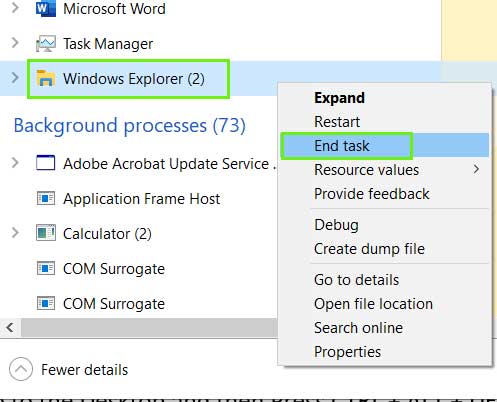
Step 2: Right-click on Windows Explorer and select End Task.
Task_manager_end_explorer
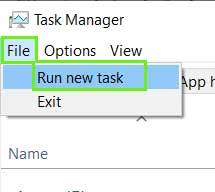
Step 3: Click on File > Run new task
run_new_task
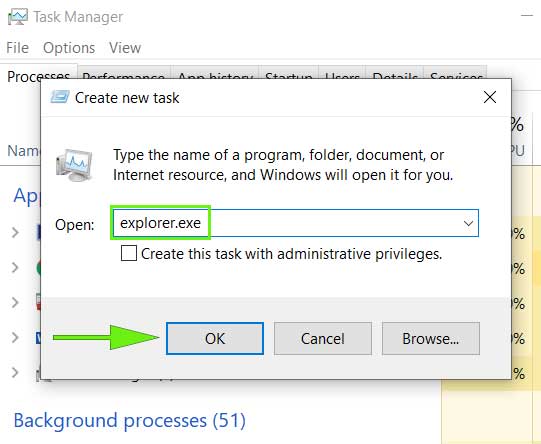
Step 4: Type explorer.exe and then click OK to run Windows Explorer again.
new_task_explorer
Method 8: Disable Recently Opened Items
When the taskbar starts up, it loads all the startup items list including recently opened items. Disabling the recently opened


