


5 Solutions to Fix "Windows Has Encountered a Fatal Error": When you see the message "Windows has encountered a fatal error and will restart in one minute," your only option is to restart your computer.
This error is very rare and occurs when Windows suffers severe damage to its core files.
In such a scenario, the Windows operating system becomes unable to manage the damage and gives you a one-minute countdown before your computer automatically restarts.
Important Note:
Before attempting any major repairs on your Windows operating system, it’s crucial to recover your data and store it safely. The EaseUS Data Recovery Wizard is here to rescue data from your crashed computer.
Whether you’re facing the dreaded blue screen of death, startup failures, or boot issues, this tool allows you to get your computer running again and recover your precious data effortlessly. So, make sure to use EaseUS Data Recovery Wizard to safeguard your files before proceeding with any repairs!
Note: The free version allows you to recover up to 2GB of data.
Causes:
Several factors can lead to the message "Windows has encountered a fatal error and will restart in one minute," and some notable causes are outlined below:
Corrupted system files: Having corrupted Windows system files, such as dll and sys files, is a primary trigger for this error message. These file corruption issues can significantly contribute to the problem.
Incompatible or outdated drivers: A prominent secondary cause of this error is the use of incompatible or outdated drivers. These drivers, when not aligned with system requirements, can lead to the aforementioned error message.
Virus infection: The infiltration of a serious virus can cause severe damage to various system files and integrated Windows functions, which can later result in the fatal error message.
Hardware failure: Another factor that can lead to the same error message is hardware failure.
Issues such as faulty RAM, SSDs, motherboards, and other hardware components can contribute to this error.
By identifying and understanding these underlying causes, users can take proactive steps to address root issues and potentially prevent the recurrence of the message "Windows has encountered a fatal error and will restart in one minute."
How to Fix the Error "Windows Has Encountered a Fatal Error and Will Restart in One Minute."
This article outlines some solutions that will help you resolve this issue.
5 Solutions to Fix "Windows Has Encountered a Fatal Error"
Method 1: Repair Using a PC Repair Tool
As mentioned above, this error occurs due to corrupted system files, outdated or incompatible drivers, incorrect registry entries, or an outdated operating system, etc. You can fix all these issues with a single click using a PC optimization tool.
Windows consists of a large number of dll files, exe files, sys files, various types of services, databases, and so on, so it’s not feasible to constantly monitor all files. The PC optimization tool repairs damage, fixes errors, updates Windows and drivers, and silently removes various types of errors.
The Outbyte PC Repair Tool performs all the above tasks effortlessly and provides you with a smooth, error-free Windows environment to work in so you can focus solely on your tasks.
3 Steps to Fix This Error
Step 1. Download Outbyte PC Repair Tool
Step 2. Scan your Windows computer
Step 3. Click the "Repair" button to fix the error
Method 2: Repair Corrupted, Old, Missing, or Incompatible Drivers.
Sometimes, after installing applications or games or drivers, the above error may suddenly appear. This is usually due to driver incompatibility with your operating system or missing or corrupted files within it.
To address this issue, you have two potential solutions: download a new version of the application from the official site or use a driver repair tool to resolve any driver-related issues.
The majority of Windows issues stem from corrupted, outdated, missing, or incompatible drivers. However, with DriverEasy, these issues can be resolved easily. DriverEasy automatically scans, installs, or updates drivers, ensuring your system remains up-to-date and optimized.
Method 3: Use Kaspersky Rescue Disk to Remove Viruses and Malware.
If viruses or malware have infected core system files, removing them becomes challenging due to their integration with multiple Windows services and mimicking original processes. In such cases, using Kaspersky Rescue Disk is essential for effectively eliminating virus or malware infections deeply embedded in core Windows files.
Kaspersky Rescue Disk - Step by Step
Step 1: Download Kaspersky Rescue Disk from the official Kaspersky website:
Step 2: Create a bootable USB/DVD drive using Rufus/Win32 Disk Imager.
Step 3: Boot your computer using the bootable USB drive.
Step 4: First, update the antivirus database.
Step 5: Run a system scan and follow the instructions displayed on your computer screen.
Method 4: Upgrade Your Operating System to a Higher Version.
Upgrading your operating system to a higher version can be a potential solution to resolve the "Windows has encountered a fatal error and will restart in one minute" issue. If you are currently using Windows 8 or 10, it is advisable to perform an in-place upgrade of your operating system. This process ensures that your files and applications remain unaffected while elevating your operating system to a premium version.
Method 5: Use System Restore
Use System Restore as a method to address various Windows startup issues, including the appearance of the message "Windows has encountered a fatal error and will restart in one minute." To initiate System Restore, follow these steps:
System Restore - Step by Step
Step 1: Open the Advanced Startup Options or Windows Recovery Environment.
Go to Troubleshoot ➜ Advanced options ➜ System Restore.
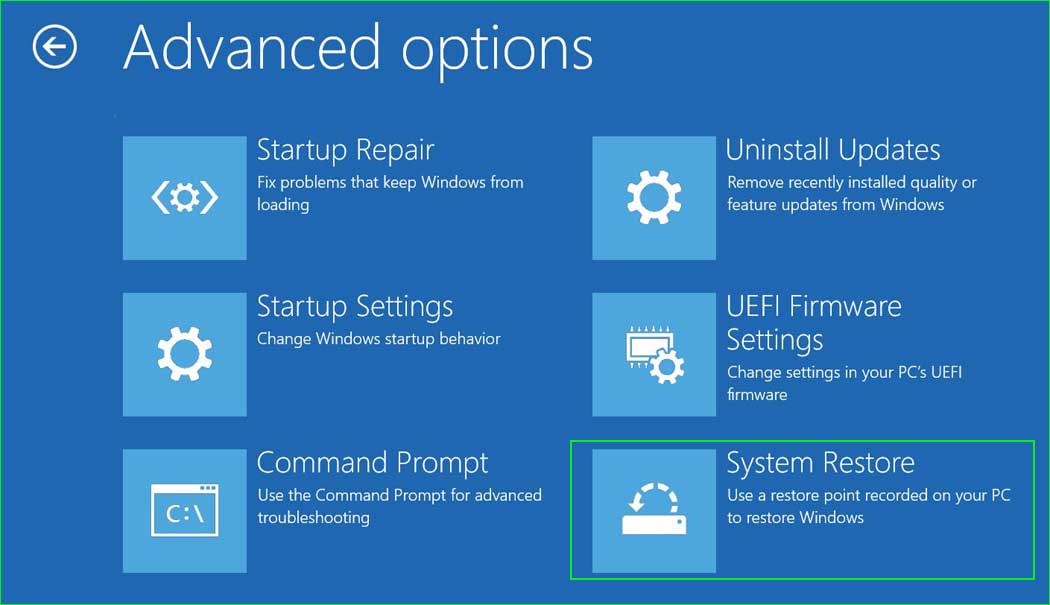
system_restore
Step 2: Click Next and select a date.
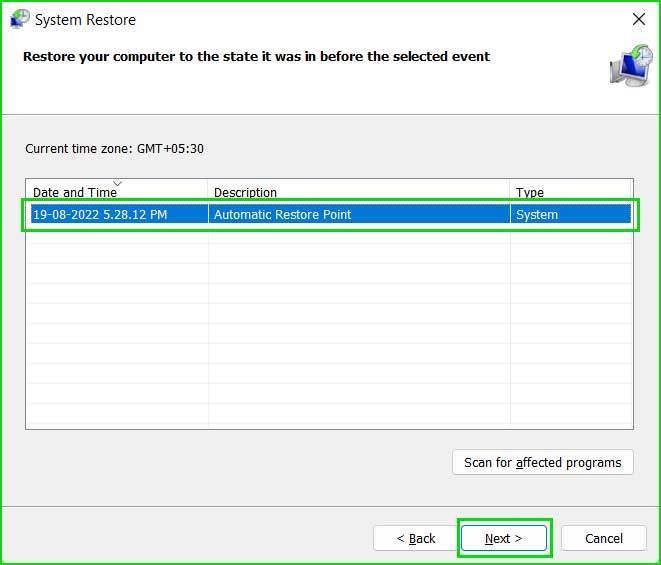
Select System Restore from the list
Step 3: Click "Finish" to start the restoration process.
Conclusion
In this article, we discussed 5 solutions to fix "Windows has encountered a fatal error."
To correct the message "Windows has encountered a fatal error and will restart in one minute," you can use various corrective methods. This includes repairing corrupted system files, addressing driver issues through updates or repairs, and removing malware or viruses from your system.


