

Google Workspace vs Microsoft 365: Which is better? Once upon a time, Microsoft Office dominated the business world. By the late 1990s and early 2000s, the Microsoft Office suite had pushed aside competitors like WordPerfect Office and Lotus SmartSuite, with no rivals in sight.
Then, in 2006, Google entered the scene with Google Docs & Spreadsheets, a collaborative online duo for word processing and spreadsheets that was integrated with other business services to form the Google Apps suite, later rebranded as G Suite and now known as Google Workspace. Although Google’s productivity suite didn’t immediately take over the business world, it gradually gained significant features and popularity, boasting 10 million paying customers as of the company's 2023 figures.
Meanwhile, Microsoft shifted its focus from the traditionally licensed Office software to Microsoft 365 (formerly known as Office 365), a subscription-based version treated as a service, featuring regular updates and new functionalities. Microsoft 365 is what we will focus on in this article.
Today, choosing an Office suite for your company is no longer as straightforward as it once was. That’s why we’re here to help.
Google Workspace vs Microsoft 365: The Basics
Google Workspace and Microsoft 365 share many similarities, as both are subscription-based platforms designed for business use, offering tools for productivity, communication, and collaboration. Google Workspace primarily operates online but also provides offline functionality. In contrast, Microsoft 365 emphasizes desktop applications, although it includes web versions of its apps.
Both suites can be accessed across various devices, with Google Workspace compatible with most browsers and available on iOS and Android, while Microsoft 365 offers client applications for Windows, macOS, Android, and iOS, along with web access.
Both programs provide core applications such as word processing, spreadsheets, presentation tools, email, calendars, and contacts, along with integrated cloud storage. They also include advanced generative AI tools. However, the tools and applications within each suite differ, with each offering unique management tools to handle tasks within the work environment. This comparison will explore the strengths and weaknesses of the various applications, collaboration features, and AI tools.
Google Workspace vs Microsoft 365: Which is Better
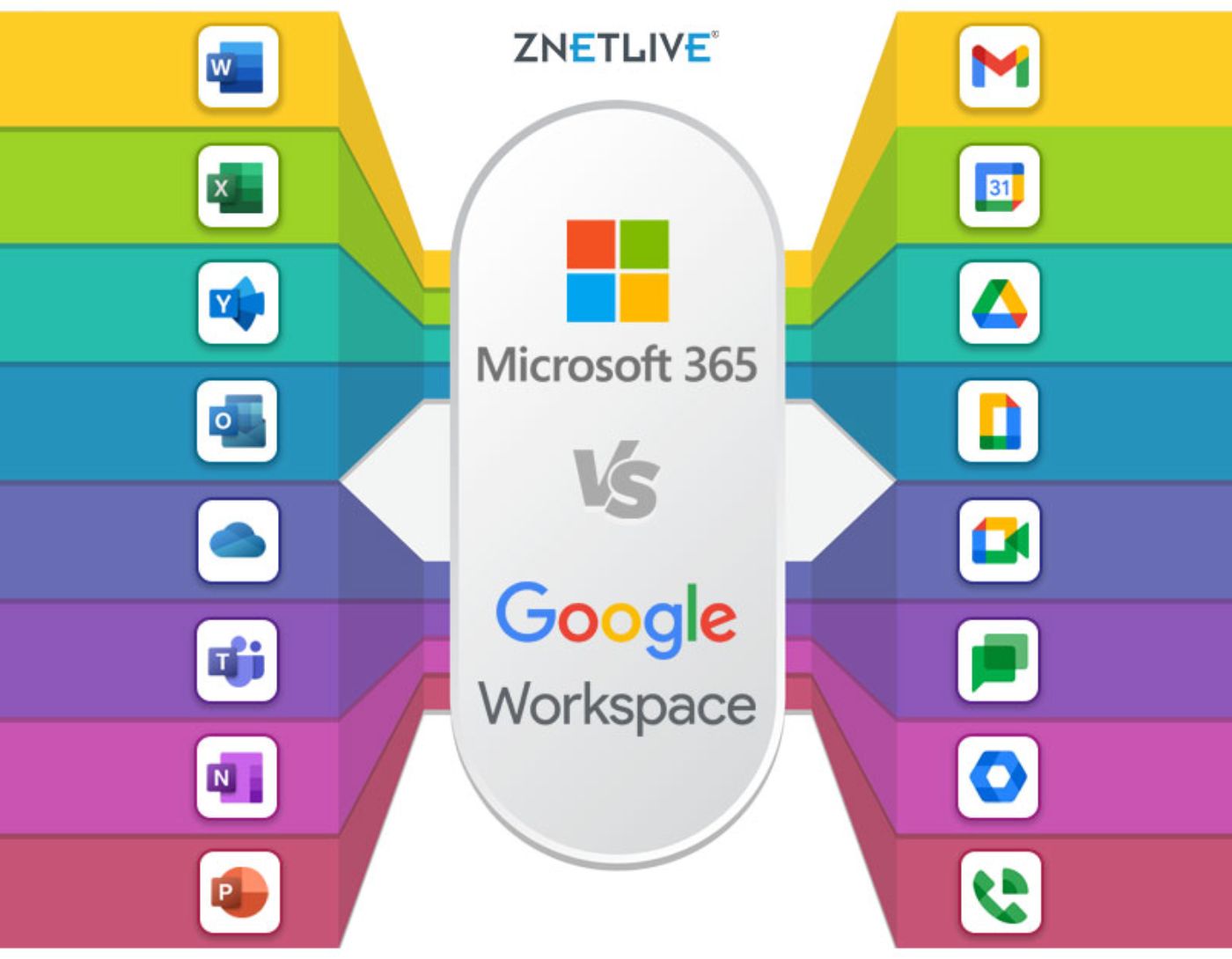
Businesses rely on a variety of applications, and different organizations may prioritize certain tools, such as word processors or spreadsheets. Below, we compare the key applications from Google Workspace and Microsoft 365 to highlight which might better suit your needs.
Document Editing: Google Docs vs Microsoft Word
Both Microsoft Word and Google Docs offer powerful document editing capabilities, but with different strengths. Word boasts more features, providing a wide array of pre-made templates to speed up document creation. For instance, Word has over 200 business templates, while Google Docs offers fewer than 60 templates across all categories. Word also has a broader range of chart types and more precise design options.
However, Google Docs excels in real-time collaboration. Google has seamlessly integrated direct collaboration features, making it easy for multiple users to work together on a document simultaneously. While Word has made significant strides in collaborative features, it still lacks the user-friendliness and simplicity of Google Docs. For indirect collaboration, such as document editing and commenting, Word remains the standard, although Google Docs nearly matches it in editing capabilities.
Spreadsheets: Google Sheets vs Microsoft Excel
The choice between Excel and Google Sheets depends on whether users primarily work independently or frequently collaborate. Excel is the better option for individual work, offering a wide range of templates (such as over 90 budgeting templates) and numerous chart types (19 in total), including specialized charts like histograms. Excel also provides many subtypes for each chart, allowing users to customize data visualization precisely.
Google Sheets, despite its limited templates and chart options, shines in collaborative settings. Like Google Docs, it features robust real-time collaboration tools that are easily accessible and seamlessly integrated into the interface. Excel has improved its collaborative capabilities over the years but still lags behind Google Sheets in terms of ease of use and functionality.
Presentations: Google Slides vs Microsoft PowerPoint
Microsoft PowerPoint offers advanced features not available in Google Slides, making it ideal for creating polished presentations. For example, PowerPoint’s QuickStarter feature guides users through setting up an outline, initial slides, templates, and themes based on the presentation topic presentation. PowerPoint also makes it easy to integrate graphics, animations, transitions, and multimedia, offering unique presentation aids like "Rehearse Timings," which helps presenters time each slide.
In contrast, Google Slides is known for its simplicity and collaboration. With fewer features, the interface is more straightforward and accessible for quick presentations. The collaboration tools in Google Slides surpass those in PowerPoint, making it easier for teams to create presentations together in real-time. However, users seeking advanced multimedia capabilities may find Google Slides lacking compared to PowerPoint.
Email: Gmail vs Microsoft Outlook
For a streamlined and straightforward email experience, Gmail is often preferred, as its uncluttered interface allows for quick and efficient email management. Gmail’s AI-driven features, such as predictive text and "nudges" for forgotten replies, make it significantly user-friendly. It also offers tools like snooze and folder-based filtering to enhance organization.
However, Outlook provides more robust features and integrates seamlessly with Microsoft Calendar and contacts. It includes automation tools like Quick Steps and allows for complex customizations not available in Gmail. The navigation pane on the left side of Outlook integrates with all Microsoft 365 applications and even supports managing Gmail within the Outlook interface. While Outlook’s interface is more complex than Gmail’s, recent updates have made it simpler to use, making it easier to find key features.
Collaboration: Google Meet, Chat, and Spaces vs Microsoft Teams
When it comes to document collaboration, Google Workspace has the edge, as Google has deeply integrated collaboration features into the interface, making it easy to invite others, set permissions, and work together in real-time. Microsoft 365 offers collaborative tools but with a more significant learning curve and a less seamless experience within its applications.
However, Microsoft Teams stands out as a comprehensive collaboration platform. It combines chat, meetings, and video conferencing, customizable workspaces, calendars, and file repositories. Teams integrates deeply with other Microsoft 365 tools, including Outlook, SharePoint, and OneDrive for Business. While Microsoft has separated Teams from some enterprise plans due to organizational issues, it remains a powerful tool for business communication and collaboration.
Google Workspace offers Google Meet for video conferencing, Google Chat for messaging, and Spaces for workflow integration. Spaces allows users to create shared workspaces for chatting, file sharing, and task management. While Google’s collaboration tools are useful, they are not as comprehensive as Microsoft Teams.
Storage and File Sharing: Google Drive vs Microsoft OneDrive for B
Both Google Workspace and Microsoft 365 offer substantial storage for business use, with plans providing between 1TB to 5TB per user, depending on the subscription tier. Google Workspace’s storage is cloud-based by default, allowing access to files from any device and the option to store files locally. Microsoft 365 files are typically stored on individual devices as well as in the cloud, and users can also choose to keep certain files
For offline access, Google Workspace allows administrators to control whether users can access files offline in Docs, Sheets, and Slides. This policy can be set on individual devices, enabling offline work in a cloud-first environment. Microsoft


