

Adobe Illustrator CS3 Portable
Portable Illustrator CS3
Download the full version of Adobe Illustrator CS3 with activation
Back in 1986, Adobe introduced a drawing program based on PostScript called Illustrator. A lot has happened since then, including Adobe's acquisition of Macromedia and Apple's adoption of Intel-based hardware.
Now, more than 20 years after its initial launch, Adobe has released Illustrator CS3, which is part of the Adobe Creative Suite 3 product line.
Given the minimal competition from Illustrator (with FreeHand, which seems to be forgotten and is also owned by Adobe), one might think that Adobe lacks a strong incentive to invest heavily in a new release. However, a quick glance at Illustrator CS3 reveals that Adobe shows no signs of slowing down. With innovative new features, improved integration with other applications, and numerous small enhancements, Illustrator CS3 impresses on many levels. The question is, at $599 ($199 for an upgrade), is it compelling enough to part with some of your hard-earned cash?
Let's take a closer look.
Get your work done faster
Completing your work quickly is crucial, and Illustrator CS3 helps you meet your deadlines and even make it home in time for dinner in several ways. Adobe has promised better performance in previous upgrades, but Illustrator CS3 is the first version where you can truly believe it. Illustrator runs as a universal binary application and operates natively on Intel-based Macs and PowerPC Macs running Tiger. It also works on both Windows XP and Windows Vista. While you can feel performance improvements on any system, CS3 really benefits from multi-core processors. On a PowerMac G4, Illustrator redraws complex artwork at twice the speed.
Large files simply fly on a MacBook Pro.
To make navigation within the application easier, Illustrator CS3 features a new panel-based user interface that allows you to dock panels (formerly known as palettes) as icons and pin them to either side of the screen (see Figure 1).
The new interface aligns with Photoshop, InDesign, and even Flash CS3.

Figure 1. You can minimize the panels (the new name for palettes) to icons that you dock on the side of the screen. Clicking an icon activates that panel.
Click the image for a larger view.
The context-sensitive control panel at the top of the screen now provides links to additional functions, and it also recognizes screen resolution (see Figure 2).
The control panel adjusts its content based on the available space on your screen.

Figure 2. If Illustrator detects insufficient space to display icons for each function, it will instead show hyperlinks. In this example, a single click allows you to access the full Align panel.
Click the image for a larger view.
Creating new documents is less of a chore with new document profiles, which contain essential document settings such as document size, color mode, preview mode, measurement settings, and even raster effects resolution settings (see Figure 3). Illustrator comes with optimized profiles for print, web, mobile devices, and video documents, and you can also add your own custom profiles.
With these profiles, you can create a new file with all the correct settings with just a click of the mouse.
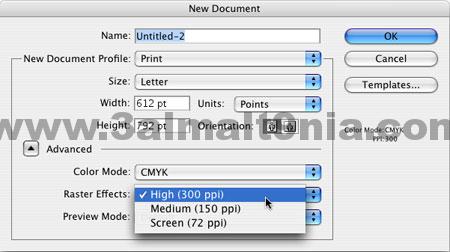
Figure 3. Thanks to improved performance in Illustrator, the print document profile automatically sets the raster effects resolution to 300 DPI.
Click the image for a larger view.
A splash of color
Visit Adobe's website, and you'll see a lot of buzz about a feature the company refers to as 'Live Color,' but within the application itself, you won't find any tool, menu item, or panel by that name—only one dialog box contains the name Live Color throughout Illustrator CS3. In fact, Adobe's marketing draws so much attention to this feature called Live Color that you might overlook what Illustrator CS3 offers—robust color support throughout the entire application. In other words, if there's anything you want to do with color, there's a good chance Illustrator can handle it. For example, have you tried to find the closest Pantone color that matches an existing process color? Have you attempted to change a color within a pattern or gradient (or mesh gradient)? Have you tried converting all your vector artwork to grayscale? What about transforming one of those dull charts with all those shades of gray into something more exciting?
Illustrator CS3 can do all of these things.
Before I get ahead of myself, let me start by describing some of the color enhancements you'll find in the application. You can create color swatch groups, making it easier to organize colors and manage their relationships. I have swatch groups containing colors for various clients and for different parts of an Illustrator file.
For instance, to simplify the coloring of foliage, I created a group of several shades of red, orange, and yellow (see Figure 4).
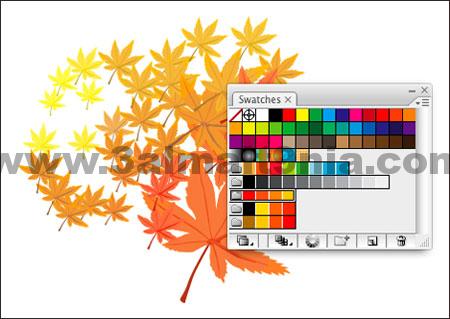
Figure 4. Color groups appear as folders in the Swatches panel.
Speaking of different shades of colors, Illustrator CS3 features a new panel called 'Color Guide,' designed to inspire your color choices. Whenever you select a color swatch, the Color Guide provides variations of that color. You can choose the types of formulas the Color Guide provides, but the real power comes when you can feed the Color Guide a specific color set to choose from (see Figure 5).
For example, if you're working on a project that will be printed in spot colors, you can direct the Color Guide to suggest shades from the Pantone color library only.
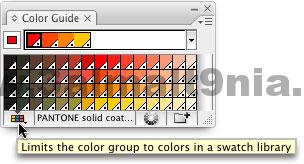
Figure 5. By specifying the Color Guide for a particular color library, you'll see suggested color formats that are already compatible with your needs.
The feature Adobe calls Live Color is actually a single dialog box with two apparent functions: color editing and color assignment. These tasks appear as separate tabs in the active color window. Note that I said 'apparently' simple.
There are quite a few buttons, drop-down menus, and options in this dialog box that make you feel like you're piloting a space shuttle.
What adds to this confusion is the fact that you often have to navigate back and forth between the Edit and Assign tabs to perform tasks. For example, in the Edit tab, Illustrator highlights each color in your selection with a circle that appears on the color wheel. I can recolor the artwork simply by dragging the circles around the color wheel. To see which circle corresponds to the artwork in my document, I need to switch to the Assign tab, click a button to highlight where the selected color appears on my artboard, and then go back to 'Edit' to make a change (see Figures 6, 7, and 8).
Adobe Illustrator CS3 Activated Portable Version
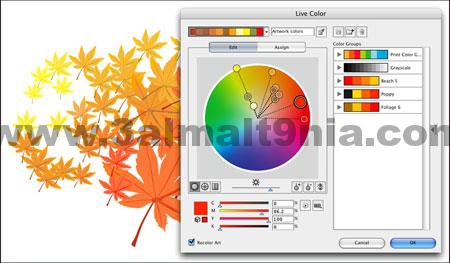
Figure 6. When the Live Color feature is activated, all colors in my artwork appear as the circles are assigned to the color wheel in the Edit tab of the dialog.
Click the image for a larger view.
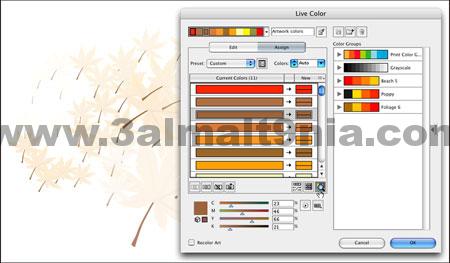
Figure 7. To find out the color of a leaf, I use the Assign tab, which has a magnifying glass icon that highlights the selected color on the artboard.
Click the image for a larger view.

Figure 8. After selecting the correct color, I can return to the Edit tab to adjust the color on the color wheel.
Click the image for a larger view.
Like the Color Guide panel, you can direct the Live Color dialog to work within a specific range or library of colors only. This is extremely useful when trying to convert a color illustration to two Pantone colors (see Figure 9). You gain complete control over all colors in your file, and it works on gradients, meshes, patterns, symbols, live effects—everything except linked or embedded raster images. With Live Color, you don't have to be a color scientist to make some beautiful color studies and adjustments in your artwork.
The problem is, you might need to be a color scientist to figure out how to use it.
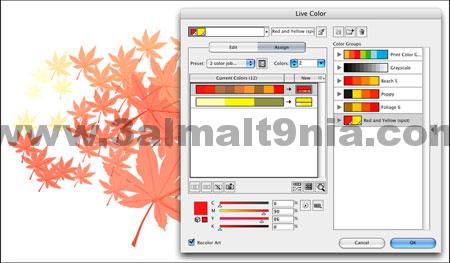
Figure 9. After creating a color group with two spot colors, I was able to easily recolor all the colors in my file to those two colors. Two color bars (called rows) indicate the colors assigned to each spot color.
Click the image for a larger view.
However, you can take advantage of all this color technology without even going to the Live Color feature. Illustrator CS3 has one-click options to convert artwork to grayscale or adjust color saturation, both accessible from the new Edit Colors submenu in the Edit menu. The built-in support for N-Channel (also referred to as Device-N) now makes it possible to create duotones and native photonic files with spot channels—very useful for those in the packaging industry.
This also means you can use multiple spot colors with a gradient mesh, and the file will be separated correctly.
The designer embraces Flash
Flash was one of the driving forces behind Adobe's acquisition of Macromedia. It's nice to see from the changes in Illustrator CS3 that Adobe has recognized that designers have always used Illustrator to create artwork that is later brought into Flash for development.
(Clearly, the Flash team is aware of this too, as Flash CS3 Professional includes many enhancements that come from Illustrator.)
Symbols are the lifeblood of Flash, and although Illustrator has been able to create symbols since version 10, this feature had many shortcomings, such as the hoops you had to jump through to edit symbols. In Illustrator CS3, you simply double-click a symbol to edit it, just like you do in Flash. Illustrator also allows you to define symbols by pressing F8—again, just like in Flash. Symbols have certain properties specific to Flash so they can be easily referenced from ActionScript code. Illustrator CS3 now lets you designate a symbol as a movie clip or graphic, specify registration, and set guides for measuring the nine slices (see Figure 10). You can even name each symbol instance in your layout. Beyond symbols, there's an entirely new text panel, from which you can define interactive text directly within Illustrator (see Figure 11).
[[TW

 File Name:
 Downloads:
 Version:
 Full Version:
 Created By:
 License Type:
 Languages:
