


(Technical guide to fix runtime error R6016 in Windows 10/8/7) Technical Guide to Fix Runtime Error R6016 in Windows 10/8/7: The Windows operating system consists of thousands of DLL files, exe files, sys files, and others. These files are responsible for the smooth operation of Windows devices and keeping the operating system error-free. However, with prolonged use of the PC, most system files can become corrupted or damaged, leading to various system issues. Runtime Error R6016 is one such error that causes applications to close unexpectedly. In this article, I will guide you on how to effectively fix Runtime Error R6016.
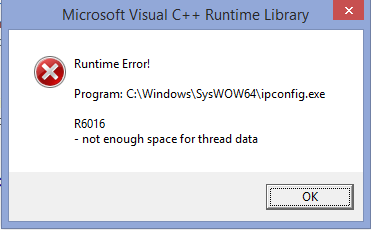
You may receive the following error message if your computer is experiencing a Runtime Error R6016 issue.
Runtime error!
Program: C:\Program\Files\xxx.exe
Runtime Error R6016 - Not enough space for thread data.
Causes of Runtime Error R6016
There can be many reasons behind Runtime Error R6016, but since the error itself indicates that there is not enough memory available for the application, it seems that the application requires more memory to function properly.
However, more often than not, it is an application error; there may be some variables with bugs in the program that consume excessive system memory and cause the application to crash.
Here’s a list of potential causes that may lead to this error:
- There is a bug in the application.
- System memory is low.
- Malware or viruses are running and consuming system memory.
- Dependent system files like DLL, exe, and sys files are corrupted or damaged.
- You have not installed the relevant Microsoft Visual C++ Runtime library.
- The Microsoft Visual C++ Runtime library is corrupted and needs repair.
- The registry files contain corrupted entries for the program.
- Outdated drivers and system updates, etc.
Technical Guide to Fix Runtime Error R6016 in Windows 10/8/7
To fix Runtime Error R6016, you need to carefully follow the steps below:
Method 1: Repair using Outbyte PC Repair Tool
Most common causes of runtime errors are corrupted or damaged system files like DLL files, exe files, sys files, etc. There are thousands of small system files that perform specific tasks. If one of these files is replaced, deleted, or corrupted, you may encounter Runtime Error R6016.
Windows consists of a large number of dll files, exe files, sys files, various types of services, databases, and so on, so it’s not feasible to constantly monitor all files. A great PC optimization tool quietly repairs damages, fixes errors, updates Windows and drivers, and removes various types of errors.
The Outbyte PC Repair Tool performs all the above tasks effortlessly and provides you with a smooth, error-free Windows environment to work in so you can focus solely on your tasks.
3 Steps to Fix this Error
Step 1. Download the Outbyte PC Repair Tool [File size: 16.4 MB]
Step 2. Scan your computer running Windows
Step 3. Click the "Repair" button to fix the error.
Method 2: Reinstall the Application
This is the most preferred option to fix this issue; simply download the new compatible version of your application and install it. Runtime Error R6016 often appears when trying to run a specific application, and reinstalling this application may help resolve the error.
Method 3: Restart Your Computer
Yes, what you just read is correct! Restarting your computer can free up RAM, and then if you run the application, you may not encounter the error.
Method 4: Scan Your Computer for Malware/Viruses.
You need to scan your computer using a good antivirus system against viruses. You should repair the damages using the Advanced System Repair Tool after scanning your computer with the antivirus program. Antivirus programs clean viruses but do not repair the damage caused by them.
Method 5: Update Your Computer and Drivers
Updating your computer and drivers can fix most computer issues. When you update your computer and drivers, it installs the latest patches for bugs. An outdated driver can cause compatibility issues and other problems on your computer.
Method 6: Install or Repair Microsoft Visual C++ Runtime Library
You should find the relevant Microsoft Visual C++ Runtime library and install it from the Microsoft website. Most applications require a certain C++ Runtime library to function correctly. You can repair the installed Visual C++ Runtime library as follows:
Repairing the Microsoft Visual C++ 2012 Redistributable file may provide a quick solution to your problem.
1. Go to Control Panel > Uninstall a program
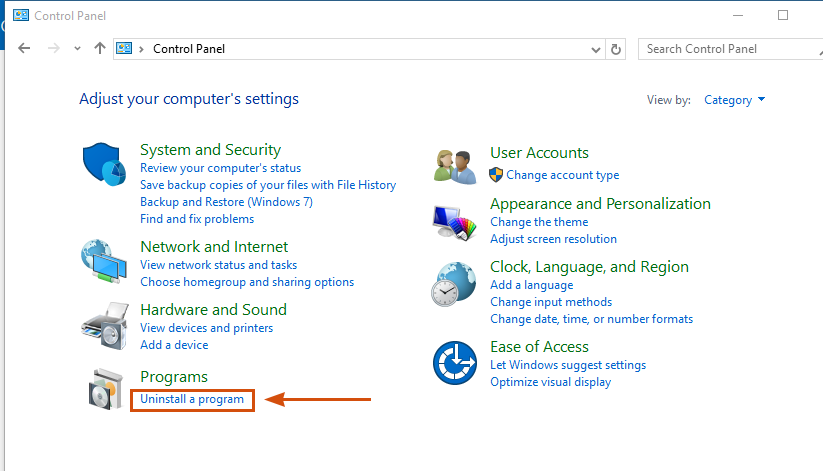
uninstall_program
2. Select the Microsoft Visual C++ 2012 Redistributable package, right-click on it, and select Change.
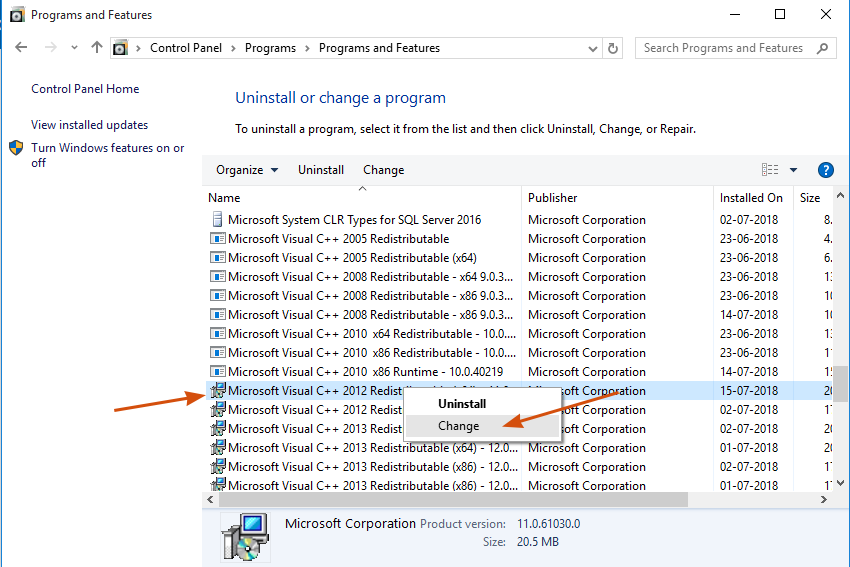
Repair_redistributable_file
3. Click the Repair button to start the repair process.
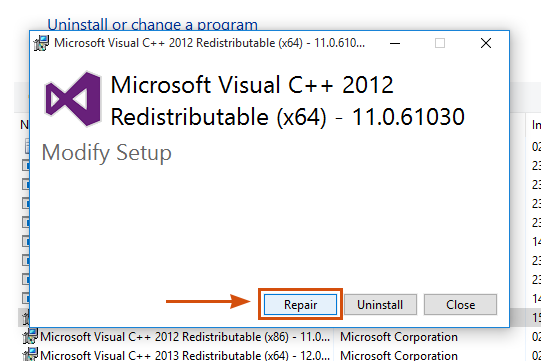
Repair_redistributable_file
4. You will see that the repair is in progress.
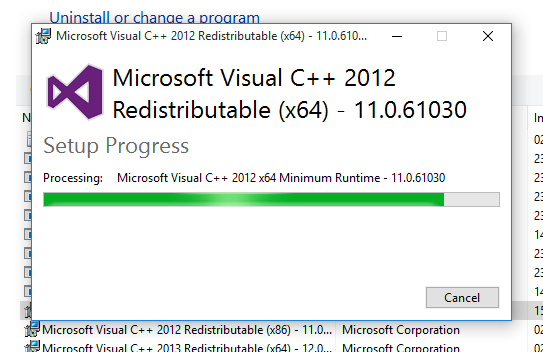
Repair_redistributable_file
5. Once the process is complete, you will be prompted to restart your computer.
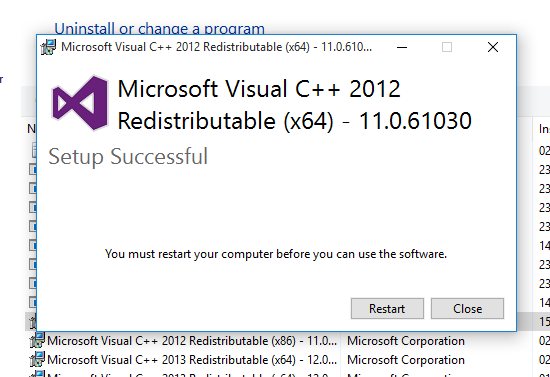
Repair_redistributable_file
Conclusion
Here we discussed the technical guide to fixing Runtime Error R6016 in Windows 10/8/7.
This article explains how to fix Runtime Error R6016 on Windows 10/8/7 and Windows Server. It is recommended to use an advanced system repair tool to fix more system issues like registry errors, corrupted system files, and clean up security errors, etc.


