


(Fixing the issue of Windows Explorer not loading in Windows 10/11) Resolving the Windows Explorer issue not loading in Windows 11: Windows 11 is the latest version of the operating system, featuring a lot of enhancements, an attractive user interface, and highly responsive, user-friendly features. If you're using Windows 10, you can easily upgrade your operating system to Windows 11.
Errors have been associated with the Windows operating system since its inception and continue to persist in Windows 11. As you may know, the Windows operating system is graphically rich, but it can sometimes crash, freeze, or stop working. In this article, we will explore how to tackle the following situations:
- Windows Explorer has stopped working
- Windows Explorer does not load at startup.
- File Explorer is unresponsive
- The taskbar and Start menu are not functioning
- The desktop has frozen or is unresponsive.
- The PC does not load the taskbar icon, etc.
The above scenarios are quite common among computer users running the Windows operating system, and in this article, we will address them.
Why do Windows Explorer, the taskbar, and the Start menu become unresponsive?
There could be numerous reasons behind the "Windows Explorer has stopped working" issue, but some are very common and often lead to the problems mentioned above.
The graphics card driver may be outdated, corrupted, or not functioning properly.
Essential Windows files may be corrupted or damaged. These files could include dll files, sys files, inf files, exe files, etc.
Issues with viruses/malware. Your computer might be infected with a virus or malware, causing Windows Explorer to stop working.
Third-party applications or services may interfere with Windows Explorer, preventing it from loading correctly.
A corrupted registry file is one of the most common reasons for File Explorer failures.
A small amount of RAM can also lead to desktop freezing issues.
When the CPU resources are at 100%, it can cause Explorer to stop responding.
High input/output usage is one of the most common reasons for an unresponsive Explorer in Windows.
Fixing the issue of Windows Explorer not loading in Windows 10/11
Now that you know the causes, it's time to address these issues. Below are some effective techniques that will definitely provide you with a complete solution.
Quick Help 1: Launch Explorer using Task Manager
If your Windows Explorer isn't starting, you can run it as follows:
Step 1: Use Task Manager. Press Ctrl + Shift + Esc to open Task Manager. Click on File > New Task.
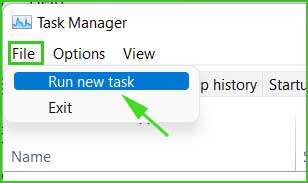
Task Manager New Task
Step 2: Type explorer.exe in the open box and then click OK.
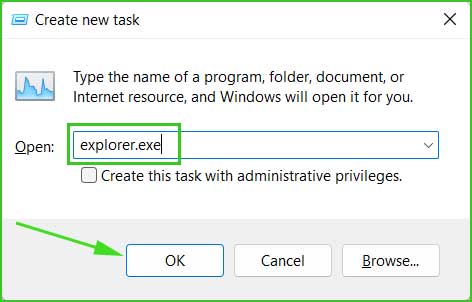
Start Explorer
Step 3: Explorer will start immediately.
Quick Help 2: Restart Explorer.exe using Task Manager
If Explorer is loading but not functioning properly, you should restart it using Task Manager.
Step 1: Open Task Manager. Right-click on the Start menu and select "Task Manager" or press Ctrl + Shift + Esc to open "Task Manager".
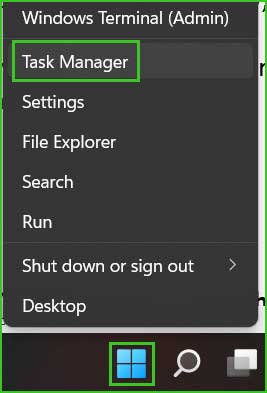
open_task_manager
Step 2: Find Windows Explorer, right-click on it, and select Restart.
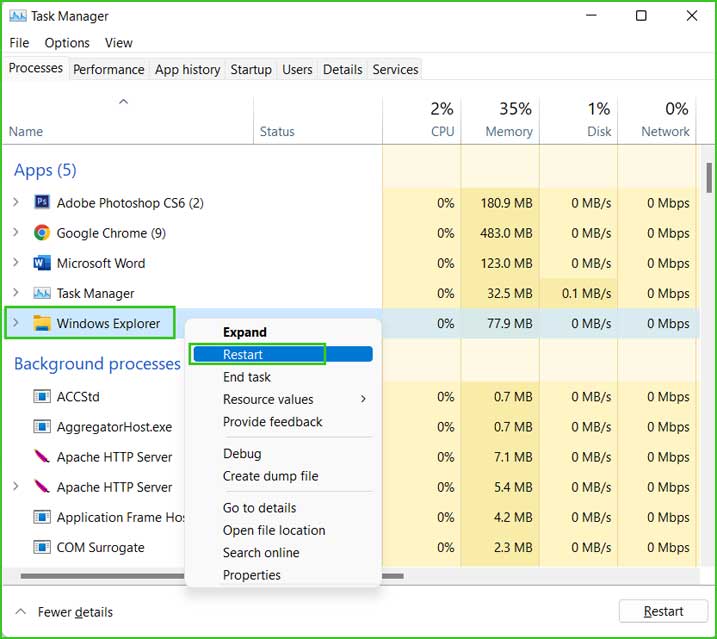
Restart_windows_explorer
Quick Help 3: Restart the graphics driver using shortcuts.
Press Windows + Ctrl + Shift + B at the same time to restart the video driver. You will notice a screen flicker, but don't worry, that's normal.
Method 1: Fix using Advanced System Repair Tool
Finding the exact cause of the Windows Explorer/taskbar/start menu/desktop freezing issue and fixing it can be time-consuming and a lengthy process.
As you know, there could be dozens of reasons behind this problem, and manually checking all these issues can be challenging for you. Instead of fixing it yourself, just trust the specialists and let the Advanced System Repair Tool handle the problems.
It is one of the best PC optimization tools that does a lot of work in the background to provide you with a smooth, error-free computing environment.
Windows consists of a large number of dll files, exe files, sys files, various types of services, databases, and so on, so it's not feasible to constantly monitor all files. This excellent optimization tool repairs damages, fixes errors, updates windows and drivers, and silently removes various types of errors.
The Outbyte PC Repair Tool performs all the above tasks effortlessly and provides you with a smooth, error-free Windows environment to focus solely on your work.
3 Steps to Fix This Error
Step 1. Download the Outbyte PC Repair Tool [File Size: 16.4 MB]
Step 2. Scan your Windows computer
Step 3. Click the "Repair" button to fix the error
Method 2: Boot Windows in Safe Mode
Boot Windows in Safe Mode and check the issue in Safe Mode. If Windows Explorer works correctly in Safe Mode, it means that the graphics driver is corrupted or outdated. You should update the video driver to resolve the Explorer loading issue.
3 Ways to Boot Windows 10 in Safe Mode
Method 3: Update the video or graphics driver using Device Manager
An outdated video driver is the most obvious reason for Explorer failures; you should check your video driver and update it immediately if it's outdated. If a dedicated graphics card is installed, you should also update the driver for that device. Here are some tips on how to easily update your current driver.
Device Manager allows you to manage all your devices, components, and drivers from one place. You can install, uninstall, update, stop, start, restart, and disable the device and all its drivers in one place. Let's see how you can update the video driver from Device Manager.
Step 1: Open Device Manager. Right-click on the Start menu and select "Device Manager".
open_task_manager
Step 2: Expand Display Adapters, and you will see all installed video drivers. Right-click on each video driver and select the Update Driver option.
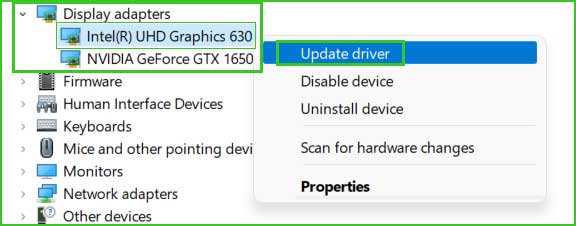
update_driver
Automatically search for drivers
Step 3: Here, you will get two options to choose from. In the first attempt, try the automatic option. Click on "Search automatically for drivers".
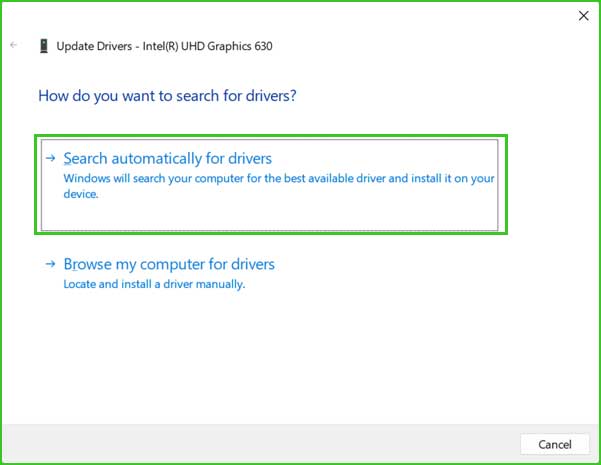
Automatically search for drivers
Step 4: It will scan the installed driver and update it if a newer version is found. If it cannot find the driver, you can select the option "Search for updated drivers on Windows Update"
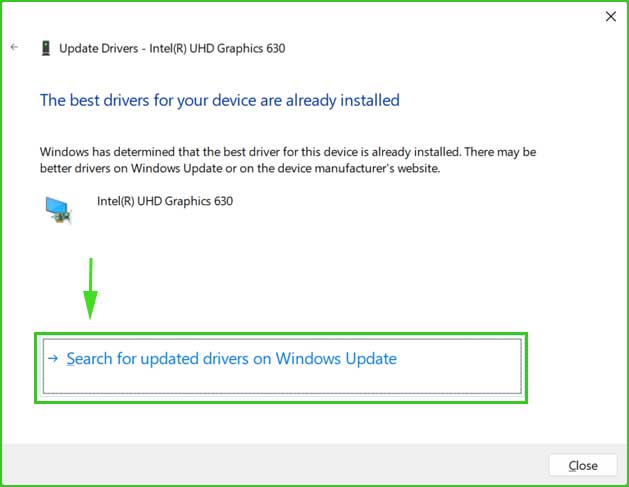
Search for updated drivers on Windows Update
Step 5: The Windows Update settings page will open. Click here "to check for updates" and install the updates.
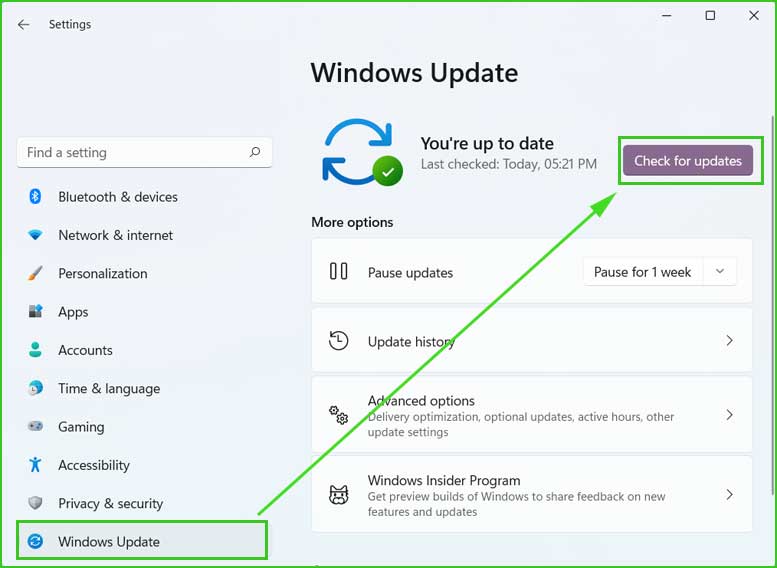
windows_updates
Manually search for drivers
Step 6: Select "Browse my computer for drivers".
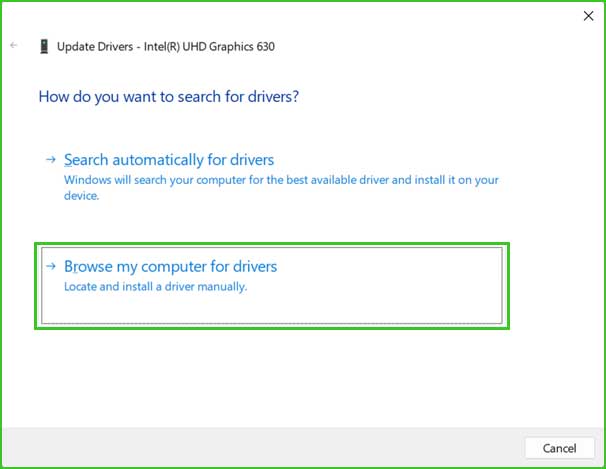
Browse my computer for drivers
Step 7: Select "Let me pick from a list of available drivers on my computer".
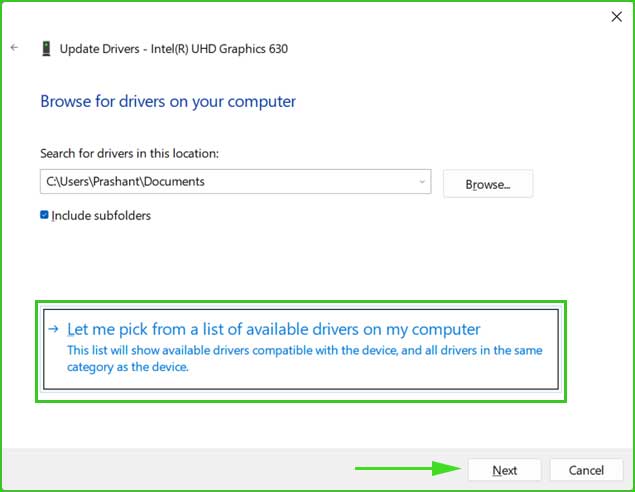
Let me pick from a list of available drivers on my computer
Step 8: Here, you will see a list of compatible devices. Select the graphics device and then click the "Next" button.
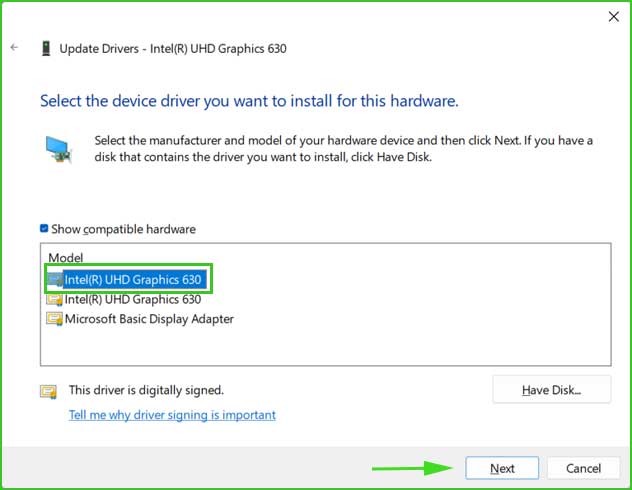
Graphics devices
Step 9: The driver installation will begin, and Windows Explorer will prompt you to restart or click. After that, you will see a message "Windows has successfully updated your drivers". Click Close and exit the settings.
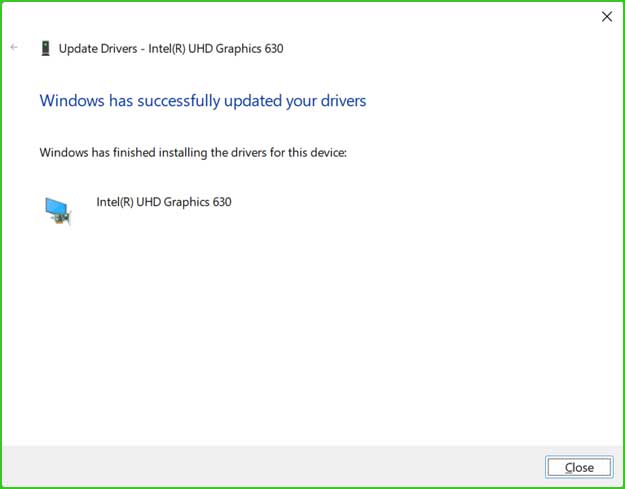
Windows has successfully updated your drivers
After updating the driver, simply restart your computer, and you will likely not encounter the issue of Windows Explorer not loading or freezing.
Method 4: Download the update directly from the manufacturer's website
Find the name, version number, and all other information for your video driver and download it directly from the manufacturer's website. This is one of the best proven methods to fix unresponsive Explorer issues by updating the video graphics card.
Step 1: Gather information for your video graphics driver. Open "Device Manager" and expand Display Adapter.
Step 2: Right-click on your driver and select Properties.
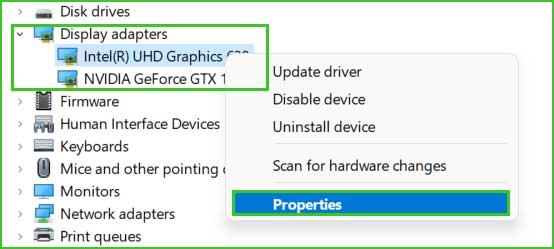
driver_properties


