

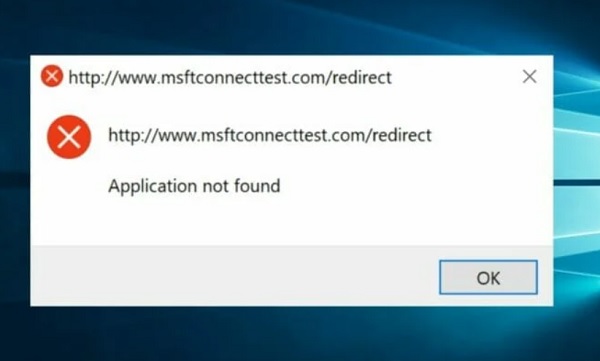
How to Fix the Msftconnecttest Redirect Error: Being unable to connect to the internet is one of the most frustrating issues a user can face. Many users have reported being unable to access the internet due to the Msftconnecttest redirect error, which keeps them stuck in a redirect loop.
Are you facing a similar issue? If so, this article is definitely for you. It provides a comprehensive guide on how to fix the Msftconnecttest redirect error and discusses the best ways to resolve it. Let's start by understanding what the error means.
What is the Msftconnecttest Redirect Error?
The Msftconnecttest redirect is a problem in Windows 10/Windows 11 that prevents users from connecting to the internet. Users are redirected to msftconnecttest.com endlessly. This is an official Microsoft website that helps you check whether your internet connection is available or not.
All computer systems automatically establish a connection when you log into the network to allow you to access the internet. However, the error has led to users being redirected to MSN/other random websites and msftconnecttest.com, showing a limited internet access bar or no internet connection at all.
Upon further investigation into the error, we found that it primarily occurs due to the following factors.
Causes of the Msftconnecttest Redirect Error
The Windows 10/Windows 11 Msftconnecttest redirect error can occur due to any of the following reasons.
Connection Issues
Whenever you try to connect to the internet, your computer determines whether you have a stable connection by performing some tests. Failing these tests can lead to the msftconnecttest error.
Malware and Virus Infections
A virus or malware may attempt to change your DNS settings and redirect traffic, causing the issue you are facing, potentially stealing your sensitive information.
Incorrect HTTPS/HTTP Configuration
Improperly configured HTTPS and HTTP protocols can also lead to the Msftconnecttest redirect issue.
Now that you are aware of the error and its causes, let's explore how to resolve the problem.
How to Fix the Msftconnecttest Redirect Error
You can use the following tried-and-true methods to fix Msftconnecttest issues on Windows 10 and 11.
Fix 1: Try Resetting Browser Settings
Since random browser errors can be responsible for the issue you are facing, resetting the browser can help resolve the problem. Therefore, you can follow the steps below to reset your browser.
Note: The steps to reset browser settings may vary slightly depending on your browser. However, they are more or less the same. The screenshots shared below are specific to Google Chrome.
To begin, close all browser tabs.
Next, launch your browser.
Now, click on the menu icon in your browser.
Click on the three dots in Google Chrome
You can now select settings from the available options.
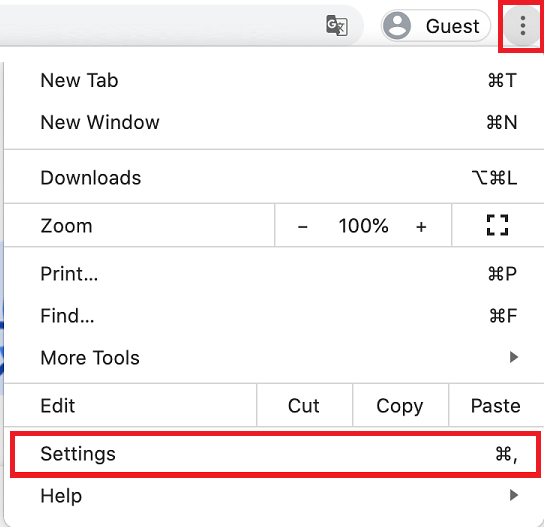
Open settings in Chrome
Now, select the option to reset and clean up the browser.
You can now choose the option to restore settings to their original defaults.
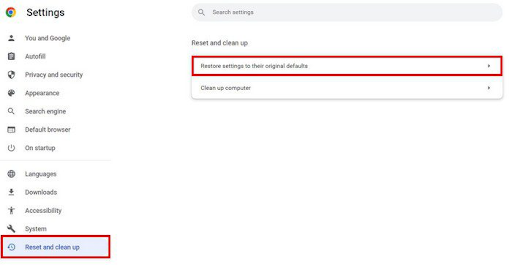
Reset and clean up section and select restore settings to their original defaults
Finally, click the reset settings button to confirm the reset.
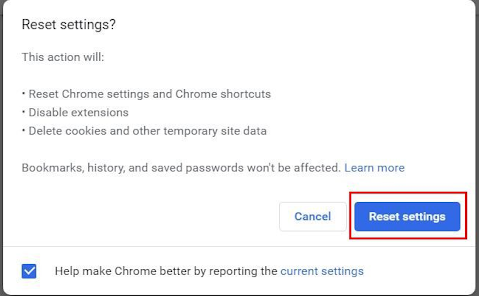
Reset
Fix 2: Reset the Network Adapter
Changing the network adapter settings can prevent Msftconnecttest redirects.
Therefore, you can follow the instructions below to reset the network adapter.
Note: Please remember that resetting the network adapter may cause your computer to forget saved network information, such as VPNs and WiFi passwords.
To start, open the Settings app using the Windows+I keyboard shortcut.
Secondly, select the network and internet option.
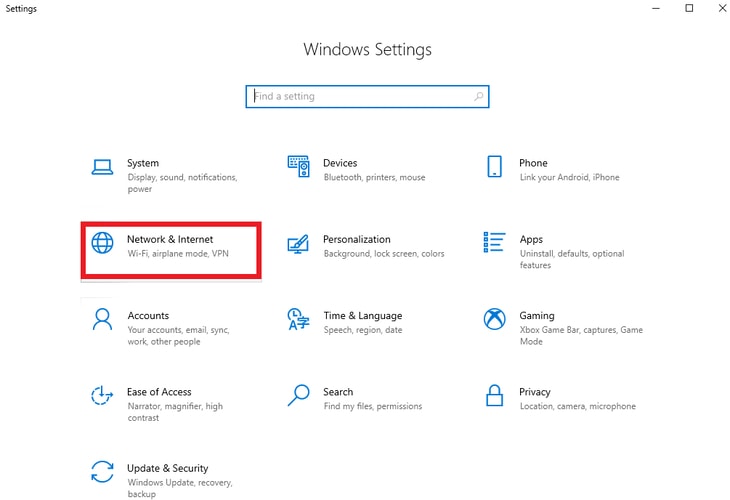
Network and Internet
Go to the current tab.
You can now select network reset from the available options.
Now, click on the reset now option.
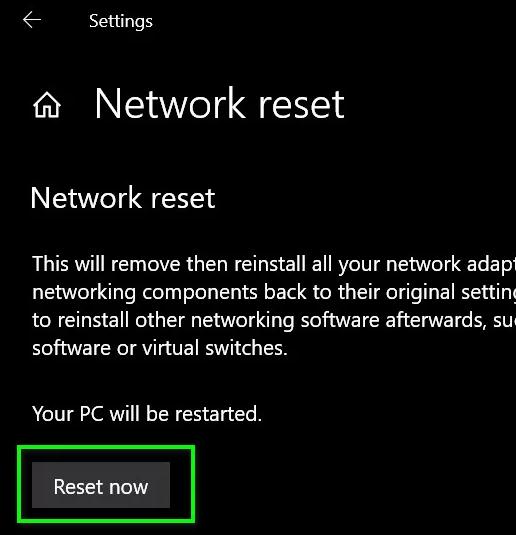
Network reset
You can now click the "Yes" button to confirm the network reset.
Finally, restart your computer.
Fix 3: Try Disabling Connectivity Testing
If your computer is checking connectivity every time you try to connect, this error may occur. Therefore, you can follow the steps below to completely disable connectivity testing.
To start, use the Windows+R keyboard shortcut to access the Run tool.
Now, type Regedit in the box that appears on the screen and click the OK button to open the Registry Editor.
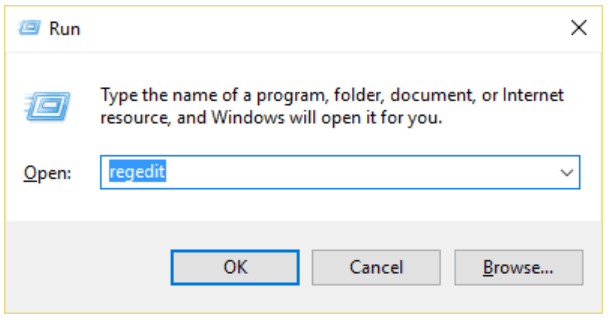
Open the Registry Editor by typing Regedit in the Run box.
After opening the Registry Editor, navigate to the path HKEY_LOCAL_MACHINE -> SYSTEM -> CurrentControlSet -> Services -> NlaSvc -> Parameters -> Internet.
Double-click on the EnableActiveProbing option.
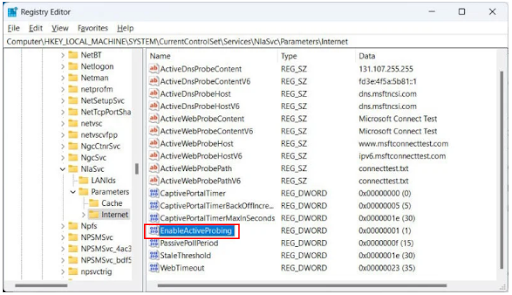
Enable Active Probing
Check the value data; if the value data is 1, set it to 0 using the hexadecimal system as the base.
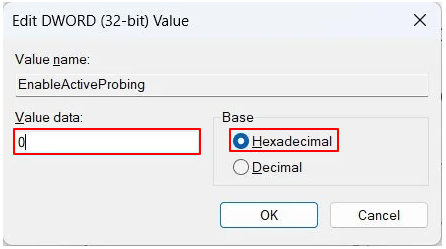
Check the value data. If the value data is 1, set it to 0 using the hexadecimal system
Finally, click OK to save the changes you made.
Fix 4: Change Your HTTPS/HTTP Configuration
Incorrectly configured HTTP or HTTPS is another reason you may encounter the Msftconnecttest redirect error on Windows 10/11. Therefore, here are the steps you can take to properly set up the HTTP/HTTPS protocols.
First, open your computer's settings (you can apply the Windows+I keyboard command).
Secondly, choose apps from the available settings.
Now, select default apps from the left panel of the window that appears on the screen.
Click on the option to choose default apps by protocol.
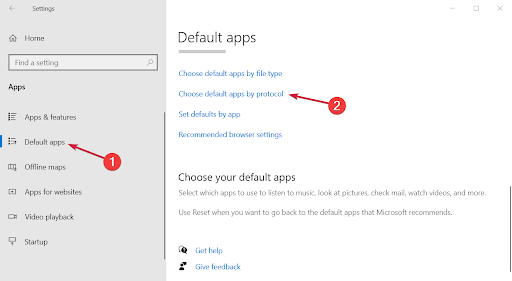
Choose default apps by protocol
Scroll down to find the HTTP and HTTPS protocols listed alphabetically.
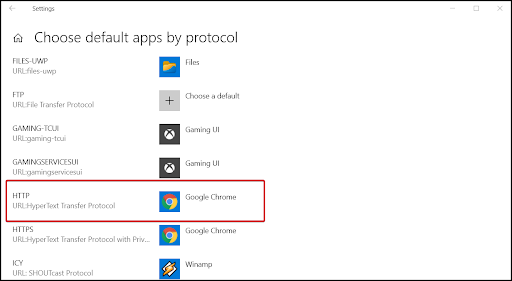
Find the HTTP and HTTPS protocols listed alphabetically.
Now, click the + button to set the default for each option.
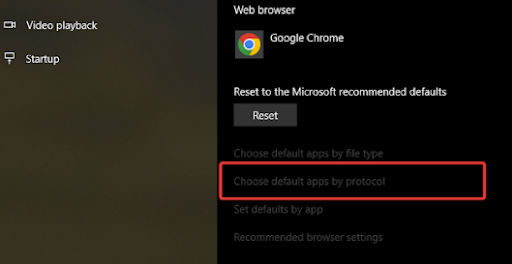
Choose the default app by protocol
Finally, restart your computer.
Fix 5: Scan Your Computer for Viruses
Since being infected with viruses or malware can also cause the issue you are trying to resolve, you can use the best antivirus software to scan for and remove viruses/malware from your computer.
Conclusion
This article guides you on how to fix the Msftconnecttest redirect error in the easiest and simplest ways. You can start troubleshooting with the first solution, and if the problem persists, continue with the other methods until the issue is completely resolved.
However, if you know of any better solutions, have any questions, or want to say something about this article, the comments section is open for you. Feel free to leave us a comment, and don’t forget to stay connected with us to learn how to solve more technical issues.
You might like this
Fix Windows Update Installation Failure Error 0x80073701
Fix “The disk was not ejected properly” issue on Mac
<a href="https://3almalt9nia.com/%d8%a5%d8%b5%d9%84%d8%a7%d8%ad-%d8%a3%d8%ae%d8%b7%d8%a7%d8%a1-%d8%aa%d9%86%d8%b2%d9%8a%d9%84-%d8%a7%d9%84%d9%85%d9%84%d9%81%d8%a7%d8


