

How to Update Google Play Store - 2024 Guide: The Google Play Store is the official place to get apps for your Android device. It is a vast library featuring over three million free and paid apps. You can also update apps, manage subscriptions, track purchases, and set parental controls.
Typically, the Play Store updates itself automatically without any manual effort required. However, if you have concerns about vulnerabilities and security, it's best to check for available updates. In this guide, we will show you how to do that.
Why Updating Google Play Store is Crucial for Your Device
The Google Play Store is more than just a marketplace for downloading apps; it is fundamental to the Android ecosystem as a whole. With over three million apps available, it serves as the primary gateway to applications and also to the security of your device.
Updating the Play Store ensures access to the latest enhancements, features, and robust protection against malware. Ignoring updates can lead to compatibility issues, poor app performance, and even expose you to hidden malware in older versions.
Moreover, each update enhances user experience by improving search algorithms, download speeds, and the app installation process. For instance, new features often include better app ratings, personalized recommendations, and smoother integration with Google services.
How to Update Google Play Store to the Latest Version
It's quite convenient that the app you use to update other apps also updates itself. However, instead of having an information page like other apps, you'll find the update option in its settings menu. Here’s how to get there:

Open the Google Play Store app on your Android phone or tablet. In the top right corner, tap on your profile icon. Then go to Settings > About.
Under Play Store version, tap on Update Play Store.

A message will appear informing you that the Play Store is up to date. If it’s not, the message will let you know that a new version will be installed automatically for you.
What to Do When Google Play Store Doesn't Update Automatically
When the Google Play Store app refuses to update automatically, there could be several reasons for this. First, you may have enabled battery optimization settings. This feature conserves your battery but restricts background activity and puts apps to sleep. You can disable it just for the store.
Sometimes, the issue lies with your connection; you may need to switch to a stronger Wi-Fi network or a better mobile data connection. Another reason could be that the date and time settings on your phone are incorrect, which may prevent the Play Store from recognizing the correct timeframe to update the app.
If you’ve ruled out these factors and still can’t update the app, you may need to clear the cache or force stop it to remove any corrupted data. The most drastic solution is to completely uninstall updates. This action strips the Play Store of all recent versions and forces it to reinstall them automatically.
Here’s how to perform the troubleshooting methods:
Disable Battery Optimization on Android

Open your phone's settings menu. Go to Battery > Select Background Usage. Then check the list of sleeping apps in the Google Play Store.
When you find it, tap the three-dot icon in the top right corner. Then press Remove.
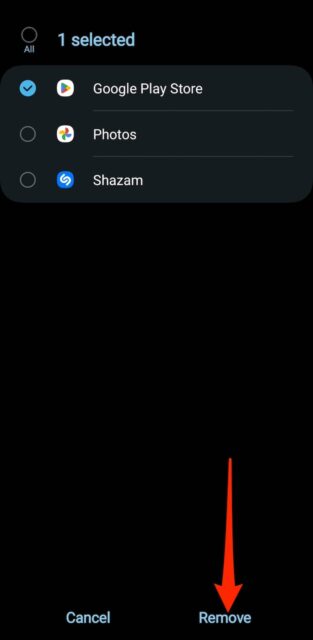
Tap the circle next to the store to select it. Then tap Remove in the bottom right corner.
Check Date and Time Settings
Open your phone's settings menu. Then go to General Management > Date and Time.

Disable Automatic Date and Time. Then manually set the date and time. Repeat the process for the Automatic Time Zone section.
Other Google Play Store Troubleshooting Methods
From your phone's app drawer, long-press the Google Play Store icon. Then tap on the info icon, which looks like a small "i" in a circle.
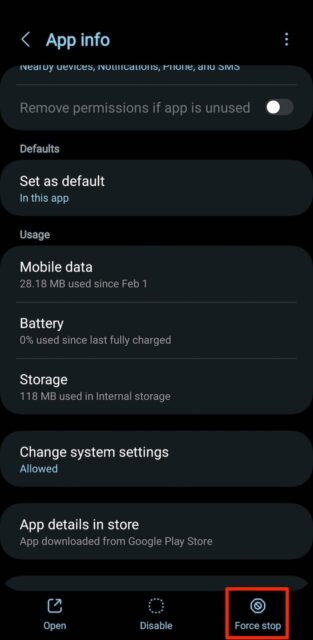
On the app info page, tap Force Stop in the bottom right corner.

To uninstall app updates, tap the three-dot icon in the top right corner. Then tap Uninstall Updates.

To clear the app's cache, click on Storage. Then select Clear Cache. You can also clear app data, but you may lose any saved card payment methods.
Frequently Asked Questions
1. Why should I update Google Play Store?
Updating ensures you get the latest features, performance improvements, and bug fixes. It also enhances security to protect your device from vulnerabilities.
2. How can I check my Google Play Store version?
Open the Google Play Store on your device.
Tap your profile picture in the top right corner.
Go to Settings > About > Play Store version.
Here, you will see your current version and check if an update is available.
3. How can I manually update Google Play Store?
Open the Google Play Store.
Go to Settings > About.
Tap on "Update Play Store."
If an update is available, it will be installed automatically.
4. What should I do if Google Play Store doesn't update?
Clear Cache/Data: Go to Settings > Apps > Google Play Store > Storage, then clear cache and data.
Restart Your Device: A simple restart can resolve minor issues.
Check Internet Connection: Ensure you are connected to a stable Wi-Fi or mobile network.
5. Can I update Google Play Store using an APK file?
Yes, you can download the latest APK file for the Play Store from trusted sources like APKMirror or APKPure. After downloading:
Enable "Install Unknown Apps" in your device settings.
Open the APK file and follow the installation instructions.
6. Is it safe to download Google Play Store updates from external sources?
While it is generally safe if the source is reliable, Google recommends updating directly through the Play Store. Downloading from untrusted sources may expose your device to malware.
7. How can I enable automatic updates for Google Play Store?
The Google Play Store updates itself automatically. Make sure:
Automatic updates are enabled under Settings > Network Preferences > Auto-update apps.
Your device has enough storage space and a stable internet connection.
8. Why isn't Play Store updating automatically on my device?
Insufficient Storage: Free up space on your device.
Network Issues: Ensure you have a strong internet connection.
Software Bugs: Restart your phone or clear the Play Store cache.
Old Android Version: Update your phone's software if necessary.
9. Will updating Google Play Store delete my apps or data?
No, updating Google Play Store will not delete any apps, games, or data on your device. It only updates the store app to improve performance.
10. How do I fix Google Play Store errors during updates?
Clear the cache and data of the Play Store.
Check your Google account sync settings.
Ensure your phone has the correct date and time settings.
Update your device's Android version if available.
Conclusion
The steps outlined above should help you update the Google Play Store app and troubleshoot any issues. However, you may need to contact Google Support if the problem persists. Sometimes, the issue can be significant and may require advanced assistance from them. You can also post the issue on online forums where other users share similar problems and explain how they resolved theirs.


