

How to Open RAR Files on Android: As smartphones have become more prevalent around us, many people are using them instead of traditional desktop or laptop computers. It's possible to perform the same tasks on your phone with ease, if you know what you're doing—though using a touchscreen can be a bit more challenging than a mouse and keyboard.
Depending on your interests or field of work, you may find yourself regularly using RAR files to share important data. Using these types of files is somewhat easier on a computer, but if you want to share and send files on your Android device, all you need are the right tools and knowledge, and you'll be able to open RAR files effortlessly.
Learn how to open, extract, and create RAR files on Android. The information in this article applies to all phones, regardless of the manufacturer of your Android device: Samsung, Huawei, Xiaomi, and others.
What is a RAR File?

RAR stands for "Roshal Archive," which is a type of compressed file. If you're familiar with compressed files, it's the same concept: compressing one or more large files into a smaller single file, making it easier to send and receive. Since compressed files are relatively straightforward, they can be opened by the basic file managers available on a PC or an Android device. However, RAR files are a bit more complex and require specialized software to open and extract their contents. In some cases, such as on a Mac, you need to download third-party applications designed to extract these files.
A common solution is the RAR app, which works like other main compression tools such as 7-Zip or WinZip, but is tailored for mobile use. Additionally, it's free, which is always a plus. You can download the RAR app from its page on the Google Play Store and start using it right away, without needing to log in or subscribe.
RAR vs. ZIP: What's the Difference?
The main difference between RAR and ZIP files is that ZIP is more common, as creating ZIP files is supported by most operating systems.
Among the two types of archive files, RAR typically offers better compression, although the compression ratios for RAR and ZIP can vary depending on the types of files in the archive.
How to Open RAR Files on Android
How to Open RAR Files on Android
Follow these steps to open a RAR file on your Android device:
1- Download and install the RAR app for Android.
:max_bytes(150000):strip_icc()/RARExample1-90a97633a66d42e1be18eac9148e9186.jpg)
An Android user installs the RAR app on their phone
2- Open the RAR app; its icon looks like a stack of books. When opened, you should see a list of files and folders.
3- Navigate to the folder containing the file you want to open.
:max_bytes(150000):strip_icc()/RARExample2-0cfa1f9049c143878daf716b232639d8.jpg)
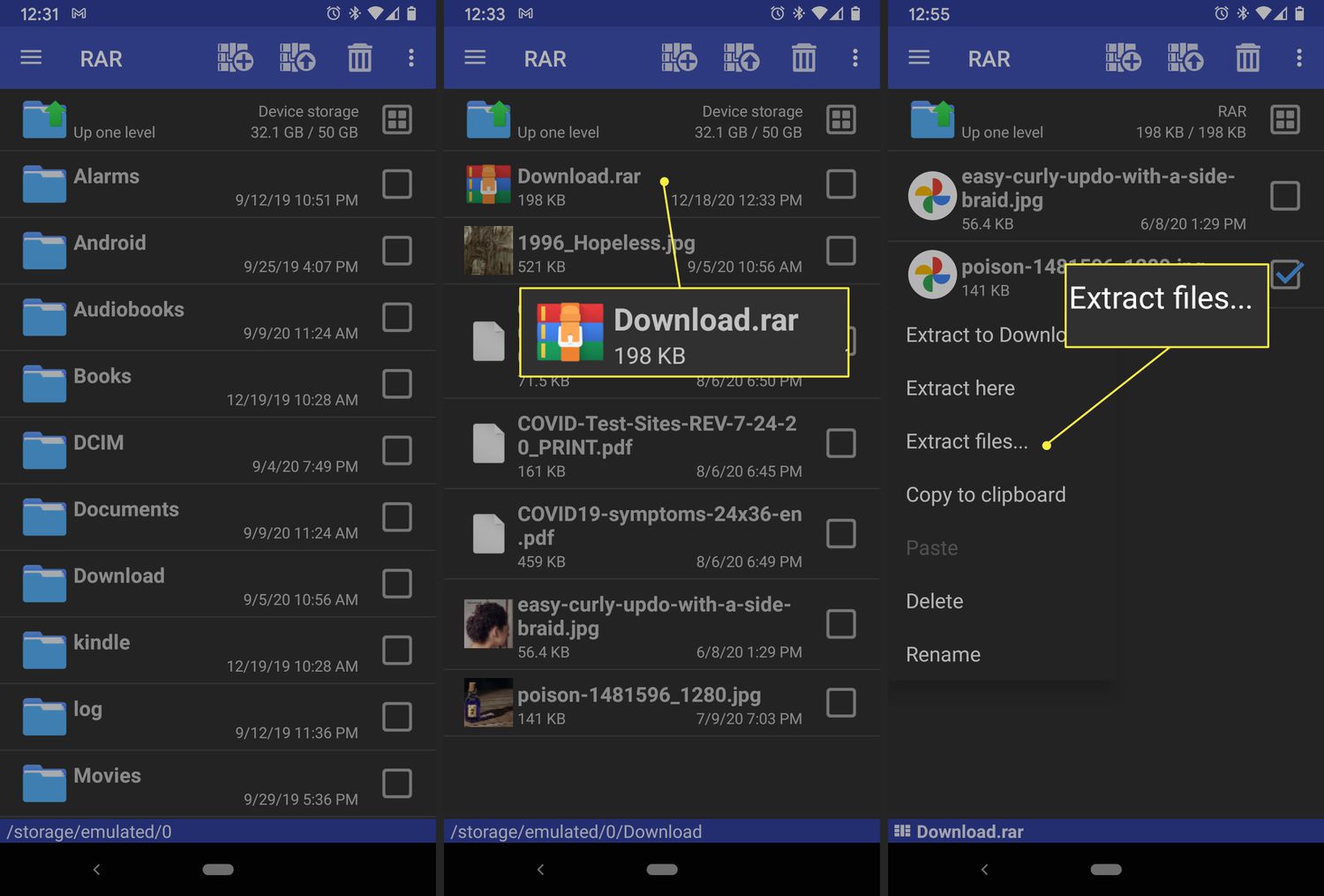
An Android user extracts a file using the RAR app
4- Tap on the RAR file and enter the password if prompted, to view its contents.
5- Tap on individual files to open them, or you can long-press on a file or folder to bring up a menu with a list of actions you can take.
6- To perform actions on multiple files at once, tap the boxes next to each file to show a blue checkmark, then long-press one of the files to open a command menu. Any action you choose, such as copying to clipboard or extracting files, will apply to all selected files.
How to Extract a RAR File on Android
Once you have the RAR app set up, you can start opening RAR files.
Open the RAR app.
Find the RAR file you want to open in your files.
Tap on the file to open it, and enter its password if there is one.
You can view the contents of the RAR file while it is still compressed, but if you want to edit or use them with another program, like editing a document, you will need to extract the files from the RAR file to another location on your device. While the inside of the RAR file is open in the RAR app, follow these steps to extract the files.
Tap the boxes next to the individual files inside the RAR file that you want to extract.
Tap the button with the upward arrow at the top of the screen to open the extraction menu.
Tap the "Browse" button in the extraction menu to select the file path.
Find the folder or directory where you want to move the files, then click "OK."
Press the OK button at the bottom right of the screen to extract the files to your chosen destination.
The key is to extract the files to a folder or directory where you can easily find them later. All Android devices have a built-in file app you can use to browse the backend, so take the time to familiarize yourself with what's happening on your device's internal storage before you start extracting files from everywhere.
How to Create a RAR File
How to Create RAR Files on Android
To create your own compressed RAR archives:
1- Make sure the files you want to compress are in one folder.
2- Open the RAR app and navigate to the mentioned folder.
3- Select the files you want to compress by tapping the boxes next to them.
:max_bytes(150000):strip_icc()/RARExample4-aba99d7d18ae493e9f441498460dd3b5.jpg)
4- An Android user creates a RAR file using the RAR app.
5- Tap the icon with the plus sign to open the archiving options.
6- Choose to compress your files in RAR, ZIP, or RAR 4x format; stick with the first option for optimal file compression.
7- Click "OK" to display the newly created RAR file inside the current folder.
How Do I Convert RAR Files to ZIP?
You can use websites like Cloudconvert.com or Zamzar.com to convert RAR files to ZIP files. However, there’s really no reason to do this since the same programs can open both file formats.
Security Risks of RAR Files
It's important to note that RAR files should only be downloaded and extracted from trusted sources, such as familiar websites and close friends. Since these files can store a lot of data, there's a significant chance that something malicious could be hidden within. Removing viruses from a mobile device is much harder than detecting them on a computer, so be cautious about the source of a RAR file before opening it. If you or the person from whom you received the file don't know exactly where the RAR file originated, do not open it.
Conclusion
In this article, we discussed how to open RAR files on Android, despite security concerns. If you want to manage data on your Android device as you do on your computer, resources like the RAR app will allow you to open and create any RAR files you want. It's not only a great way to save space and speed up uploads and downloads, but the smaller file size will also make it easier for you to send data when transmitting over cellular networks.


