


Windows errors can be incredibly frustrating and hinder our work. One such error we will discuss today is how to fix the "Insufficient system resources to complete the requested service" error. Imagine getting the "Insufficient system resources to complete the requested service" error every time you try to open a file or folder. This error can be stressful, especially when you have important tasks at hand. You might conclude that your memory is low, although that may not always be the case. Follow along, and you will be able to resolve the issue with some simple solutions.
This error notification indicates that there is a shortage of system resources, such as RAM. If you have a Windows computer, you can fix the problem.
In this article, we will address how to fix the "Insufficient system resources to complete the requested service" error using some easy solutions.
What does it mean to have insufficient system resources to complete the requested service?
This message usually means that your computer has run out of the necessary resources or space to process the task.
A system resource is any computing resource that a computer program can use. System resources include CPU, memory, disk space, and network bandwidth.
When a program needs a system resource to complete a process, it requests that resource by calling the operating system. If your system resource is low or the required resource is unavailable, your application will not function properly or may not work at all.
For most users, this occurred when they tried to open a folder, but in rare cases, it happened after a Windows update. It seems that memory is the system resource responsible for these incidents. A small group also encountered this error when trying to install software and could not access the installation folder.
What causes memory-related issues on Windows computers?
This error can occur due to:
- A problem with the user profile related to the local account.
- Insufficient memory pool.
- The Windows Security firewall handling too many processes.
- A antivirus program blocking certain files and applications.
Now that we have a brief overview of this error, let’s look at ways to fix it.
Fixing the "Insufficient system resources to complete the requested service" error
We will look at some suggested solutions. Once you implement these solutions, you will no longer see the "Insufficient system resources to complete the requested service" error message. Just follow the solutions below, and you will easily resolve the issue.
Fix 1: Get help from the Performance Troubleshooter
The error may sometimes arise due to poor resource allocation, which affects the overall performance of the computer. If that’s the case, you can benefit from a maintenance scan to improve performance.
Press the Win+R key combination, type CMD in the box, and then press Ctrl+Shift+Enter.
Enter the command below to proceed, followed by the Enter key.
msdt.exe /id
Follow the on-screen instructions. By executing these instructions, you will be able to fix any performance-related issues as well as memory issues you are experiencing with your Windows computer.
If the "Insufficient system resources to complete the requested service" error persists in Windows, follow the next solution.
Fix 2: Update device drivers using Win Riser
This is the most effective way to fix the "Insufficient system resources to complete the requested service" error. With Win Riser, you can restore the registry, remove malware, clean up unwanted files, and update drivers.
This tool is great because it not only resolves driver-related issues but also optimizes the overall performance of the device. As a result, this tool is ideal, allowing its users access to a wide range of features and additional functionalities. Just follow the steps below to see how the tool works.
- Simply download the Win Riser tool by clicking the button below, then proceed with the installation once downloaded.
- Immediately after completing the installation, the tool will start working right away and begin searching for errors within the system.
- To update old drivers on your device, you will need to select the option to fix issues, which is essential to ensure that the driver is up to date.

- Update Win Riser for all old drivers, and click Fixes Now
- Restart the system if the process completes fully without needing further steps.
- If the "Insufficient system resources to complete the requested service" error continues to appear, use the next solution.
Fix 3: Check if the antivirus program is causing the issue
We all use antivirus programs to protect our computers and secure them from malware. On the other hand, the antivirus program may, under certain circumstances, flag certain installers or files, which can lead to issues. This includes the "Insufficient system resources to complete the requested service" error.
Once you temporarily disable the antivirus program and then try to access the file or application again, you should be able to resolve this issue. You have the option to uninstall the third-party antivirus program if you find it is the cause of this problem. Note that you can also try turning off the real-time scanning feature since this feature also uses part of the RAM on the device.
If the same problem persists, refer to the final solution below.
Fix 4: Run the CHKDSK command
One reason "System Restore" may fail to recover the file is that the hard drive is corrupted. The following methods will allow you to check and correct any errors or bad sectors that may exist in the file system, ultimately eliminating the problem.
Press the Win+R key combination, type CMD in the box, and then press Ctrl+Shift+Enter.
Enter the command below to proceed, followed by the Enter key.
chkdsk D: /f /r
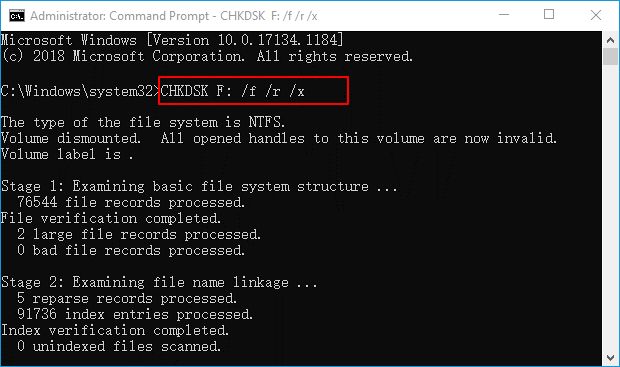
Note: It is important to remember to replace D: with your drive letter whenever you use this command.
After the scan is complete, you should try to complete the System Restore process.
Conclusion
The error message "Insufficient system resources to complete the requested service" is a significant annoyance as it interferes with the ability to use applications and files on Windows 11 and Windows 10.
The "Insufficient system resources to complete the requested service" message is a memory-related error that has caused issues for many Windows 10 users. In this article, we discussed the various reasons behind this error as well as how to fix the "Insufficient system resources to complete the requested service" error. We hope this article helps you eliminate the error message and allows you to access files and folders with ease.
You might also like
How to Fix Msftconnecttest Redirect Error
How to Fix RESULT_CODE_HUNG Error in Chrome
How to Fix 0xc000021a Error in Windows 10
<a href="https://3almalt9nia.com/%d9%83%d9%8a%d9


