

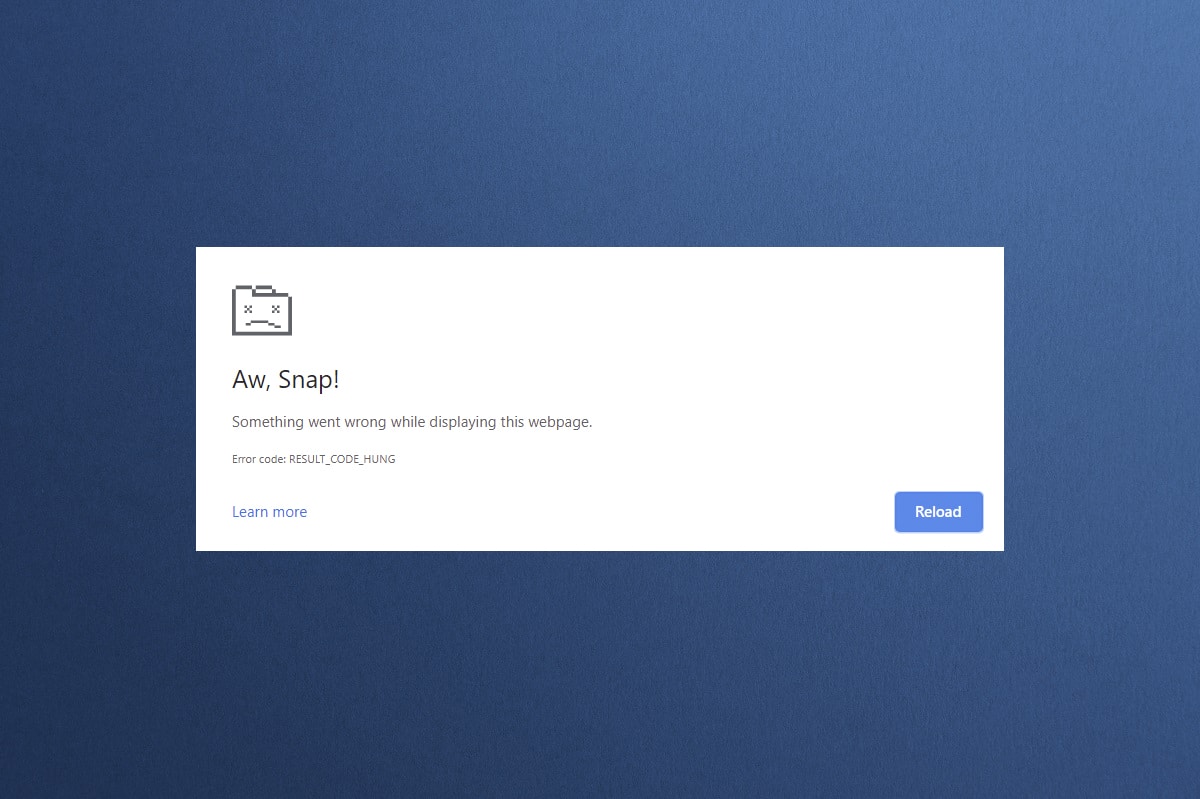
How to Fix RESULT_CODE_HUNG Error in Chrome: When it comes to web browsing, Google Chrome is a preferred choice for many users. The browser application is available for both mobile and desktop, offering better features than other browsers. However, despite being the best in its category, Google Chrome still faces several issues.
Sometimes, Google Chrome may suddenly display errors and prevent you from accessing your favorite websites. One such error that stops many users from reaching sites is "Result_Code_Hung."
The error message appears unexpectedly, blocking users from accessing their sites. This error is incredibly frustrating as users cannot load the site after several attempts. So, if you've recently encountered the same error, keep reading this article.
How to Fix RESULT_CODE_HUNG Error in Chrome
The RESULT_CODE_HUNG error can occur for several reasons. It might be due to a poor internet connection, an outdated version of Chrome, corrupted browser cache, or extensions/ad blockers, among others.
Regardless of the cause, there are several things you can do to resolve the error. Below, we’ve shared some of the best methods to fix the RESULT_CODE_HUNG error on Chrome.
1) Check Your Internet Connection
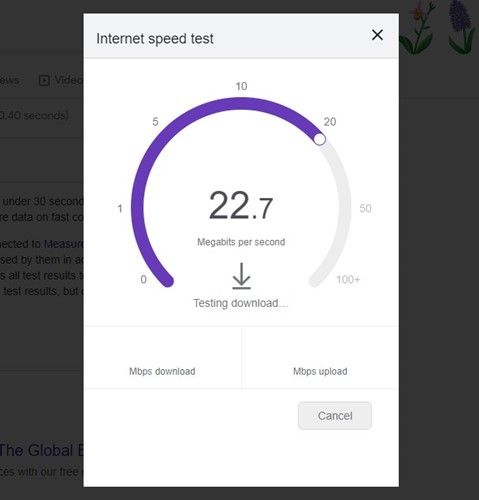
Before trying troubleshooting methods, it's essential to check your internet connection first. You need to ensure that your internet connection is functioning correctly.
The RESULT_CODE_HUNG error typically appears when the browser fails to load a webpage due to a poor internet connection. The best way to resolve this issue is to fix your network connection.
If your internet isn't working correctly, you should address your internet connectivity issues.
You can try restarting your WiFi router, reconnecting to the WiFi network, or rebooting your computer, etc.
2) Refresh the Webpage
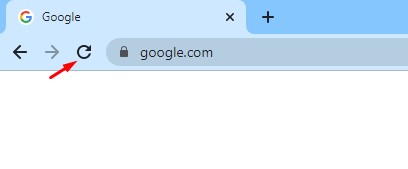
If your internet is working fine and you still receive the RESULT_CODE_HUNG error, try refreshing your webpage. Sometimes, it’s just a temporary glitch that causes the RESULT_CODE_HUNG error in Chrome.
So, the best thing you can do is reload the current webpage in Chrome to see if that resolves the issue. Click the refresh icon next to the home button to reload the current webpage.
Alternatively, you can press CTRL+R to refresh the page. Once you press the button, check if the webpage loads.
3) Check Browser Extensions
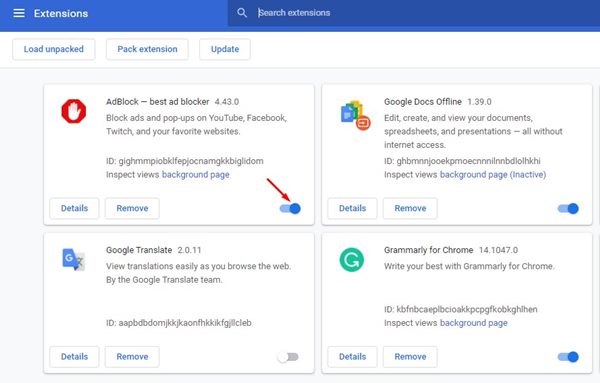
Browser extensions like ad blockers are often the cause of the RESULT_CODE_HUNG error in Chrome. Even if you’re not using any ad-blocking tool, you should check for other third-party extensions installed on your browser.
The issue arises when using third-party extensions that are incompatible with the version of the web browser you are using. Sometimes, tracking blocker extensions also prevent web pages from loading to block trackers.
Therefore, you need to open a new tab and visit this webpage: chrome://extensions.
This will open the extensions page; check all third-party extensions and disable them one by one.
4) Clear Cache and Data in Chrome
If Google Chrome continues to show the RESULT_CODE_HUNG error, it’s advisable to clear the cache and data in the browser.
Clearing the cache and data in the browser will eliminate corrupted cache and remove all saved data.
Here’s how to clear cache and data in Chrome to fix the error.
1. Open Chrome and click on the three dots in the upper right corner. In the menu that appears, select Settings.
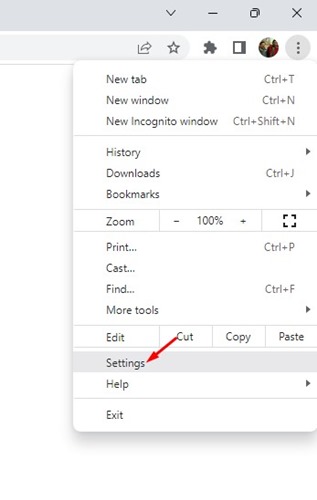
Settings
2. In the settings, choose the Privacy and Security tab.
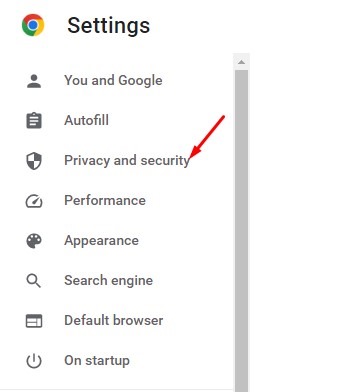
Privacy and Security
3. On the right side, click on Clear browsing data.
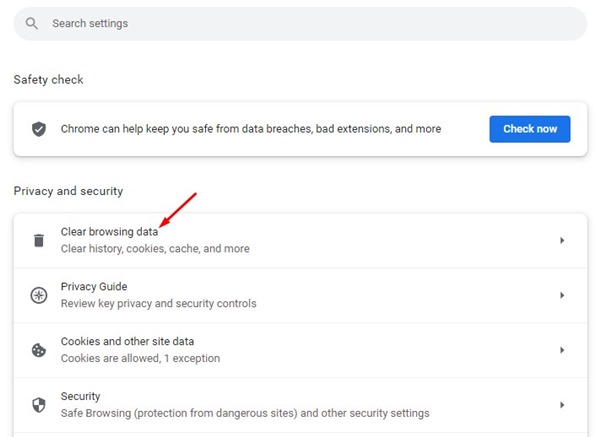
Clear browsing data
4. In the Clear browsing data prompt, check Cookies and other site data, Cached images and files. Once selected, click the Clear data button.
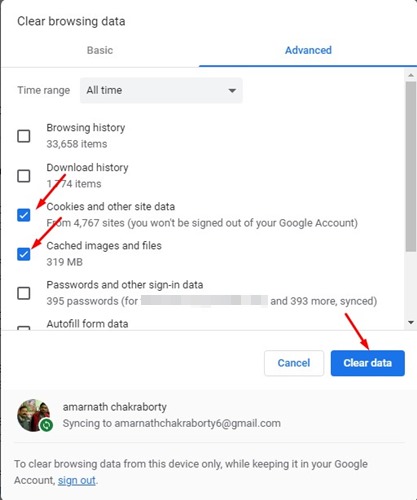
Clear data
That's it! This is how you can clear the cache and cookies in Chrome to resolve the error message.
5) Disable VPN/Proxy Application
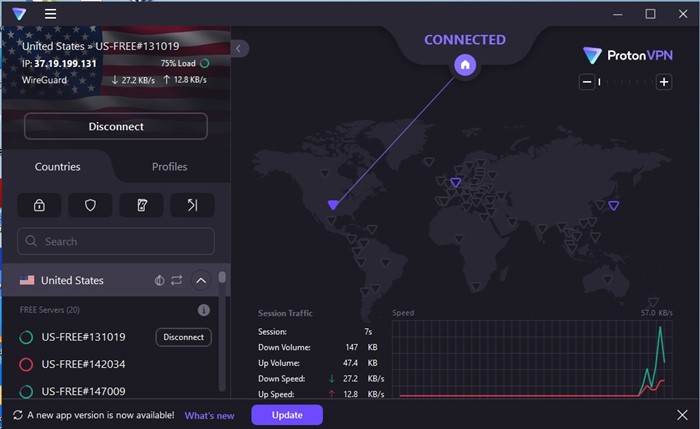
Using a VPN application
Yes, it’s true that VPN/Proxy services don’t have a direct link to the Result_Code_Hung error, but using VPN & Proxy services can still affect internet speed and lead to various issues.
Many users have claimed that they resolved the Result_Code_Hung error simply by disabling their VPN applications. So, if you are using any VPN application or proxy services, you can temporarily disable them and check if it helps.
6) Switch to Google DNS in Google Chrome
Another great thing you can do to resolve the Result_Code_Hung error is to change the DNS server in Chrome. Switching to Google DNS on the Google Chrome browser is easy; follow the steps we’ve shared below.
1. Open Google Chrome and click on the three dots in the upper right corner.
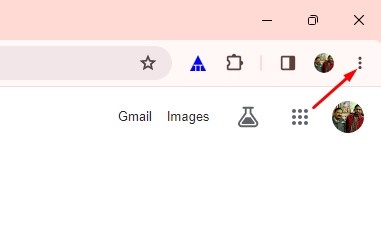
Three dots
2. In the Chrome menu, click on Settings.
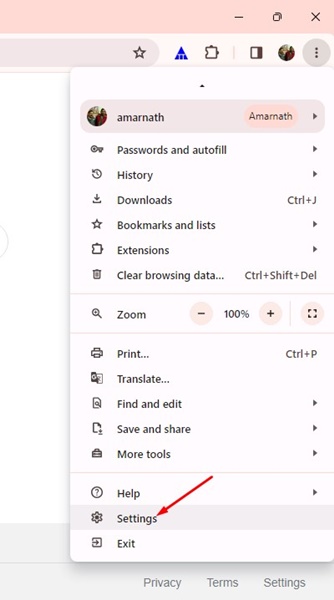
Settings
3. In Chrome settings, switch to the Privacy and Security tab on the left.
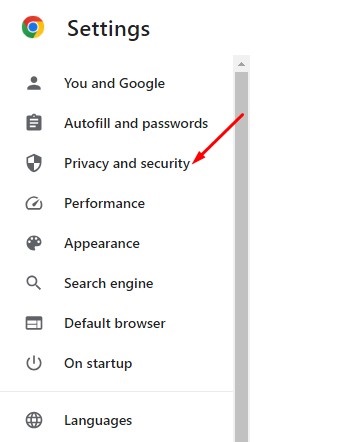
Privacy and Security
4. On the right side, click on Security.
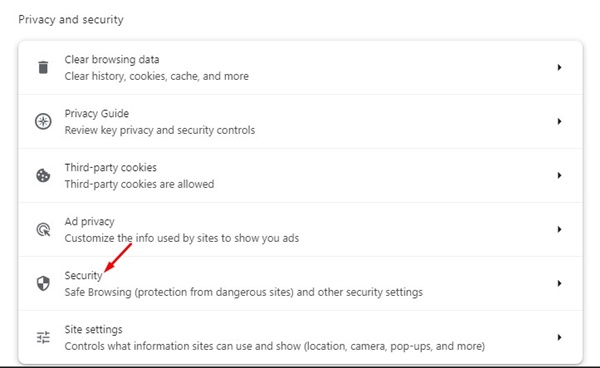
Security
5. Scroll down to the "Advanced" section and enable the switch to use secure DNS.
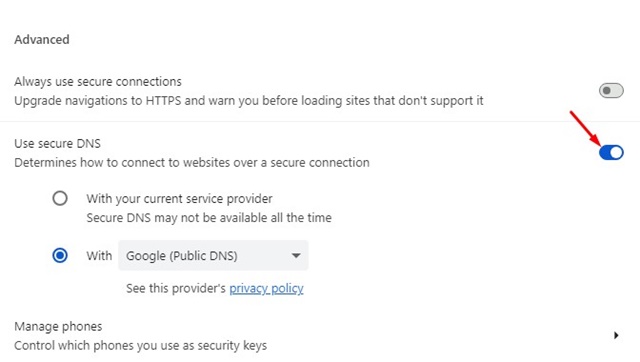
Use secure DNS
6. In the dropdown menu, select Google (Public DNS).
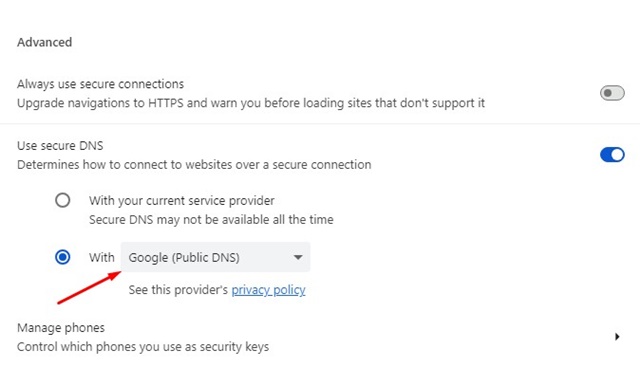
Google (Public DNS)
That's it! Now, restart Google Chrome to apply the changes. This will switch to Google DNS on Chrome.
7) Update Google Chrome
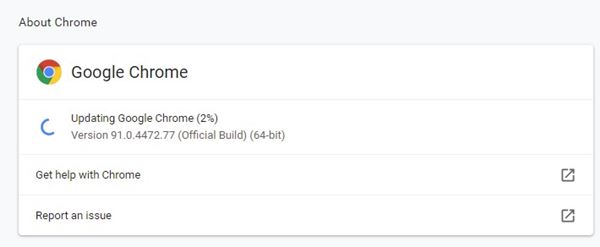
Update Chrome
It’s actually a good idea to keep Google Chrome updated. Sometimes, specific errors or bugs prevent a webpage from loading correctly, resulting in the Result_Code_Hung error.
So, if you haven’t updated your Google Chrome browser for a while, it’s time to update it to the latest version. To update Google Chrome, click on the three dots > Settings > About Chrome. This will automatically check for any available updates.
If there are any pending updates, the web browser will download and install them automatically.
8) Reset Chrome Settings
If nothing has worked for you to resolve the Result_Code_Hung error, it’s time to reset Chrome settings. Here’s how to reset Chrome settings in a few easy steps.
1. Open Google Chrome, in the address bar, type Chrome://settings/reset.
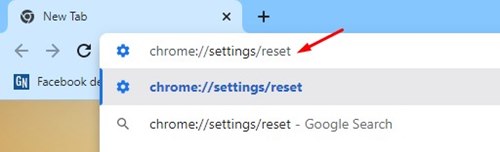
chrome://settings/reset
2. In the Reset and clean up section, click on Restore settings to their original defaults.
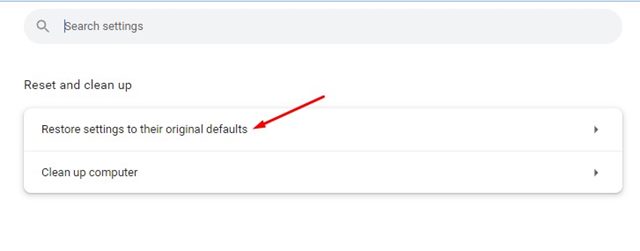
Restore settings to their original defaults
3. In the confirmation prompt to reset settings, click on Reset settings.
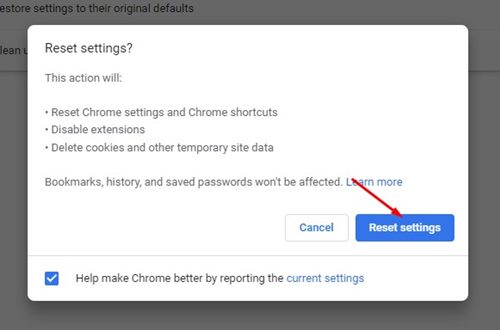
Reset
That's it! This is how you can reset Chrome settings in a few easy steps.
So, these are some simple ways to fix the RESULT_CODE_HUNG error in Chrome. Let us know if you need further assistance in resolving the Result_Code_Hung error on the Google Chrome web browser.
You might also like
The 12 Best Extensions for Google Chrome You Should Try
The Best Chrome Extensions to Help You Identify Fonts
Fixing the Issue of Chrome Not Opening/Working


