


How to Uninstall Microsoft Teams on Mac: Microsoft Teams is an application that allows you to chat, call, and collaborate with others. It comes pre-installed on Windows 10 and can also be downloaded for Mac, iOS, and Android devices.
While Teams can be a useful tool, you may eventually want to uninstall it from your Mac if you no longer need it or if it takes up too much space. Uninstalling Teams on a Mac is straightforward, but there are a few steps you need to take to completely remove the app and all its associated components.
In this article, we will show you how to uninstall Microsoft Teams from your Mac using several different methods.
What You Should Do Before Uninstalling Microsoft Teams
Before uninstalling Teams, it's a good idea to back up any important data from within the app to avoid losing any important information. Here are some things you should do first:
- Export Chat History – If you want to keep your Teams conversation history, you can export the chat history and save it before uninstalling. Go to the chat you want to export, click on the more options icon, and select "Export Chat."
- Save Important Files – If you have any files or resources in Teams that you want to keep, make sure to download them to your Mac before uninstalling the app. This includes things like shared meeting notes, documents, images, etc.
- Notify Colleagues – Let anyone you regularly communicate with on Teams know that you will be uninstalling it and migrating your conversations to another system. This helps avoid losing contact with colleagues if they try to message you on Teams after you’ve removed it.
- Log Out – Before uninstalling the Teams app itself, open it and log out of your account. This ensures that all your data is cleared from the local app before it is removed.
- Once you’ve completed the above steps, you’re ready to fully uninstall Microsoft Teams from your Mac.
How to Uninstall Microsoft Teams on Mac
There are two methods you can use to uninstall Teams on your Mac. The methods outlined below will not only remove the main Teams application but will also eliminate all related background processes and components that take up space on your device.
Method One: Drag to Trash
The most straightforward way to uninstall any Mac application is simply to drag and drop it into the Trash. Here’s how to delete the MS Teams app:
Step 1: Close Microsoft Teams if it is currently running.
Step 2: In Finder, go to the Applications folder. Look for the Microsoft Teams app icon.
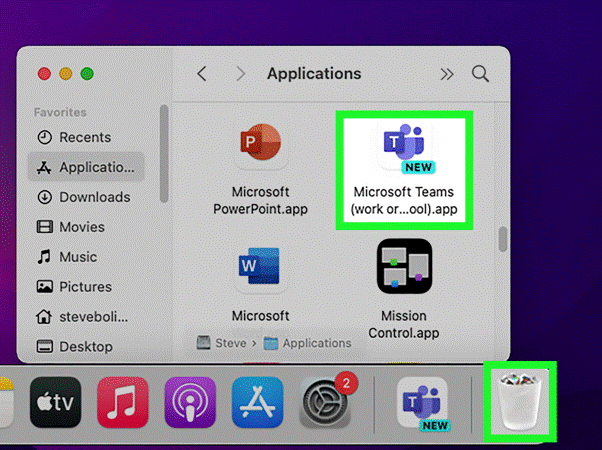
Drag to Trash
Step 3: Click on the Microsoft Teams app icon and drag it to the Trash. This will immediately remove the main Teams application.
Step 4: Empty the Trash to completely delete the app.
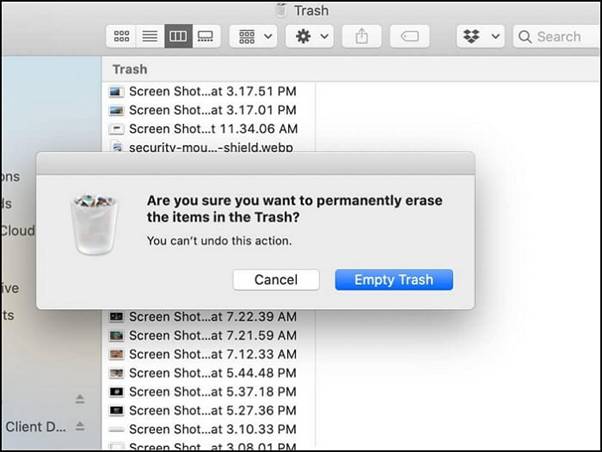
Empty Trash
While this removes the Teams app itself, there are still some background files and processes that you need to deal with. Continue reading the methods outlined below for a complete cleanup after uninstalling Teams this way.
Method Two: Manually Delete the App Using Finder
For complete control over the uninstallation process, you can locate every file and component of Microsoft Teams and manually delete them from your Mac. Here’s how to do it:
Step 1: Close Microsoft Teams if it is running.
Step 2: Open Finder and go to the Applications folder, then drag the Microsoft Teams app to the Trash.
Step 3: Open the Terminal app on your Mac and run the following commands to delete additional Teams components:
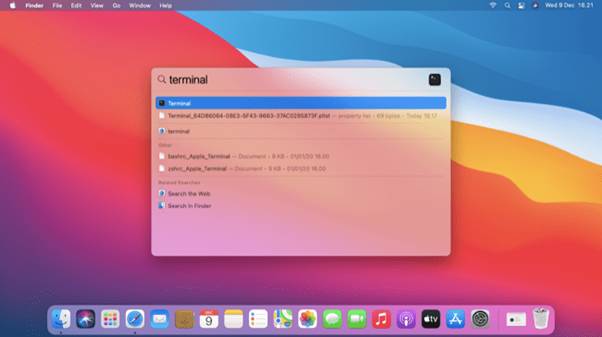
Delete the app using Finder
rm -rf ~/Library/Application/Support/Microsoft/Teams
rm -rf ~/Library/Caches/com.microsoft.teams
rm -rf ~/Library/Preferences/com.microsoft.teams.plist
rm -rf ~/Library/Saved/Application/State/com.microsoft.teams.savedState
This manual method gives you greater control and ensures that every Teams file is removed from your system.
Method Three: Use a Third-Party Uninstaller Tool
Another simple way to uninstall applications on a Mac is to use a third-party app cleaner tool. These tools will uninstall the app and tidy up all related hidden files and components afterward.
Here’s how to use the Cleanup My System app to uninstall Teams:
Step 1: Download and install the Cleanup My System app from the Mac App Store, then launch AppCleaner on your Mac.
Step 2: Switch to the "Uninstall Manager" section and follow the on-screen instructions to remove Teams from your Mac.
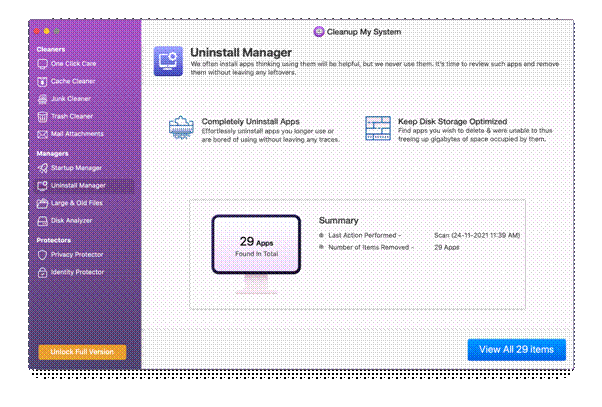
Cleanup My System is a carefully designed uninstaller that allows for easy removal of unwanted applications, ensuring complete removal of associated files without any leftover traces.
How to Remove Microsoft Teams Login Data
In addition to removing the app, you will also need to delete any saved login data and credentials for Microsoft Teams from your Mac.
When you first logged into Teams, your login information was stored in your Mac's Keychain. To completely remove Teams from your system, you need to delete this as well.
Here’s how to delete saved Microsoft Teams credentials
Step 1: Open the Keychain Access app on your Mac.
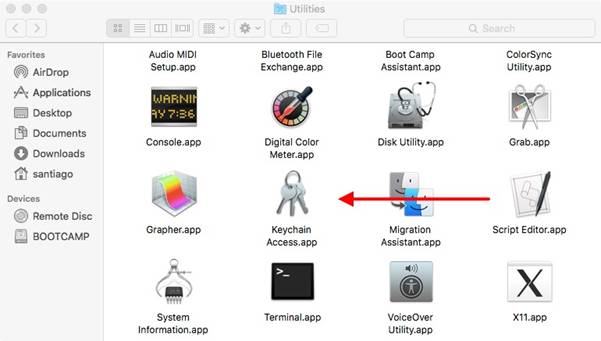
Remove Microsoft Teams
Step 2: In the Keychain Access search bar, type "Microsoft Teams" and hit "Return."
Step 3: This will display any saved login data. Select the entry and click the "Delete" button, entering your admin password when prompted to confirm the deletion.
Step 4: Restart your Mac to fully remove the credentials.
After deleting your login information, you will need to re-enter your password if you reinstall Teams on your Mac in the future.
Conclusion
In this article, we discussed how to uninstall Microsoft Teams on Mac. Uninstalling Microsoft Teams from your Mac is a straightforward process if you follow the right steps. By exporting chat history, saving important files, notifying colleagues, and logging out beforehand, you can remove Teams without losing your data. Dragging the app to the Trash, using a cleaning tool, or manually deleting files will remove the main app, and clearing your login credentials from Keychain will complete the uninstallation process and secure your account.
Once you have completely removed Teams from your system, you can always reinstall it later if needed. Just make sure to prepare properly for the uninstallation to avoid any issues.
You might also like


