


(How to put programs to sleep in Windows 10) How to Put Programs to Sleep in Windows 10: If you've been using Windows 10 for a while, you might know that the operating system allows users to temporarily disable/enable certain applications and processes through the Task Manager. Several applications are designed to run in the background, even when you're not actively using them. For instance, antivirus software runs in the background to protect your computer even when it's idle.
As such, some unnecessary applications and processes also run in the background, consuming RAM and CPU resources, and sometimes even affecting your device's performance. Windows 10 provides a feature that lets you choose which applications and programs can run in the background.
This is not an automatic setting; you need to manually enable/disable background apps, so if you're interested in learning how to put programs to sleep in Windows 10, keep reading this article.
How to Put Programs to Sleep in Windows 10
In this article, we will share a step-by-step guide on how to put programs to sleep on computers running Windows 10. The process will be clear and straightforward; just follow the simple steps below.
1. Disable Background Apps
In this way, we will use the Windows 10 Settings app to put programs to sleep. Follow the steps below.
1. First, click the "Start" button and select Settings.
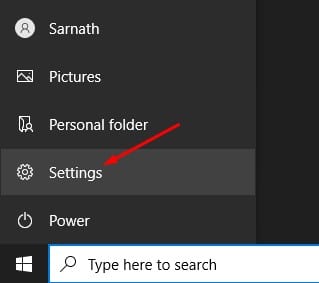
Start button
2. In the Settings page, click on the Privacy option.
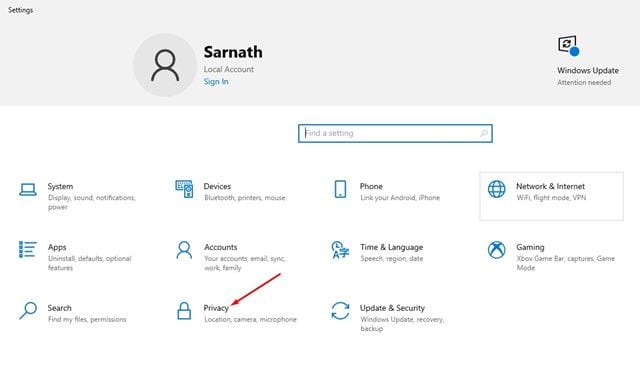
Privacy option
3. In the left pane, click on the Background apps option.
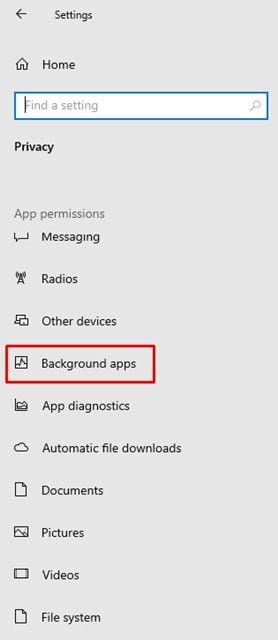
Background apps option
4. In the right pane, you will find two options:
Background apps: If you disable this feature, no apps will run in the background; they will go to sleep as soon as you close them.
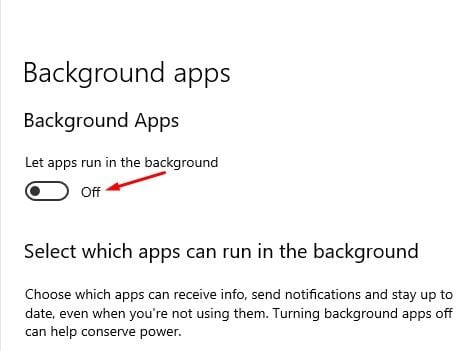
Run in the background
Choose which apps can run in the background: If you enable background apps, select the apps that will run in the background.
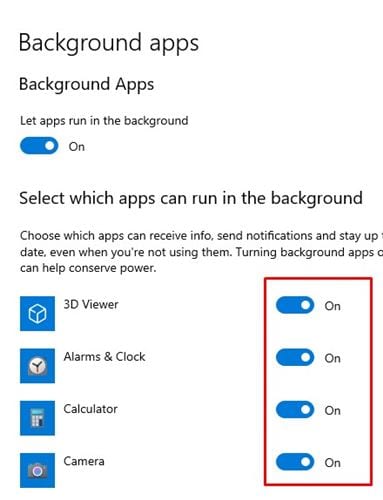
Background apps
5. Select the option that suits you.
2. Disable Programs from Startup Manager
The method mentioned above only works with general applications; some programs run at startup and do not appear in the app panel. Therefore, in this way, we need to forcibly disable the applications that run during startup. Follow along.
1. First, right-click on the taskbar and select Task Manager.

Task Manager
2. In Task Manager, click on the Startup tab.
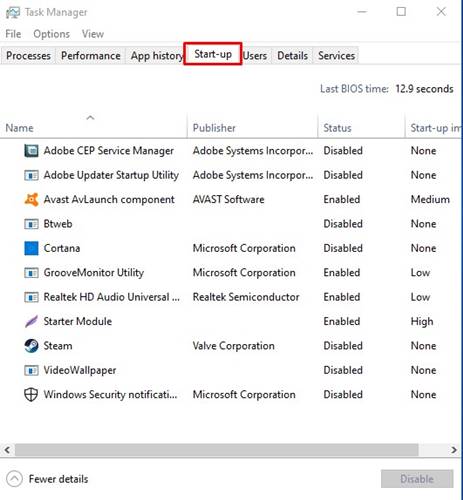
Startup
3. Now select the applications you do not want to run in the background and click the Disable option.
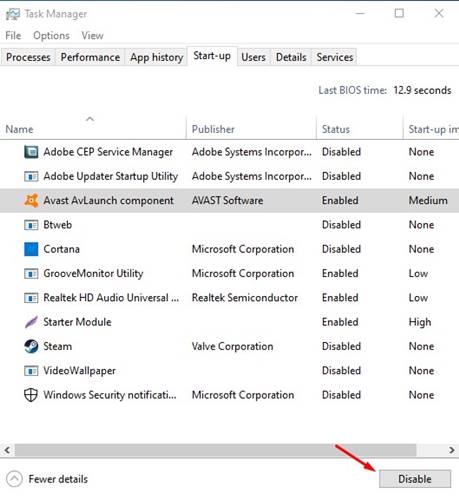
Disable option
3. Make Changes to System Configuration
Okay, this won't put programs to sleep, but making changes to the System Configuration panel in Windows will definitely enhance your computer's performance. Initially, you need to select the optional startup option in System Configuration and uncheck the Load startup items option.
This will prevent third-party applications from automatically running when Windows starts.
Here’s what you need to do.
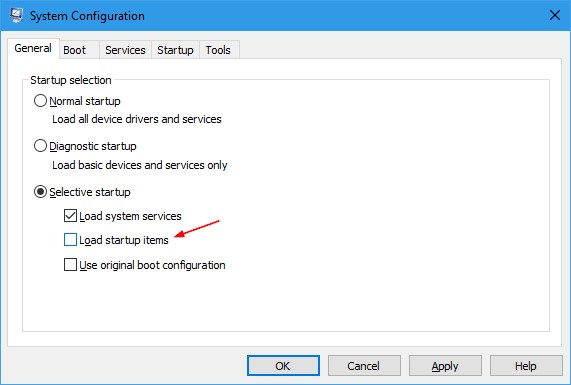
Make Changes to System Configuration
Press the Windows Key + R on your keyboard.
This will open the RUN dialog box.
Type Msconfig and press Enter.
In the System Configuration panel, select Optional startup.
Then, uncheck the Load startup items option.
After making the change, click "Apply," then "OK."
That's it! This will prevent third-party applications from automatically running on Windows 10 at startup.
Frequently Asked Questions
Q1: What is Sleep Mode?
A1: Sleep mode is a power-saving state in Windows 10 that helps conserve energy and battery life. It is a low-power state that the computer enters when it is idle, where the computer remains connected to the network, but all processes and applications are suspended. When the computer is activated, all processes and applications that were running before the computer went to sleep will resume.
Q2: How can I put programs to sleep in Windows 10?
A2: To put programs to sleep in Windows 10, you can use Task Manager. To open Task Manager, press Ctrl+Shift+Esc on your keyboard, then select the "Processes" tab and find the program you want to put to sleep. Right-click on the program and select "Set Priority" from the menu, choose "Low" from the priority list, and then click "OK." This will put the program to sleep, and it won't be able to run until the computer is activated.
Q3: What are the benefits of putting programs to sleep in Windows 10?
A3: Putting programs to sleep in Windows 10 helps conserve energy and battery life. When a program is put to sleep, it does not consume any resources, thus improving the computer's performance. It also helps keep your system secure, as the program will not run in the background and cannot be accessed by malware.
Q4: What happens when I put a program to sleep in Windows 10?
A4: When you put a program to sleep in Windows 10, the program will not be able to run until the computer is activated. The program will remain suspended in a low-power state, so it won't be able to access any resources, such as RAM or CPU, which helps improve computer performance and conserve energy and battery life.
Q5: How do I wake up a program in Windows 10?
A5: To wake up a program in Windows 10, open Task Manager by pressing Ctrl+Shift+Esc on your keyboard, then select the "Processes" tab and find the sleeping program. Right-click on the program and select "Set Priority" from the menu, choose "Normal" from the priority list, and then click "OK." This will activate the program, and it will be able to run again.
Q6: Is there a way to put all programs to sleep in Windows 10?
A6: Yes, there is a way to put all programs to sleep in Windows 10. To do this, open Task Manager by pressing Ctrl+Shift+Esc on your keyboard, then select the "Processes" tab and click the "Select All" button. Right-click on any of the selected processes and select "Set Priority" from the menu, choose "Low" from the priority list, and then click "OK." This will put all selected processes to sleep, and they will not be able to run until the computer is activated.
Conclusion
Improving the performance of a Windows 10 computer is essential for ensuring smooth and efficient operation, especially when running resource-intensive applications. Although Universal Windows Platform (UWP) apps are designed to run in the background, they consume a significant amount of system resources, including CPU, RAM, and internet bandwidth.
Fortunately, Windows 10 provides various ways to put programs to sleep or turn them off in the background, including the Settings app, Task Manager, and Microsoft Configuration Manager. By following these methods, you can significantly reduce the impact of running applications on system resources and enhance your computer's overall performance.
In this article, we provided a guide on how to put programs to sleep in Windows 10. I hope it has been helpful!
You might also like
Guide to Fixing Black Screen Issues When Starting the Computer
How to Use Chrome Extensions in Incognito Mode
How to Stop Ads in Google Chrome
Fixing Blender Crashes on Windows 10 and 11
<a href="https://3almalt9nia.com/%d8%a8%d8%b1%d8%a7%d9%85%d8%ac-%d8%aa%d8%b3%d8%ac%d9%8a%d9%84-%d8%a7%d9%84%d8%b4%d8%a7%d8%b4%d8%a9-%d8%a7%d9%84%d9%85%d8%ac%d8%a7%d9%86%d9%8a%d8%a9-%d9%84


