If you're on the lookout for a straightforward and fast video editing tool that allows you to cut and edit videos efficiently without any hassle, downloading SharpCut is an ideal choice. This program is lightweight and easy to use, making it perfect for beginners and hobbyists who want to edit video clips quickly and accurately. Thanks to its simple interface and direct tools, you can remove unwanted scenes, merge clips, and save the video in excellent quality without the need for complex conversions or heavy resource usage. It's the perfect solution for quick and efficient video editing without compromising on quality.
What is SharpCut?
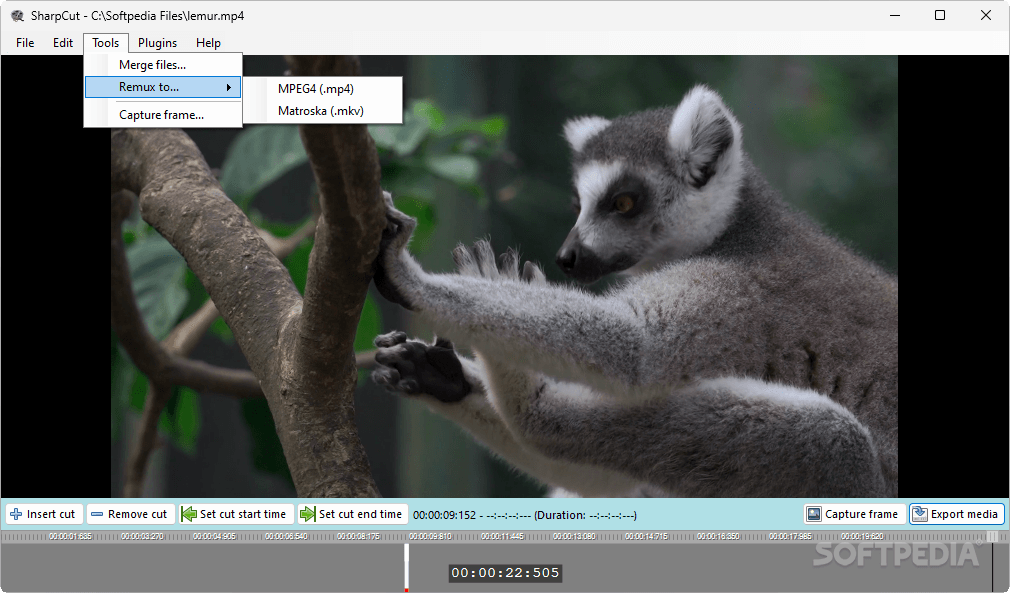
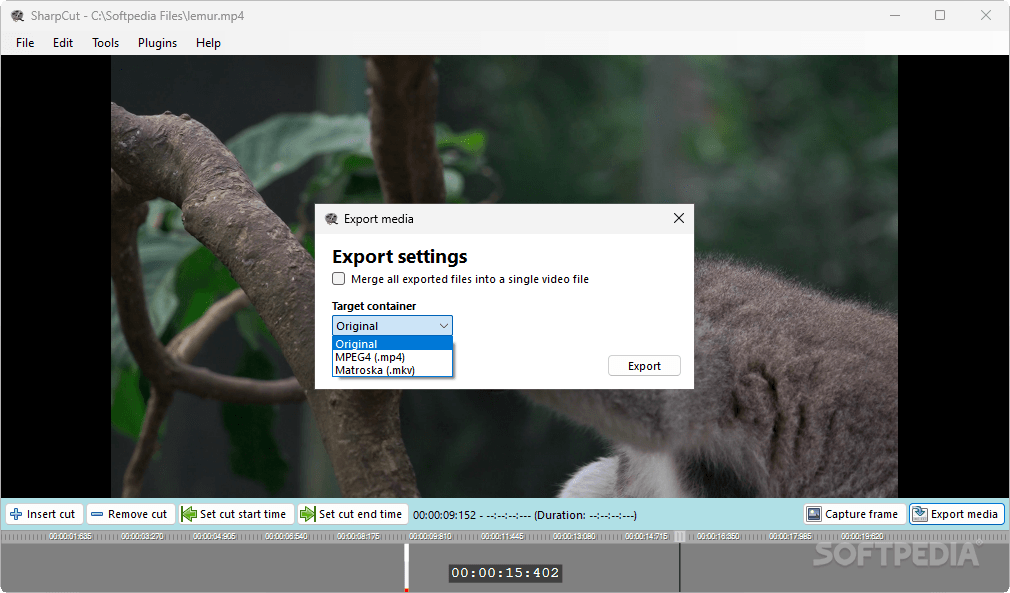
SharpCut is a free, open-source video editing program that focuses on scene cutting without re-encoding (lossless). Developed using C# and relying on the FFmpeg library for backend processing, it allows users to select specific scenes within a video and export them as separate files in formats like MP4 or MKV, without affecting the original video quality. The program is not aimed at professional editors but serves as an ideal tool for regular users who want to accomplish simple editing tasks quickly and efficiently.
User Experience with the Program
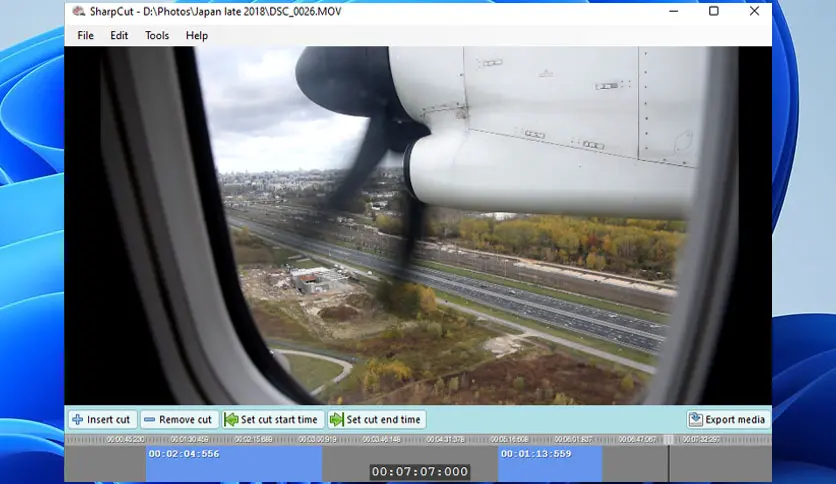
When you run SharpCut, you'll notice everything is designed to be straightforward:
- Loading the video: Done via drag-and-drop or manual browsing.
- Scene selection: Using the slider or frame navigation buttons.
- Setting cut points: A single click to mark the start, another for the end.
- Exporting scenes: Each scene is saved as a separate file in MP4 or MKV format.
- The program doesn't have advanced editing tools like effects, text, or audio, but excels at its core function: quick and precise cutting.
Use Cases
- Removing ads from recorded TV shows.
- Extracting specific scenes from movies or lectures.
- Preparing short clips for social media posting.
- Analyzing long video footage in fields like security or education.
- Breaking down long videos into smaller parts for archiving or presentation.
Main Features in the Version
Cutting Without Re-Encoding
The standout feature of SharpCut is its ability to cut video without losing quality. It extracts the desired scenes directly from the original file without re-compression or conversion, preserving quality and saving time.
Simple Graphical Interface
The user interface is designed to be intuitive and easy to use, even for beginners. You can drag and drop the video into the program or select it manually, then navigate between frames to set start and end points for each scene.
Support for Multiple Formats
The program supports a wide range of video formats, including:
- MP4
- MKV
- TS
- AVI
- MOV
- MPEG
- WEBM
- OGV
Export Scenes as Separate Files
You can select multiple scenes within the same video, and the program will export each scene as an independent file, making it easier to organize or share content.
New Batch Merge Addition
This version has improved the Batch Merge component, allowing you to combine multiple video files into either multiple files or a single file at once. This feature is useful when dealing with Blu-ray files or large video archives.
Save and Resume Projects
You can save your current project and resume it later, or even open it in other programs like LosslessCut, providing flexibility in your workflow.
Comparison with Similar Tools
SharpCut vs LosslessCut
- SharpCut features a simpler interface and faster performance, especially with large files.
- LosslessCut offers additional features like audio support, subtitles, and clip merging, but is more complex.
SharpCut vs Shotcut
- Shotcut is a full-featured multi-track video editor but is heavier and requires more resources.
- SharpCut is lighter and faster but lacks advanced editing tools.
How to Download via Direct Links
Despite its simplicity and cutting power, SharpCut does have some limitations:
- The program only works on 64-bit Windows systems and is not available for 32-bit systems, macOS, or Linux.
- It lacks advanced editing tools, and you cannot add text, effects, or modify audio within the program; it's solely for cutting.
- It doesn't support live filter previews as it has no filters, so any visual adjustments must be done in another program.
- It doesn't support audio editing; you can't mute, adjust, or sync audio with the video, and the original audio is retained as is.
- It doesn't support subtitles or multiple tracks, so if the video contains subtitles or multiple audio tracks, you won't be able to edit or select them within SharpCut.
Practical Tips for Maximizing SharpCut
If you're using SharpCut for personal or professional purposes, here are some tips to make your experience more effective:
- Use the project save feature if you're dealing with a long video or multiple scenes; you can return later and continue working without losing changes.
- Take advantage of the quick preview mode to accurately pinpoint scenes at the frame level, especially if you're cutting time-sensitive scenes like the start of an ad or the end of a scene.
- Try using Batch Merge if you have a large number of short videos and want to merge them quickly and automatically without additional encoding.
- Use the program as the first step in your workflow, for example: cutting with SharpCut, then artistic editing in programs like Shotcut or Premiere if needed.
SharpCut is an ideal tool for anyone looking for a fast, free, and efficient way to cut videos without losing quality. With its simple interface, support for multiple formats, and smooth performance even with large files,
it's an excellent choice for regular users and editors who need a lightweight tool to assist in their workflow. Despite its lack of advanced editing tools, SharpCut excels in its primary function with high efficiency and deserves a place in your daily toolkit if you regularly work with videos.

 File Name:
 Downloads:
 Version:
 Full Version:
 Created By:
 License Type:
 Release Date:
 What's New:
 Languages:
 Tags:
Tags: