

How to fix the issue of WhatsApp not opening on your computer: WhatsApp is an exceptional application in every sense of the word, and the availability of a web version adds a fantastic feature to this app. You can easily use the application on your computer while performing other tasks on your device. However, some users face the problem of WhatsApp Web not opening.
If you are one of those who have experienced this issue at least once, I recommend you follow this article, which will guide you to the best possible ways to resolve the issue of WhatsApp not opening on your computer. Let's start by understanding the cause of the problem, as this helps in resolving it more effectively. Therefore, let’s take a look at the reasons behind this issue before we begin troubleshooting.
Why WhatsApp Web Won't Open
The following reasons may be potential causes for WhatsApp Web not loading on your computer:
- You do not have a reliable or stable internet connection.
- WhatsApp Web is not compatible with your browser.
- Your browser has unnecessary cache buildup.
- There is an issue with the WhatsApp server.
- WhatsApp is not working on your mobile device.
- Your computer's network settings do not allow WhatsApp to load.
How to Fix WhatsApp Not Opening on Computer
You can apply the following tried and tested solutions if you are unable to open WhatsApp Web on your computer.
Fix 1: Check Your Computer's Network Connection
Like many other applications, WhatsApp Web can only function with an active, reliable, and stable internet connection. Therefore, you should check your internet connection on your computer before trying other solutions. You can try opening other websites to see if your internet connection is active.
If you are unable to connect to the internet, you can take the following actions to resolve the issue:
- Disconnect your computer from the network and reconnect it.
- Forget your WiFi connection and reconnect to it.
- Turn off the modem and turn it back on to reconnect to the internet.
Fix 2: Ensure WhatsApp is Working on Your Phone
WhatsApp Web only works if WhatsApp is functioning on your mobile device. Therefore, you need to ensure that the WhatsApp application on your mobile phone is working properly.
To check the WhatsApp application on your mobile, you can try messaging a friend to see if the messages are delivered. You can also check if the latest status updates are viewable. If the WhatsApp application on your mobile is not working, here are some tips to address this issue:
- Toggle airplane mode on and off.
- Turn off and then turn on your WiFi connection.
- Forget your WiFi network and reconnect to it.
- Go to Settings > General > Reset to reset your network settings.
Fix 3: Check Browser Compatibility
Only modern browsers like Opera, Firefox, and Google Chrome and Microsoft Edge can run WhatsApp. Therefore, you should check whether your browser supports WhatsApp or not.
Fix 4: Check WhatsApp Server Status
An unavailable or down server could be another reason why WhatsApp Web is not opening on your computer. Therefore, you can follow these instructions to check the server status to resolve the issue:
- To start checking the server, you need to go to downdetector.com.
- You can now use the search function to find WhatsApp.
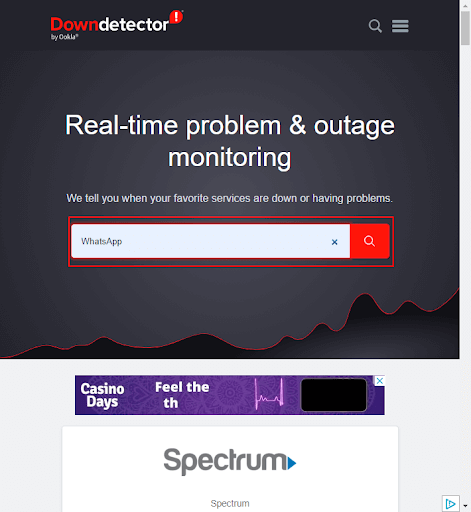
Search function to find WhatsApp
- Finally, check the WhatsApp and WhatsApp Business servers to see if the server is available. If the server is experiencing issues, wait a while before trying to use WhatsApp.
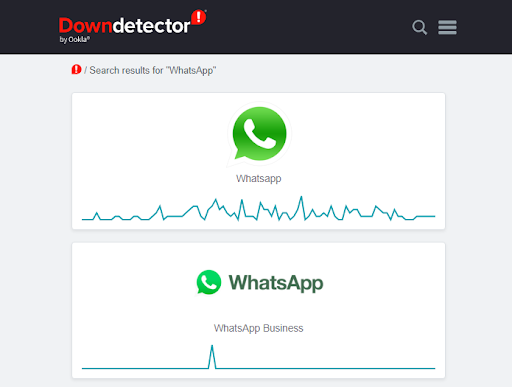
However, if there are no server issues, you can move on to the following solutions, checking WhatsApp and WhatsApp Business servers.
Fix 5: Clear Browser Cache and Cookies
Cache and cookies play a crucial role in helping websites load faster. However, unnecessary cache and cookie buildup can prevent WhatsApp Web from opening and cause many other issues. Therefore, you can follow this detailed guide to clear the cache and cookies on your browser.
Fix 6: Allow WhatsApp Through Your Network Settings
Your network settings may be blocking WhatsApp, which is another reason you might not be able to open WhatsApp Web. Therefore, you can follow the steps outlined below to allow WhatsApp to bypass your computer's network settings to load WhatsApp Web.
First, you need to contact your network administrator.
Second, ask the network administrator to whitelist the domains below to allow access to WhatsApp Web on your computer.
*.web.whatsapp.com
*.whatsapp.net
web.whatsapp.com
Fix 7: Unlink Other Devices
You can link up to five browsers or devices to your WhatsApp account. However, conflicts between devices can be a reason why WhatsApp Web is not loading on your computer. Therefore, you can follow the instructions below to unlink other devices or browsers from WhatsApp.
- First, open the WhatsApp application on your mobile device.
- Second, tap the three-dot menu in the upper right corner of the WhatsApp application screen.
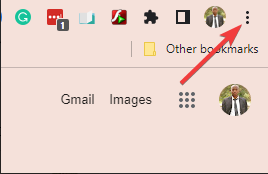
Click on the three vertical dots.
- Tap on Linked Devices to view all devices you have connected to your WhatsApp account.
- You can now click on each linked device and choose to log out from the available options.
- Finally, you can try logging into WhatsApp Web on your browser.
Fix 8: Update Your Browser
Browser updates fix common security and compatibility issues, such as WhatsApp Web not opening. Therefore, here are the instructions to update Google Chrome and Mozilla Firefox.
Update Google Chrome
- First, open Google Chrome on your computer.
- Second, click on the three vertical dots in the upper right corner of your browser.
Click on the three vertical dots.
- Select Help from the available menu on your screen.
- Choose the option to About Google Chrome.
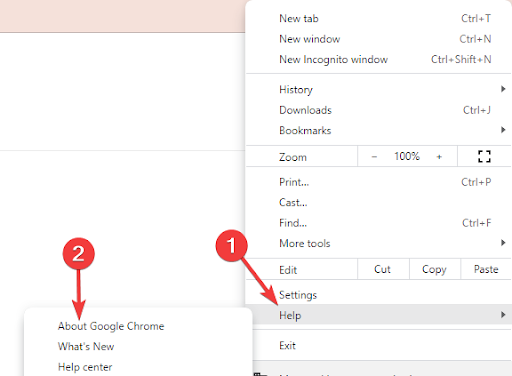
About Google Chrome
- Wait for your browser to automatically check for available updates.
- Finally, restart the browser after the update process is complete.
Update Mozilla Firefox
- First, open Mozilla Firefox on your computer.
- Second, select the hamburger icon (three horizontal lines) from the upper right corner of your browser.
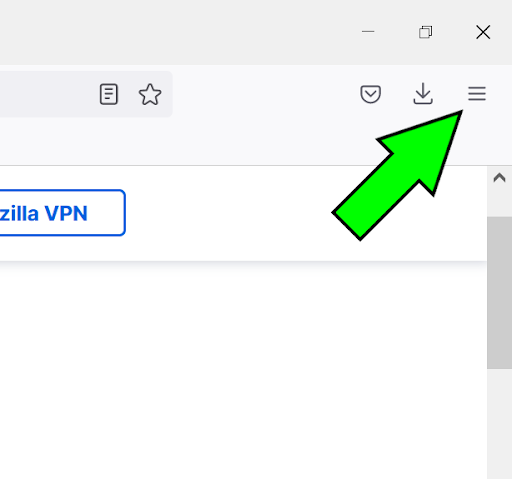
Select the hamburger icon in your browser.
- You can now choose "Help" from the available menu on your screen.
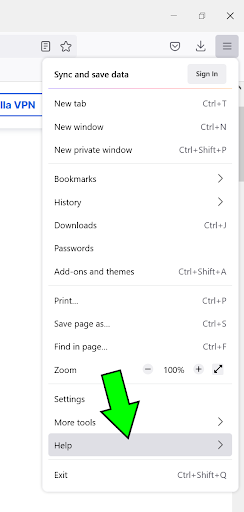
Select Help from the available menu.
- Select the option to About Firefox.
- You will now get a pop-up window on your screen where you can choose the option to install the latest version of Firefox.
- Finally, you can reinstall Firefox after updating the browser.
Conclusion
This article explains how to fix issues when WhatsApp Web cannot be opened on your computer. We hope this guide has helped resolve your problem.


