


Dropbox is an excellent free cloud storage platform, but it does have its limits. Eventually, you'll need to free up space in your Dropbox account to store new files. If that's the case, you might want to learn how to delete files from Dropbox to gain more space.
If you're on a free Dropbox plan, your storage space will be limited. For this reason, it's wise to periodically check for any files you no longer need and delete them. Not only will deleting unnecessary files free up space, but it will also help keep your Dropbox folders more organized.
How long does Dropbox keep deleted files?
Like other cloud storage platforms, Dropbox doesn't delete files immediately. If a file is deleted, users with Basic, Plus, or Family accounts have up to 30 days to recover their files from the trash. Meanwhile, premium and business account holders have 180 days. Once this period ends, it will no longer be possible to recover the files, regardless of your account type.
Unlike most cloud storage platforms, files in the Dropbox trash do not take up space. So, if you want to temporarily increase space in your Dropbox account, move files to the trash and then add new files to your account.
How to remove files from Dropbox?
Learn how to delete files from Dropbox on different systems.
Deleting files from Dropbox on iPhone
To delete files from Dropbox on your iPhone:
1. Open the Dropbox app.
2. Navigate to the files you want to delete.
3. Press and hold the file to select it, checking other files and marking them if necessary.
4. Tap the trash icon to delete.
5. Confirm the deletion.
The files will be moved to "deleted files" for 30 days before permanent removal.
Deleting files from Dropbox on Mac
1. Open the Dropbox app on your Mac.
2. Select the files.
3. Right-click and choose "Move to Trash."
4. Confirm the deletion.
5. Empty the trash to permanently delete the files.
Deleted files remain in Dropbox for 30 days.
Deleting files from Dropbox on Android
To delete files from Dropbox on Android:
1. Open the Dropbox app on your Android device.
2. Navigate to and select the files.
3. Tap the three-dot menu and choose "Delete."
4. Confirm the deletion.
Deleting files from Dropbox on the website
Follow these steps to delete files from Dropbox on the website:
1. Visit the official Dropbox website to log into your account.
2. Once logged in, select the files and folders you want to delete.
3. Right-click and choose "Delete," or click "Delete" in the top menu to proceed with the deletion.
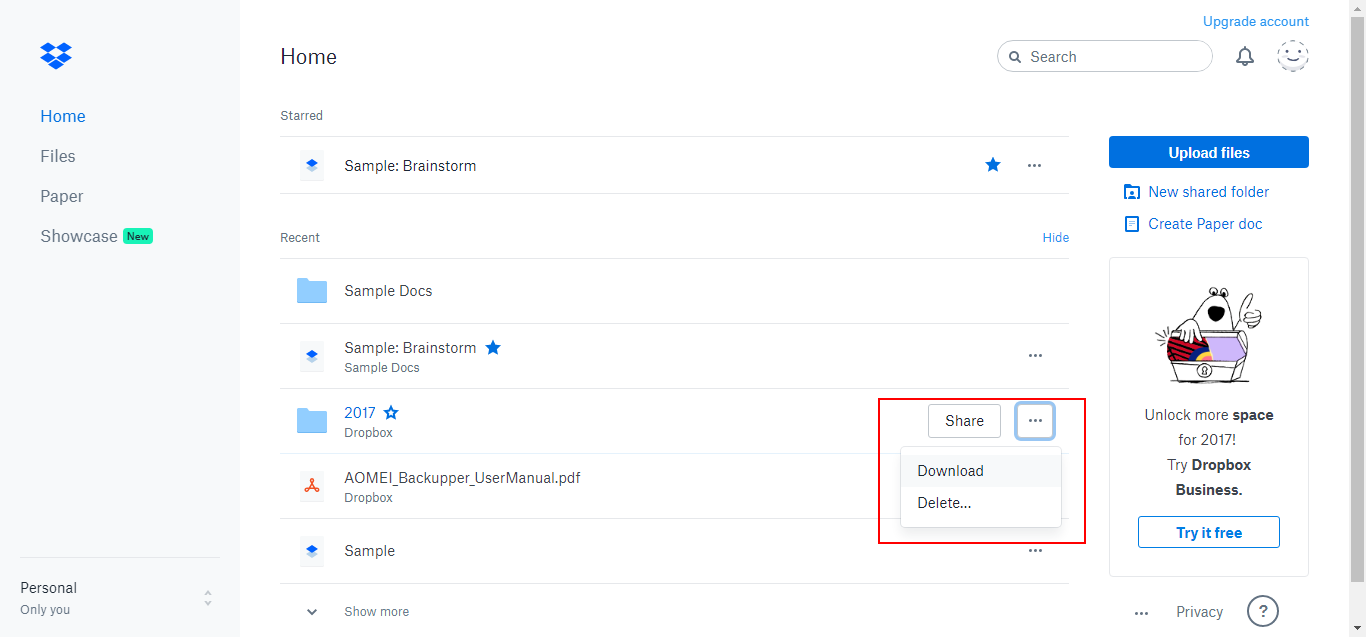
4. Confirm the deletion by clicking "Delete."
Tips
- Use the Shift key to select a range of files/folders between two items.
- Use the Ctrl key for selective deletion of files/folders.
- To delete all Dropbox files, use Ctrl + A to select all, then delete them.
- Deleted files are removed from all devices and from the Windows trash, but they remain in the Dropbox trash for 30 days.
- If you delete files from the Dropbox website, they will also be deleted from your computer and other devices connected to the same Dropbox account.
How can I delete files from Dropbox while keeping them on my computer?
If you want to delete files from Dropbox while keeping them on your computer, here are the steps you can take:
1. Open your Dropbox folder on your computer, then cut the Dropbox file or folder.
2. Paste it in another location on your computer.
3. Dropbox will show you a window like this: Do you want to remove *** from your Dropbox account and all devices? If you move this file to ***, it will not be available in Dropbox or on any device, click "Leave Dropbox."
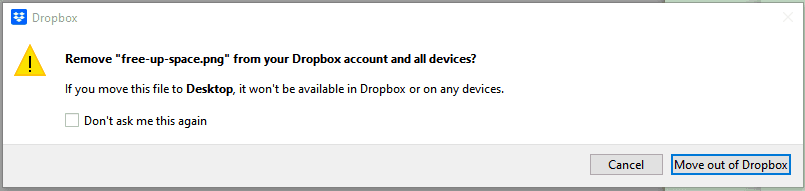
Leave Dropbox
Now, you can access these files or folders on your computer, but not in Dropbox.
Can I recover deleted files from Dropbox?
Yes, you can recover deleted files from the Dropbox trash within 30 days after deletion. If you delete them permanently, you won't be able to recover them.
The following steps show you how to recover deleted files from Dropbox:
1. Go to the Dropbox website and click on deleted files from the left panel.
2. Select the files or folders you want to recover, then press the restore button.
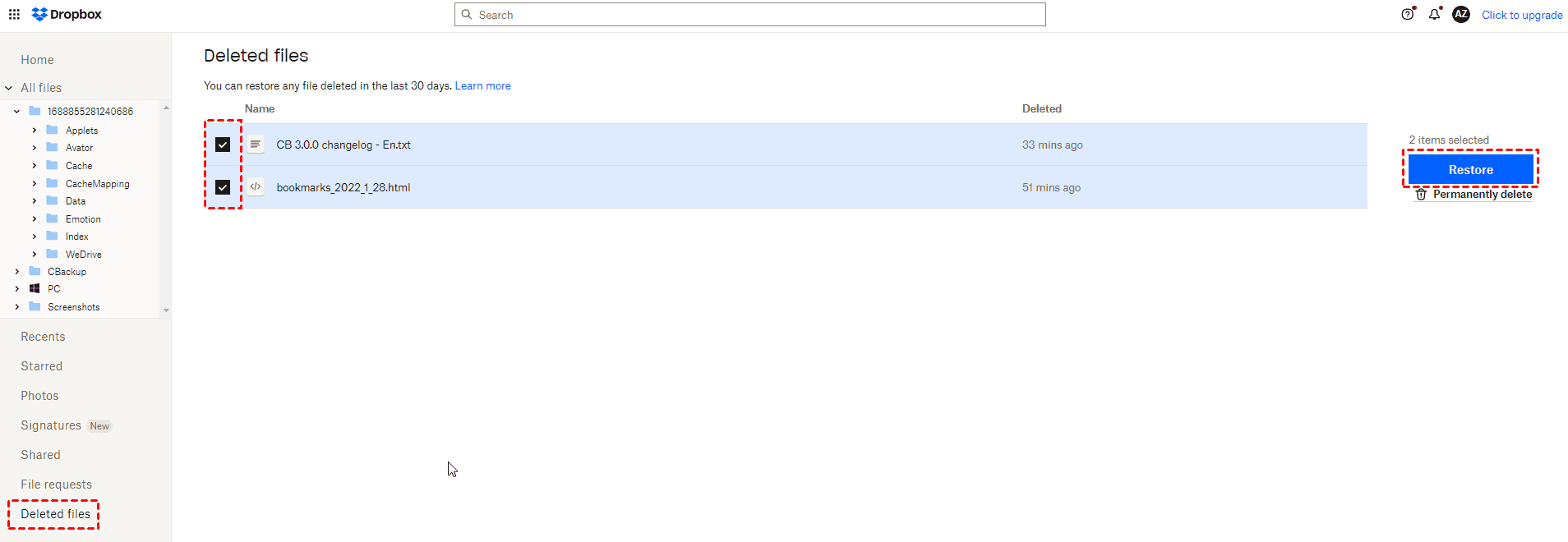
Recover deleted files in Dropbox
Your deleted files will now appear in your files section as usual.
Pros of deleting files from a Dropbox account
Deleting files from your Dropbox account will:
- Free up space in your account immediately for more important files.
- Help keep your files and folders organized.
- Eliminate old or unnecessary files that are no longer needed.
- Save you time instead of having to sift through many files and folders.
- Make better use of space instead of having to upgrade to a more expensive plan for additional storage.
- Allow you to recover deleted files within a timeframe depending on your Dropbox plan.
Cons of deleting files from a Dropbox account
Deleting files from your Dropbox account means:
- Deleted files cannot be recovered after the specified recovery period ends.
- If you choose to delete files permanently, those files cannot be recovered.
- You may not be able to delete as many files as you want at once since Dropbox limits the number of files you can delete at a time.
Frequently Asked Questions
Q: Is there a way to recover deleted files in Dropbox?
A: Unfortunately, no; once files disappear from the deleted files folder in Dropbox, there will be no way to get a copy back. Make sure to back up everything before deleting your files.
Q: Do deleted Dropbox files consume storage space?
A: No, once they are in the deleted files folder, they will not take up space in your account. Therefore, we suggest not deleting your files permanently right away, as you may need them later.
Q: Will shared Dropbox files be deleted from other accounts if I delete them as the original owner?
A: No. The other person will have their own copy of the file even if you delete it. If you want to recover any permanently deleted file you shared with others, ask them for a copy.
Conclusion
In this article, we discussed how to delete files from Dropbox with detailed steps on different devices, and we learned some tips that allow you to remove files from Dropbox without deleting them. Before deleting, please ensure that you back up your important files elsewhere. The free cloud backup service CBackup can easily and quickly meet your needs.
Sometimes, issues with Dropbox can be caused by the Dropbox cache, so it's advisable to clear the Dropbox cache from time to time.
You might like this


