

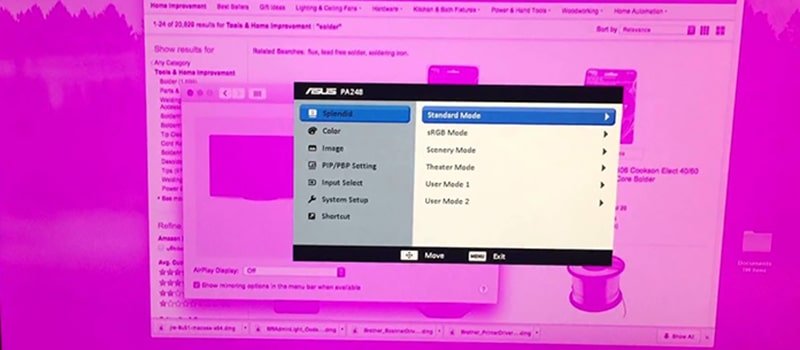
Fixing the issue of your computer screen color changing: Colors are always a delight to look at, but that changes when they appear distorted on your computer screen. Many users have reported color changes or distortions on their laptops and desktops.
We understand how frustrating this issue can be, especially if you are a business owner or a designer. Therefore, we have made every effort to find reliable solutions to this problem. However, let's first shed some light on the reasons behind this issue to help you better understand the fixes.
Causes of Screen Color Change
The following factors may be responsible for the color change on your computer screen:
- Incompatible or outdated display drivers.
- Hardware issues.
- Cable connection problems.
- Device overheating.
Now that we’ve identified the causes, let’s discuss the solutions.
Fixing the Computer Screen Color Change Issue
You can follow these methods to resolve the issue of your computer screen color changing.
Fix 1: Restart Your Device
Sometimes, simple solutions like restarting your computer can work wonders in fixing the screen color change. So, you can restart your computer to see if the issue is resolved before trying other fixes. However, don’t worry if this solution doesn’t work; there are more fixes available.
Fix 2: Check Your Screen for Overheating
Your screen also needs a break sometimes. Running the screen for extended periods can lead to overheating, which in turn causes issues like screen color changes. Therefore, you should check for symptoms of excessive overheating, such as random shutdowns, pixel lines appearing, the screen feeling hot to the touch, and flickering.
If you notice any signs of overheating, turn off the screen and wait at least 15 seconds before turning it back on. If the problem persists, leave the screen unplugged for 30 minutes to cool down. Additionally, ensure there is adequate ventilation around the screen and that cooling pads are available to dissipate the device's heat.
Fix 3: Demagnetize Your Screen
Demagnetizing can fix color changes on older CRT screens by reducing the magnetic field that may be causing the issue. You can follow the instructions below to demagnetize your screen.
First, turn off the screen by pressing the power button.
Second, wait a second and turn the screen back on.
If the above steps do not resolve the issue, look for a demagnetize button on the screen and press it; it usually looks like a horseshoe symbol.
Fix 4: Check Your Cable Connection
You may experience a color change on your computer screen if the display cable is damaged or not properly connected. Therefore, you should ensure that the cable is not physically damaged and that the connection is secure.
Older DVI or VGA cables can become loose, so make sure these cables are connected properly. For new HDMI cables, push them in all the way to ensure they cannot be disconnected.
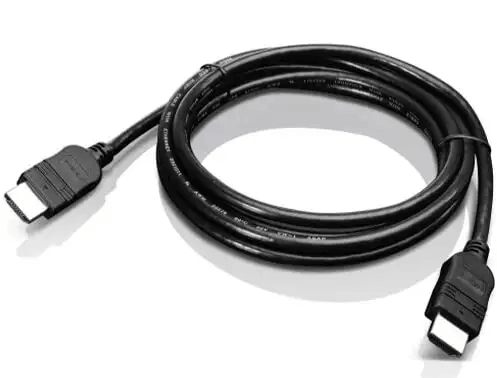
New HDMI Cables
Fix 5: Roll Back Your Display Driver
Did the color change on your computer screen occur after a Windows update? If so, the incompatibility between the operating system and the display driver might be the culprit. You can resolve this issue by rolling back the driver to a previous version by following these steps.
First, search for Device Manager and open it on your computer.
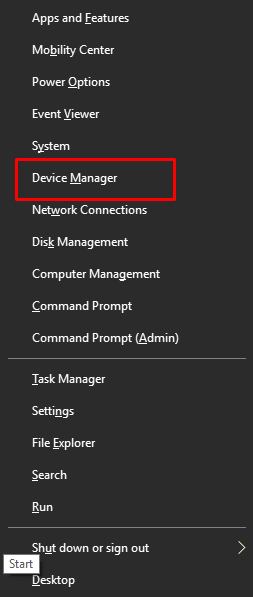
Select Device Manager
Once Device Manager is open, look for the Display Adapters category and double-click it to expand.
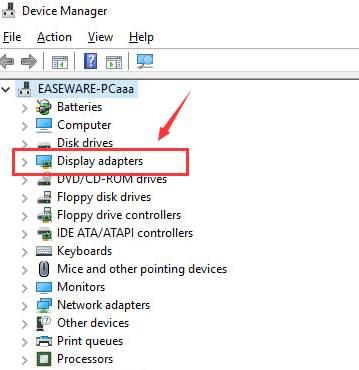
In Device Manager, select Display Adapters
Right-click on your display adapter and choose "Properties" from the available options.
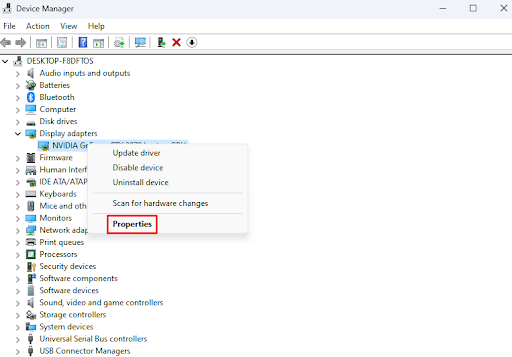
Right-click on your display adapter and select Properties
You will now be prompted to go to the Driver tab.
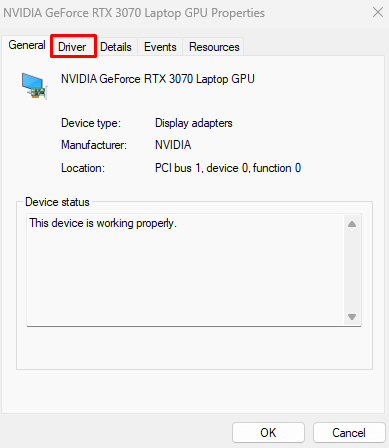
Go to the Driver tab
Select Roll Back Driver from the options that appear on the screen and click the OK button.
Choose any reason for rolling back if prompted. You can select any reason from the list that appears on the screen (it doesn’t matter).
Finally, restart your device to complete the rollback process.
Fix 6: Update Your Display Drivers (Recommended)
Corrupted drivers are among the leading causes of computer screen color changes and many other issues. A simple driver update can fix almost all the issues you may encounter with your computer. Therefore, updating drivers is one of the highly recommended solutions.
You can update drivers effortlessly with just a few clicks using Win Riser, which is one of the best driver update and optimization programs currently available. Win Riser offers many advantages, such as detecting malware and removing it, cleaning junk, removing invalid registry entries, backing up and restoring existing drivers if things go wrong in the future, and much more.
After installing the program, all you need to do is follow these steps to update your drivers and resolve all computer issues.
First, allow Win Riser to thoroughly scan your device for a few seconds.
Second, review the scan results to see what is affecting its performance.
Finally, click the "Fix Issues Now" button for an instant and automatic solution to all problems.

Update Win Riser for all outdated drivers, and click Fixes Now
Fix 7: Reinstall Your Screen Driver
Uninstalling and reinstalling the display driver can resolve this issue. You can follow the steps to uninstall and reinstall the driver.
To start, open Device Manager.
Select Device Manager
Next, double-click on the Display Adapters category in Device Manager to expand it.
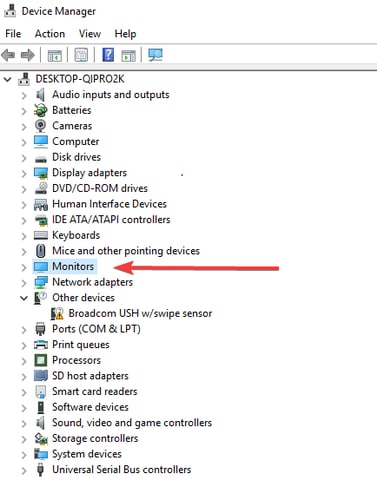
Click on the Display Adapters category in Device Manager
You can now right-click on the display driver and select Uninstall Device from the options that appear on the screen.
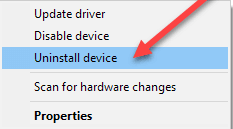
Click on the Uninstall Device option
Click the Uninstall button.
Finally, restart your computer after the


